.svg) Headless Content Management
Headless Content Management.svg) Real-time Data and Insights
Real-time Data and Insights.svg) Omnichannel Personalization
Omnichannel Personalization.svg) Agents & Automations
Agents & Automations.svg) Front-end Hosting
Front-end Hosting

JSON RTE Plugin for Contentstack App SDK
This document outlines how to build JSON Rich Text Editor (RTE) plugins using the Contentstack App SDK. These plugins extend the editor’s functionality by enabling custom formatting, embeds, and interactions within the JSON RTE.
Prerequisites
- Basic understanding of JSON RTE
- JSON structure and terminology associated with it
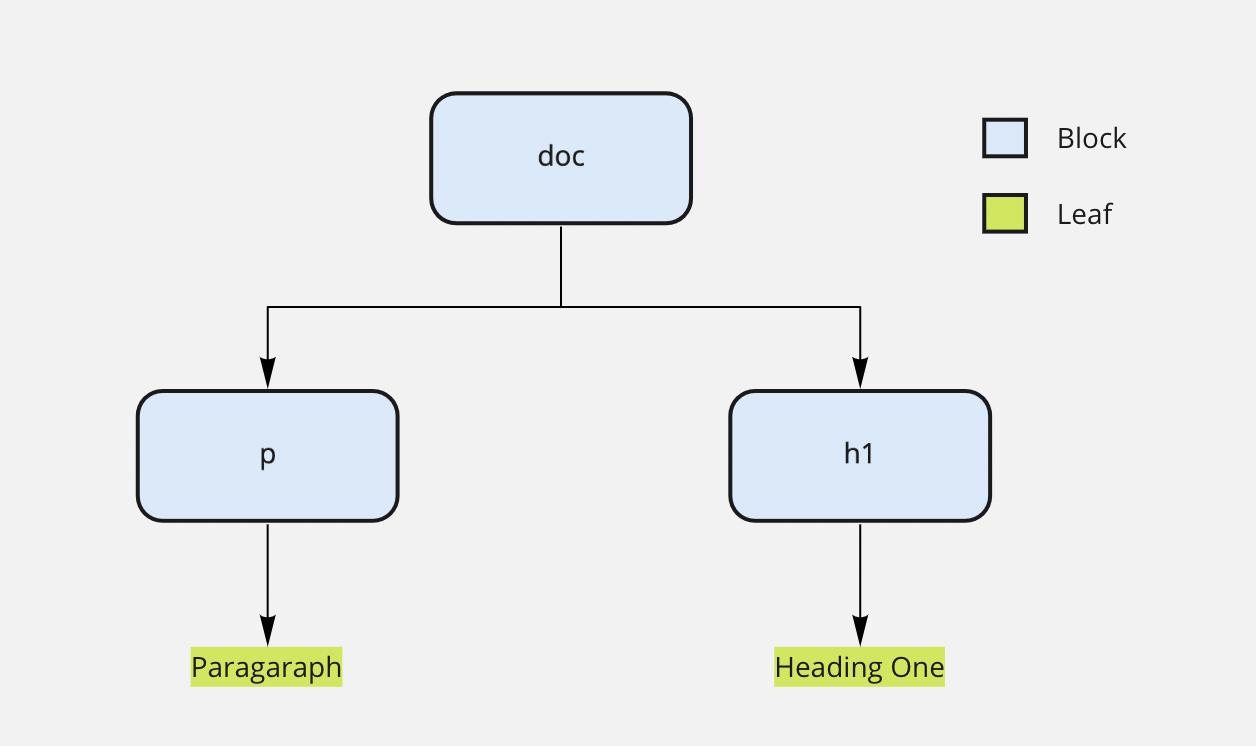
Structure of JSON RTE
{
  "type": "doc",
  "children": [
    {
      "type": "p",
      "children": [
        {
          "text": "Paragraph"
        }
      ]
    },
    {
      "type": "h1",
      "children": [
        {
          "text": "Heading One"
        }
      ]
    }
  ]
}
Node Types
In the JSON RTE, the JSON structure represents as a Node, which consists of two types:
- Block Node: Contains a children array with nested nodes.
- Leaf Node: Contains only a text property and optional formatting marks like bold, italic, etc.
The root of the document is a special Block Node of type doc. All editor content is nested within this root node.
Marks
Marks define text formatting in leaf nodes. Common marks include bold, italic, and underline.
Example:
{
  "text": "I am Bold",
  "bold": true
}
In the above example, bold is the mark applied to the string "I am Bold".
Render Type
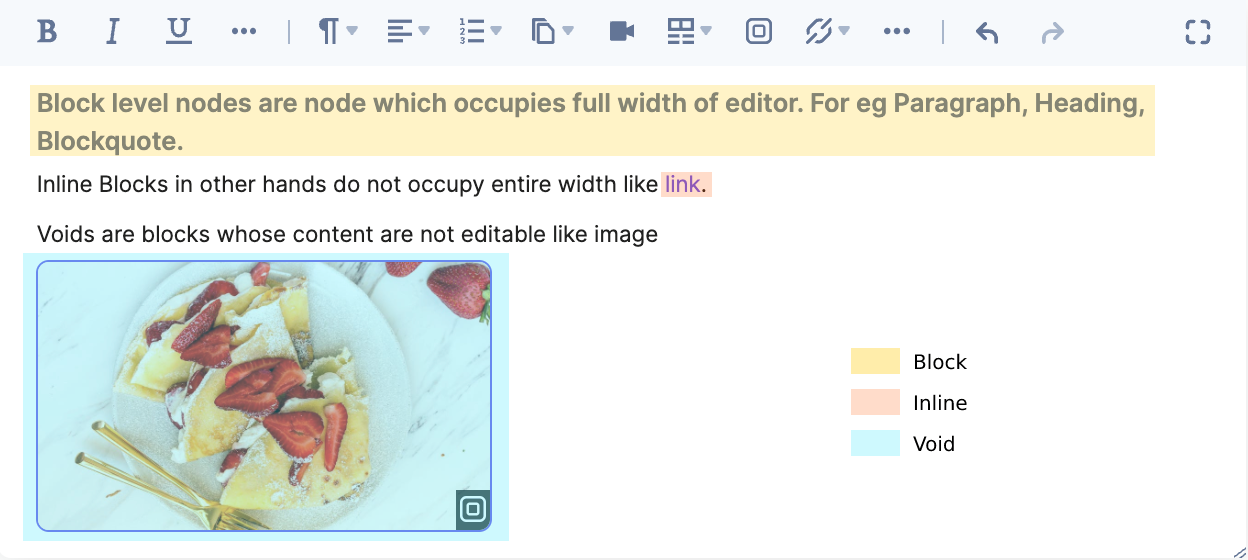
A Block node can be rendered in three ways:
- Block: Rendered as a standalone block element (e.g., paragraph, heading).
- Inline: Rendered within other text flows (e.g., links).
- Void: Represents self-contained, non-editable elements (e.g., images, embeds).
Path
A Path is an array of indexes that locates a node’s exact position within the document tree.
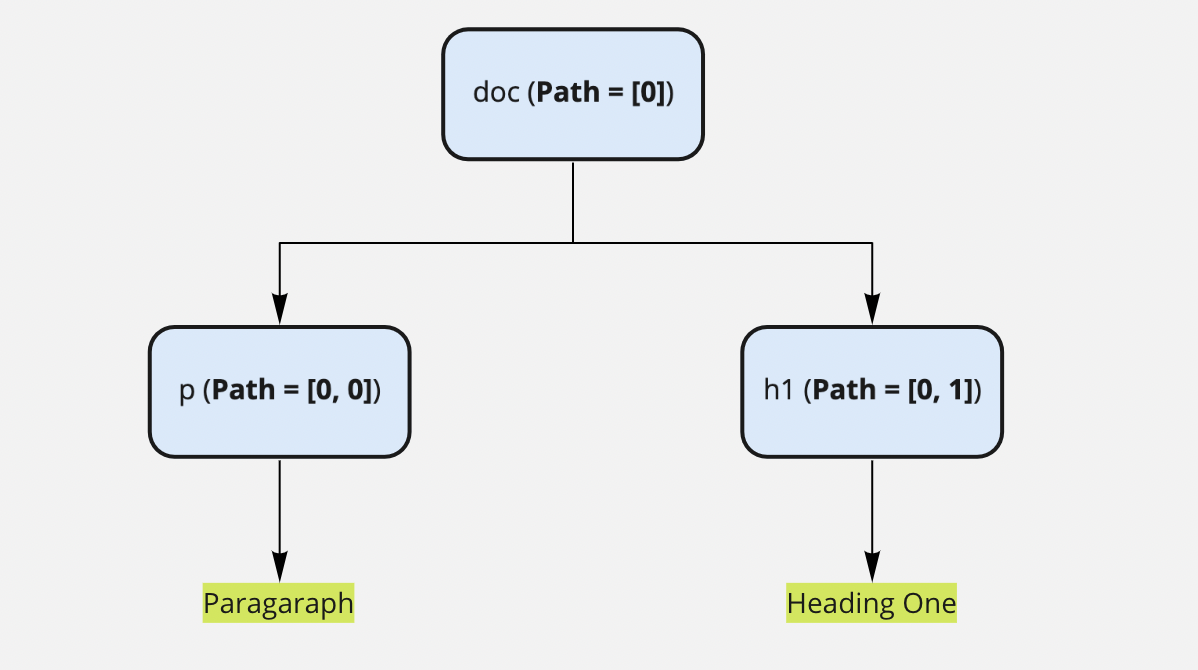
In the JSON RTE, a path is represented as: Number[]
Examples:
- The doc node has a path of [0].
- The first paragraph inside the doc node has a path of [0, 0].
Point
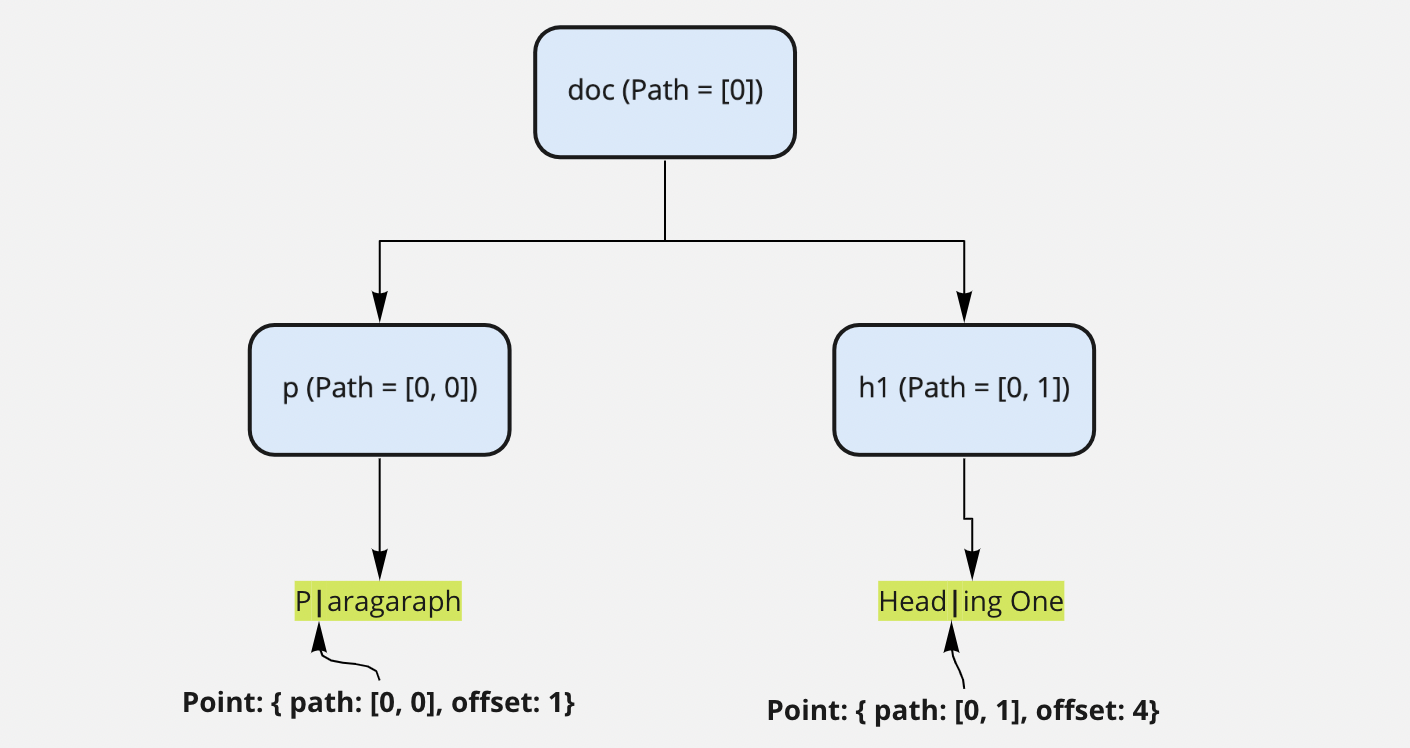
A Point represents a specific location within a leaf node’s text.
It consists of:
- path: Identifies the node’s position in the document tree.
- offset: Indicates the character index within the node’s text string.
Structure:
{
  path: Path,
  offset: Number
}
Range
A Range defines a selection within a JSON document using two points:
- anchor: The starting point of the selection.
- focus: The ending point of the selection.
Structure:
{
  anchor: Point,
  focus: Point
}
Location
A Location identifies a specific position within the JSON RTE document. It can be one of the following:
- Path: Specifies a node’s position in the document tree.
- Point: Specifies a character offset within a leaf node.
- Range: Specifies a selection spanning from an anchor to a focus point.
Use a Location object as input when targeting or modifying content in the editor.
Inclusion in your project
To build a JSON RTE plugin:
- Install the SDK
Add the @contentstack/app-sdk package to your React project:
npm install @contentstack/app-sdk
- Clone the Boilerplate
Use the JSON RTE plugin boilerplate from GitHub as a starting point. It includes the required project structure and configuration.
Classes
RTEPlugin(plugin_id, callback)
The RTEPlugin method allows you to create a JSON RTE plugin instance.
Kind: Instance property of the JSON RTE plugin
Returns: Plugin Object
| Parameter | Type | Description |
| plugin_id | string | Unique ID for the plugin. |
| configCallback | (rte: IRteParam) => IConfig | This function receives an RTE instance as an argument, and it expects you to return a config object that includes details like title, icon, render, etc. |
configCallback: (rte: IRteParam) => IConfig
The IConfig object is a user-defined object that contains metadata that controls how the plugin behaves and appears in the editor.
The following table contains the possible properties of IConfig:
| Key | Type | Description |
| title | string | Toolbar label for the plugin. |
| icon | ReactNode | Icon component used for the plugin button. |
| display | ('toolbar' | 'hoveringToolbar')[] | Location of the plugin |
| elementType | ('inline' | 'void' | 'block')[] | Render type |
| render | ReactNode | Component to be rendered within the editor when corresponding plugin_uid appears in json. |
RTE Instance (rte)
The rte object provides access to essential functions and properties for interacting with the JSON RTE.
The following is a list of properties and methods of the JSON RTE instance.
Properties:
rte.ref
The rte.ref property returns the HTML reference of the JSON RTE.
rte.fieldConfig
The rte.fieldConfig() property provides metadata about the JSON RTE field, as defined in the content type builder page.
| Key | Type | Description |
| rich_text_type | 'basic' | 'advance' | 'custom' | Type of JSON RTE selected. |
| reference_to | string[] | UIDs of content types referenced in the JSON RTE. |
| options | string[] | Array of selected toolbar buttons (available if rich_text_type is ‘custom’). |
| title | string | Title of the RTE field. |
| uid | string | Unique ID for the field |
rte.getConfig: () => ObjectThe rte.getConfig() method retrieves the configuration object defined during plugin creation or selection.
Use this method to access custom plugin parameters, such as API keys or UI settings specified in:
- The plugin’s initialization logic.
- Field-level configuration in the builder.
RTE Methods
Access RTE methods using the rte.methodName() syntax. These methods allow you to retrieve paths, modify nodes, apply text formatting, and manage content within the editor.
| Method | Description | Type |
| getPath | Retrieves the path of the node | (node: Node) => Path |
| setAttrs | Sets attributes for the node (e.g., href for links, src for images). | (attrs: Object, options: Option) => void Option: NodeOptions |
| isNodeOfType | Checks if the node at the current selection matches the specified type. | (type: string) => boolean |
| getNode | Retrieves the node at the specified location | (location: Location) => Node |
| getNodes | Retrieves a generator of nodes that include the specified location in the options. By default, it returns nodes at the current selection. | (options: Option) => Node[] Option: NodeOptions |
| string | String value of JSON in the given path | (location: Location) => string |
| addMark | Adds formatting (e.g., bold, italic) to selected text. | (key: string, val: any) => void |
| removeMark | Removes a formatting mark from the selected text. | (key: string) => void |
| hasMark | Checks if the selected text has a mark. | (key: string) => boolean |
| insertText | Inserts text at a specified location | (text: string, location: Location) => void |
| getText | Retrieves text from the specified node location. | () => string |
| deleteText | Deletes text from the selected range. | () => void |
| updateNode | Updates nodes based on specified options. | (type: string, attrs: Object, options: Option) => void Option: NodeOptions |
| unsetNode | Converts a node to a normal paragraph based on specified options | (options: Option) => void Option: NodeOptions |
| insertNode | Inserts a node at a specified location. Optional select: true selects the node after insertion. | (node: Node, options?: Option) => void Option: NodeOptions & { select?: boolean } |
| deleteNode | Removes a node from a specified location. | (options: Option) => void Option: { at?: Location, distance?: number, unit?: 'character' | 'word' | 'line' | 'block' } |
| wrapNode | Wraps a node using the provided options and the specified wrapper node. | (node: Node, options: Option) => void Option: NodeOptions |
| unWrapNode | Unwraps a node from its parent using the specified options. | (options: Option) => void Option: NodeOptions |
| mergeNodes | Merges nodes based on provided options. | (options: Option) => void Option: NodeOptions |
| getEmbeddedItems | Gets details of embedded items JSON RTE. | () => Object |
| getVariable | Retrieves a local variable. | (name: string) => any |
| setVariable | Sets a local variable. | (name: string, val: any) => void |
RTE Selection Methods (rte.selection)
The rte.selection object provides methods and hooks to manage and query the current selection within the editor.
| Function | Description | Type |
| get | Retrieves the current selection. | () => Range |
| set | Sets the selection to the specified location. | (location: Location) => void |
| isSelected | A React hook that returns true when the current node is selected. | () => boolean |
| isFocused | A React hook that returns true when the current node is focused. | () => boolean |
| getEnd | Retrieves the end location of the editor. | () => Path |
| before | Retrieves the location before the current selection. | (location: Location, options: Option) => Location Option: { distance?: number, unit?: 'offset' | 'character' | 'word' | 'line' | 'block' } |
| after | Retrieves the location after the current selection. | (location: Location, options: Option) => Location Option: { distance?: number, unit?: 'offset' | 'character' | 'word' | 'line' | 'block' } |
| isPointEqual | Checks if two Point objects are equal | (point1: Point, point2: Point) => boolean |
Node Options:
Functions that transform or modify content accept an options parameter. This parameter includes settings that control where and how the transformation is applied using the NodeOptions interface.
Available Options:
- at: Specifies the location in the editor where the transformation should occur. It defaults to the user's current selection.
- match: A custom function that filters which nodes should be affected, based on their content and path.
interface NodeOptions {
  at?: Location;
  match?: (node: Node, path: Location) => boolean;
}
Events function:
The Events functions are built-in methods available on the RTE instance and can be invoked using the syntax: rte.{event_name}().
| Function | Description | Arguments |
| isFocused | Returns true if the editor is currently focused. | () => boolean |
| focus | Sets focus to the editor. | () => boolean |
| blur | Removes focus from the editor. | () => boolean |
Plugin
Plugin instances expose methods to handle editor events and organize related plugins into dropdowns.
Editor Events
Plugin.on: (event_type, callback) => void| event_type | Description | Callback Arguments |
| keydown | Triggered when a key is pressed. | ({ event: KeyboardEvent, rte: RTE }) => void |
| exec | Triggered when a plugin button is clicked. | (rte: RTE) => void |
| deleteBackward | Triggered on backward deletion (e.g., backspace). | ({ rte: RTE, preventDefault: Function, ...args: [unit: "character" | "word" | "line" | "block"] }) => void |
| deleteForward | Triggered on forward deletion. | ({ rte: RTE, preventDefault: Function, ...args: [unit: "character" | "word" | "line" | "block"] }) => void |
| normalize | Cleans up invalid or unwanted node structures. | ({ rte: RTE, preventDefault: Function, ...args: [[node: Node, path: Path]] }) => void |
| insertText | Inserts text at the current selection. | ({ rte: RTE, preventDefault: Function, ...args: [string] }) => void |
| change | Fires when any change occurs in the editor. | ({ rte: RTE, preventDefault: Function }) => void |
| insertBreak | Triggered when the Enter key is pressed. | ({ rte: RTE, preventDefault: Function }) => void |
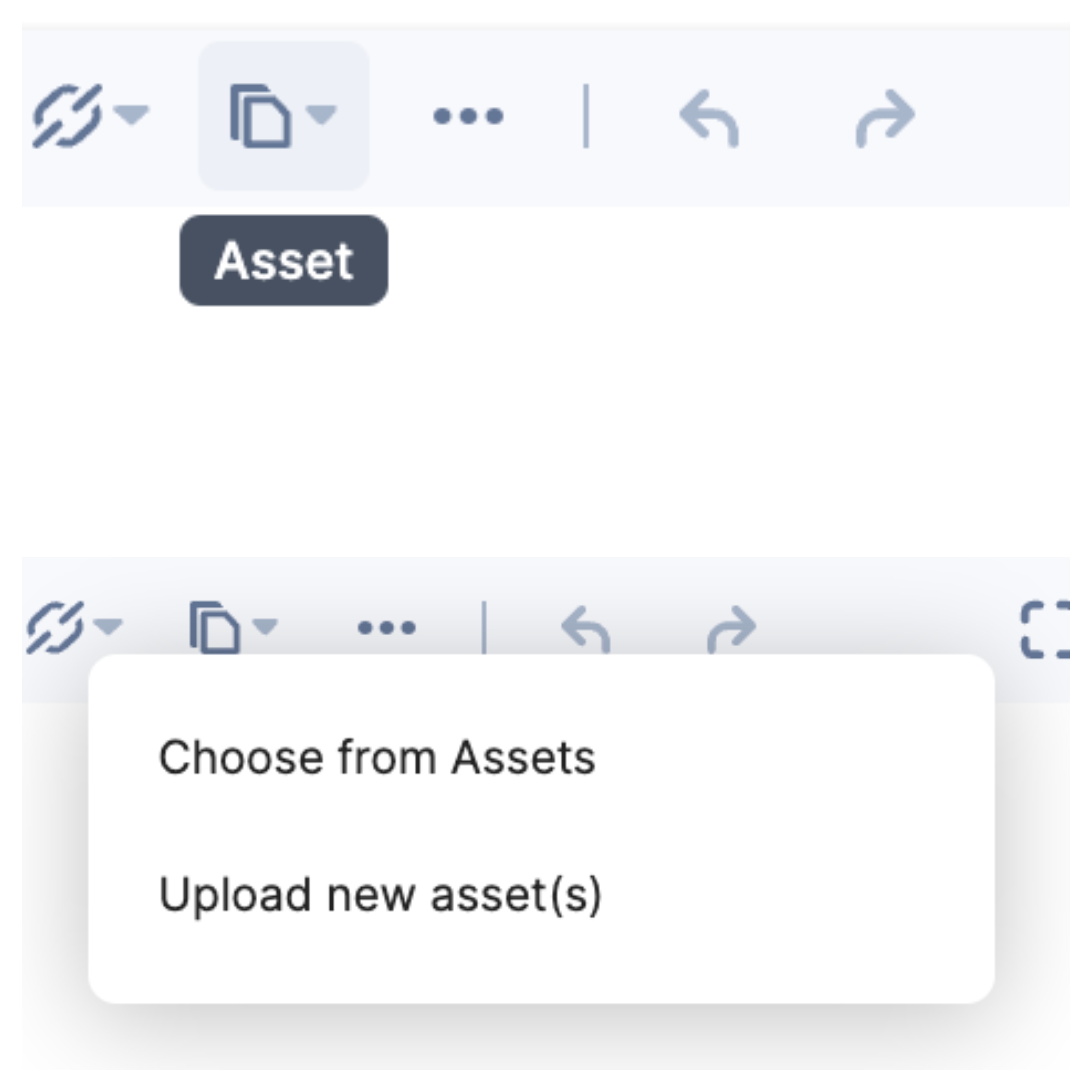
Dropdown plugin
The Plugin.addPlugins method groups related plugins into a single dropdown menu within the RTE toolbar.
Plugin.addPlugins: (...Plugin) => voidExample:
const ChooseAsset = RTE("choose-asset", () => {
  /** Choose Asset Code */
});
const UploadAsset = RTE("upload-asset", () => {
  /** Upload Asset Code */
});
const Asset = RTE("asset-picker", () => {
  /** Asset Picker Code */
});
Asset.addPlugins(ChooseAsset, UploadAsset);
This groups the ChooseAsset and UploadAsset plugins under a dropdown button represented by Asset.
More Articles on "Use Contentstack App SDK"
