

Forgot (Reset) Password
Forgetting your Contentstack password does not mean losing access. Use your registered email address to securely reset your password and restore access to your account.
Prerequisites
- Access to the email inbox registered with your Contentstack account
What You Will Learn
-
How to reset a forgotten password using your registered email.
-
How long the password reset link stays valid.
Reset your Password
To reset your password, perform the following steps:
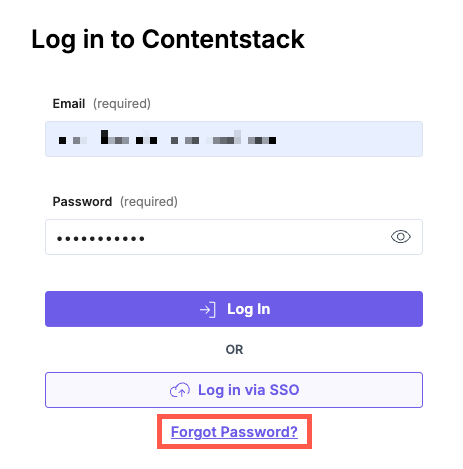
- Click the Forgot Password? link located below the login fields on the Contentstack login page.
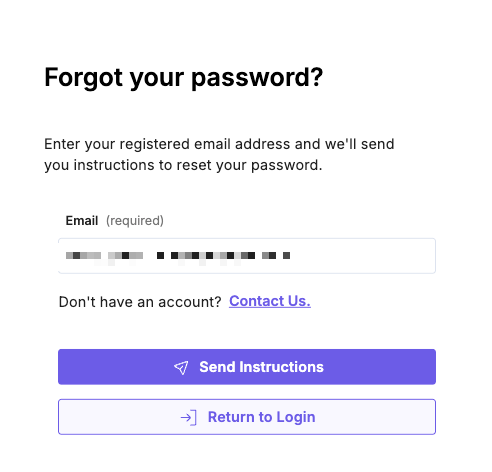
- Enter the email address associated with your Contentstack account. Select Send Instructions to initiate the reset process.
- Open the email from Contentstack and use the password reset link provided. The link directs you to the password reset form.
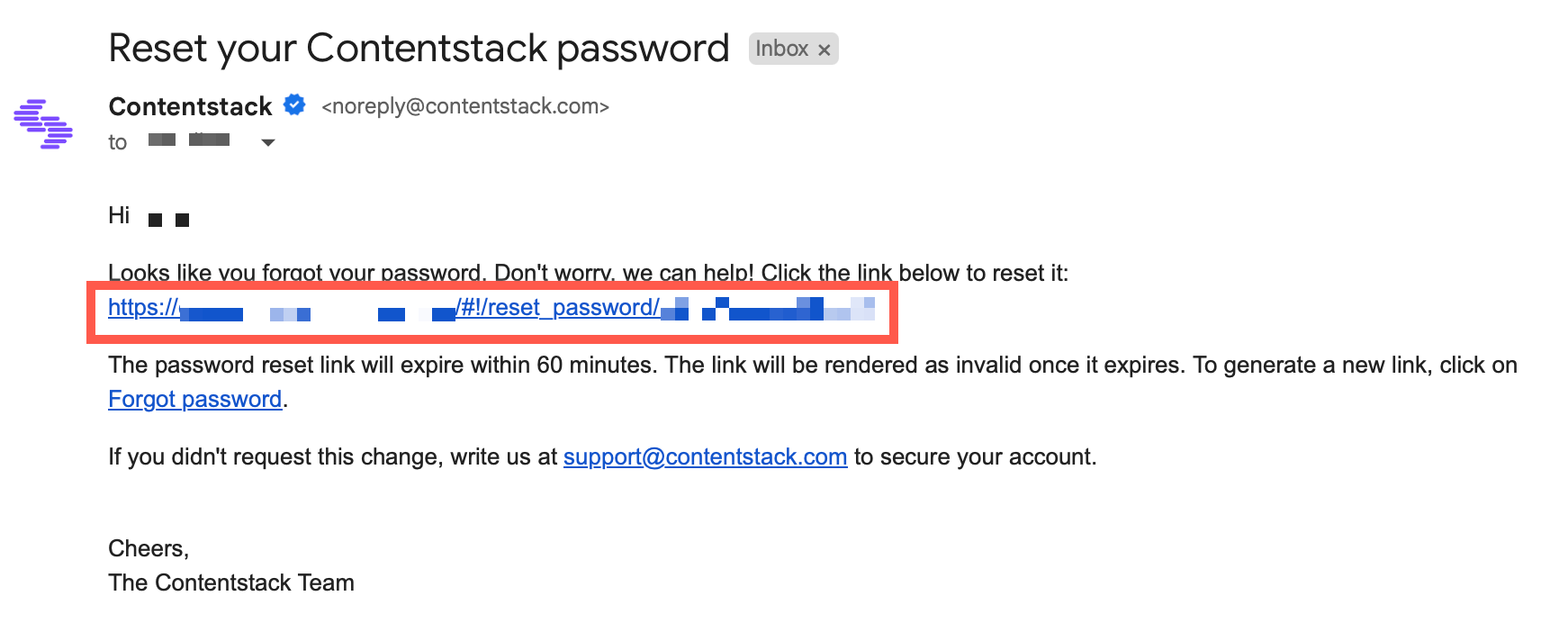
Note: The password reset link expires after 60 minutes. If it is no longer valid, repeat the steps above to generate a new link.
- In the Reset Password form, enter your new password. Confirm it by re-entering the same password in the second field. Click Reset Password to complete the update.
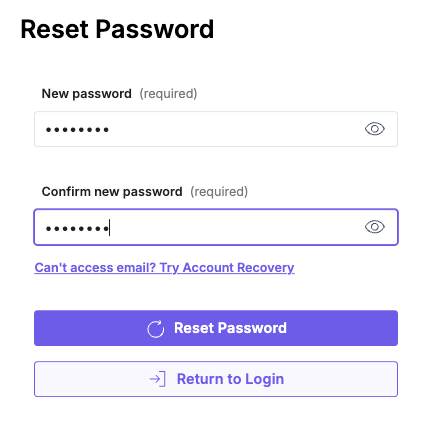
Note: Resetting your password signs you out of all active sessions across browsers, tabs, and devices.
Your password has been successfully reset. Sign in using your new credentials.
Related Resource
Was this article helpful?
More articles in "Manage Your Password-Related Security"
