

Change Password
Regularly updating your password helps protect your Contentstack account from unauthorized access. It is recommended to choose a strong, unique password that is not reused across other platforms.
Contentstack allows users to update their password directly from their profile settings.
Note: Changing your password signs you out of all sessions across browsers, tabs, and devices.
Prerequisites
- Contentstack account
- Your current account password
What You Will Learn
-
How to reset your password from your Contentstack profile.
-
How changing your password affects your active sessions.
Change your Password
To change your password, log in to your Contentstack account and perform the following steps:
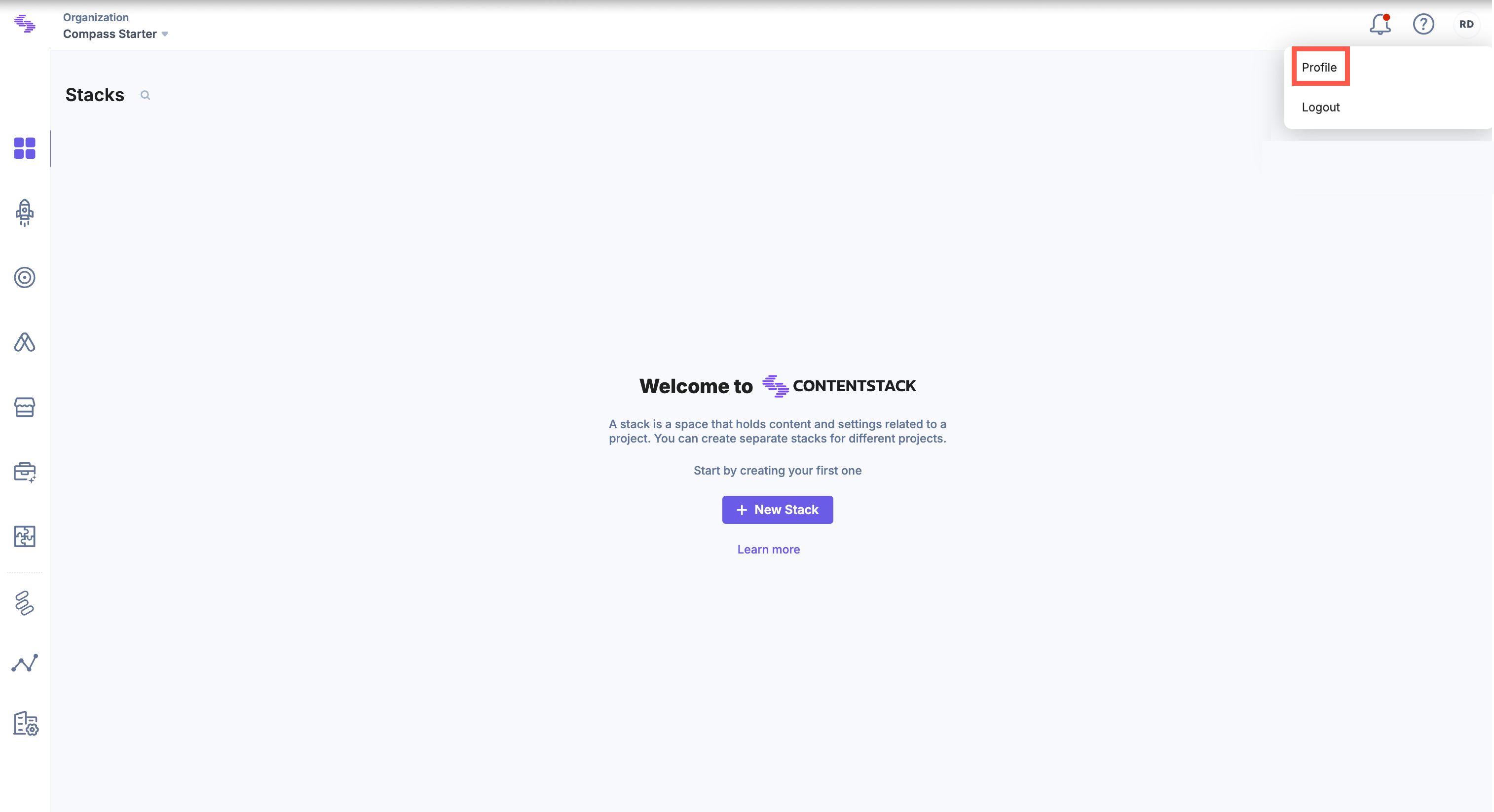
- Click the "Profile" icon in the top-right corner of the dashboard and select Profile from the dropdown.
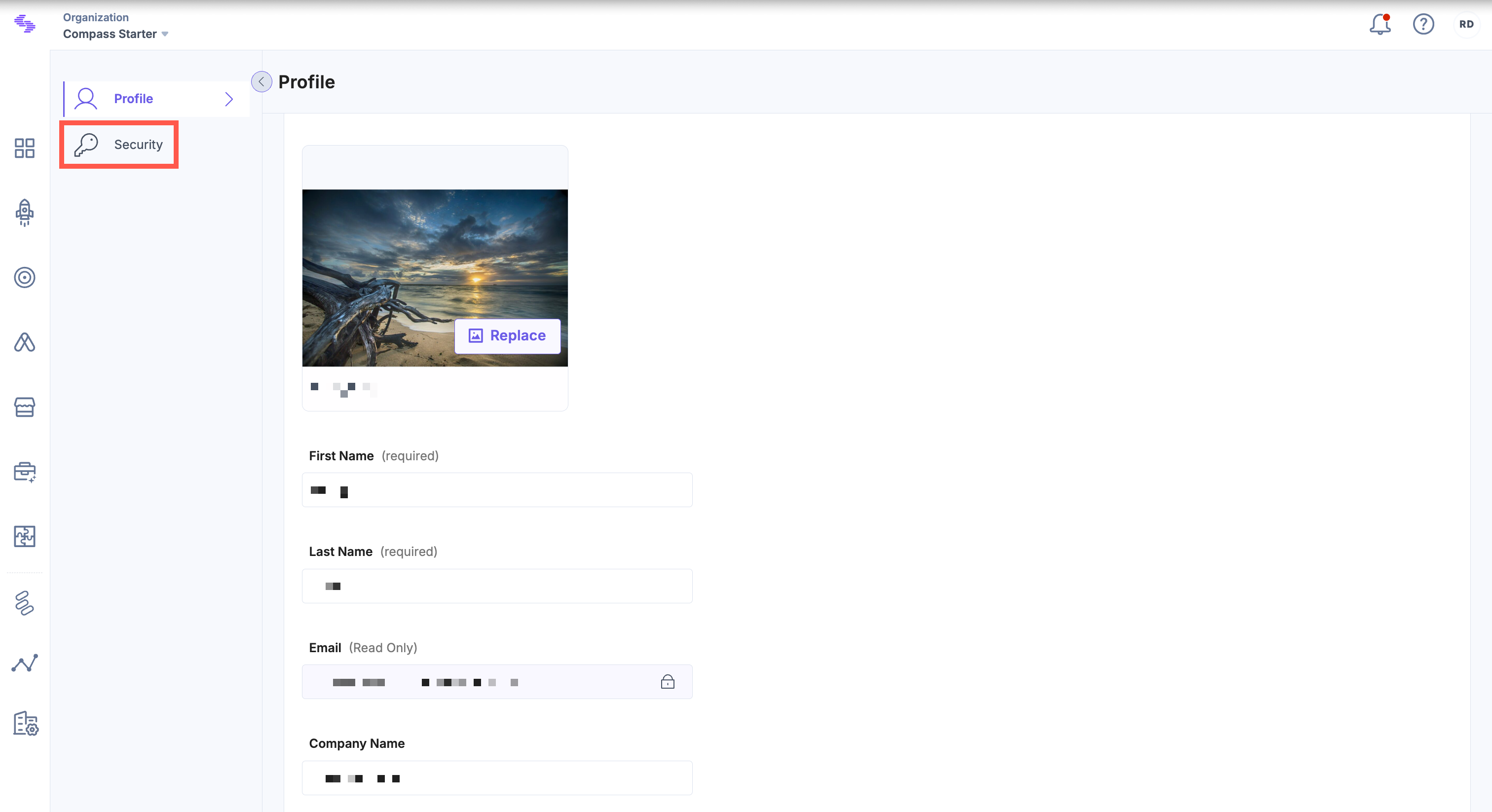
- In the Profile section, click the Security tab in the left navigation panel.
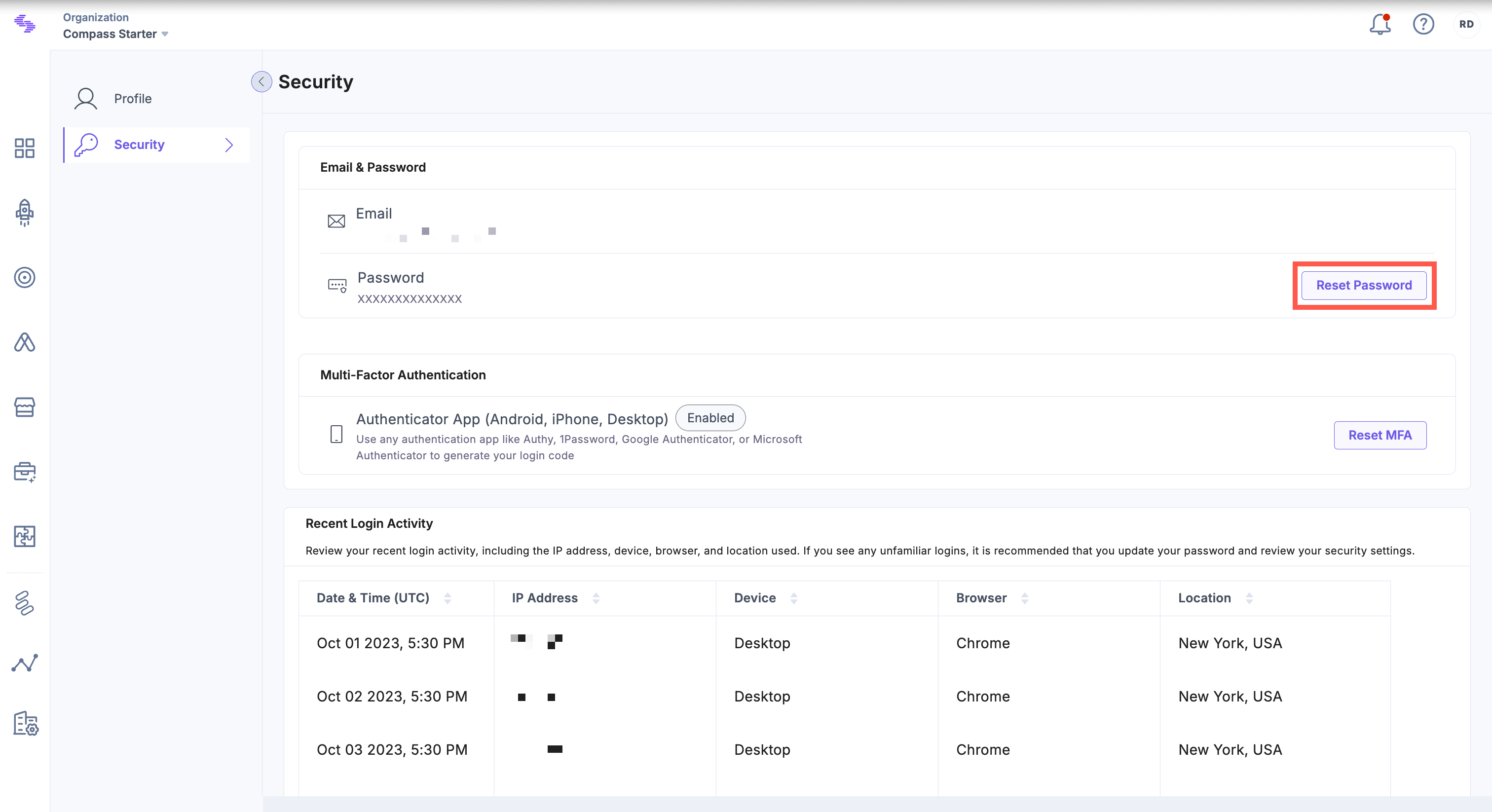
- Under Email & Password, click Reset Password.
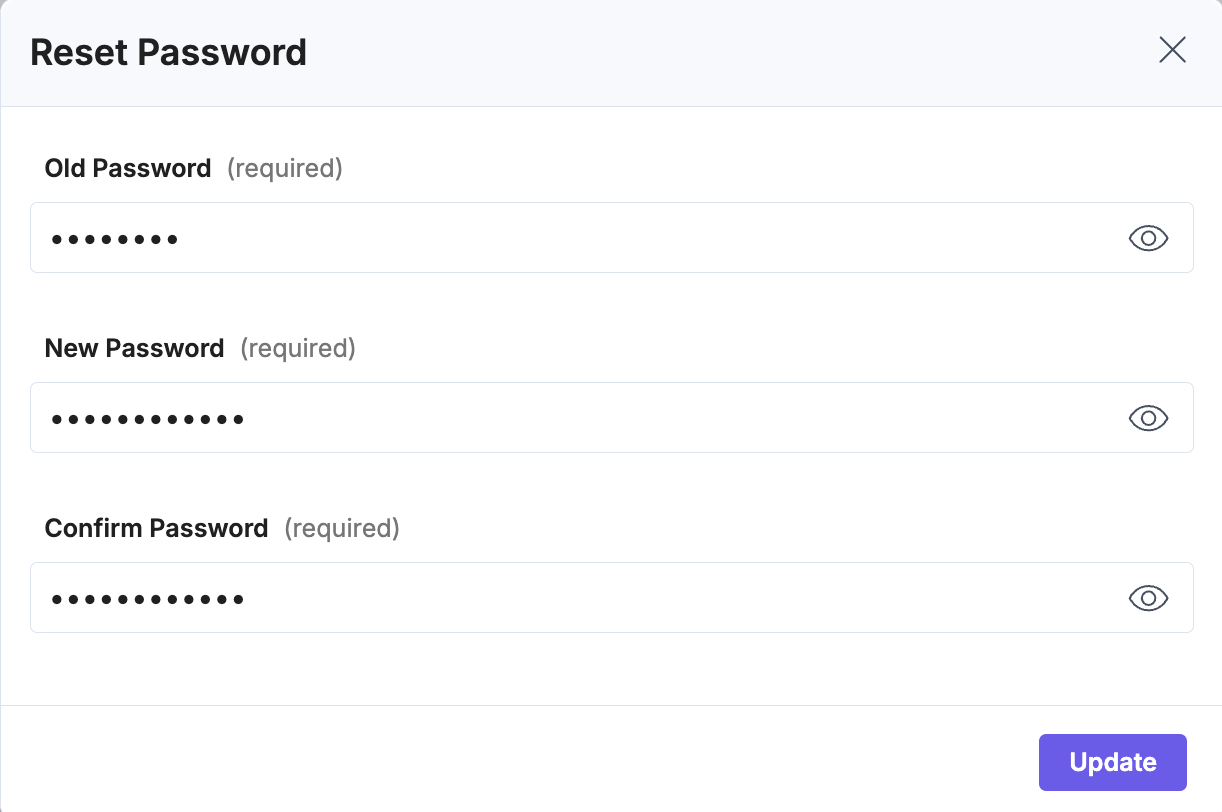
- In the Reset Password modal, enter your current password in the Old Password field. Type your new password in the New Password field. Re-enter your password in the Confirm Password field.
Note: Ensure the new password meets your organization’s password policy.
- Click Update to apply the new password.
Use the new credentials for your next login.
Tip: For security, avoid reusing old passwords and consider enabling Multi-Factor Authentication (MFA) for an extra layer of protection.
Additional Resource: If you do not remember your password, refer to the Forgot (Reset) Password document for more information.
Related Resource
More articles in "Manage Your Password-Related Security"
