

Delete Item in Knowledge Vault
If a Knowledge Vault item is no longer required, or becomes outdated or unnecessary, you can delete it from the Knowledge Vault. In this guide, we will discuss how to delete a Knowledge Vault item.
Prerequisites
- Contentstack account
- Brand Kit-enabled Organization with Owner or Admin permissions, or as Collaborator
Note: Only Brand Kit Owner or Admin can delete items in the Knowledge Vault.
- An existing Knowledge Vault Item
What You Will Learn
How to permanently delete a single item from the Knowledge Vault.
How to delete a folder and all the items it contains.
Steps for Execution
To delete a Knowledge Vault item, log in to your Contentstack account and perform the following steps:
- Navigate to App Switcher in the top-right corner and select Brand Kit.
- Select the Brand Kit whose Knowledge Vault item you want to delete.
- Click Knowledge Vault.
- Under the Actions tab, click the vertical ellipses corresponding to the Knowledge Vault item that you want to delete and then select Delete.
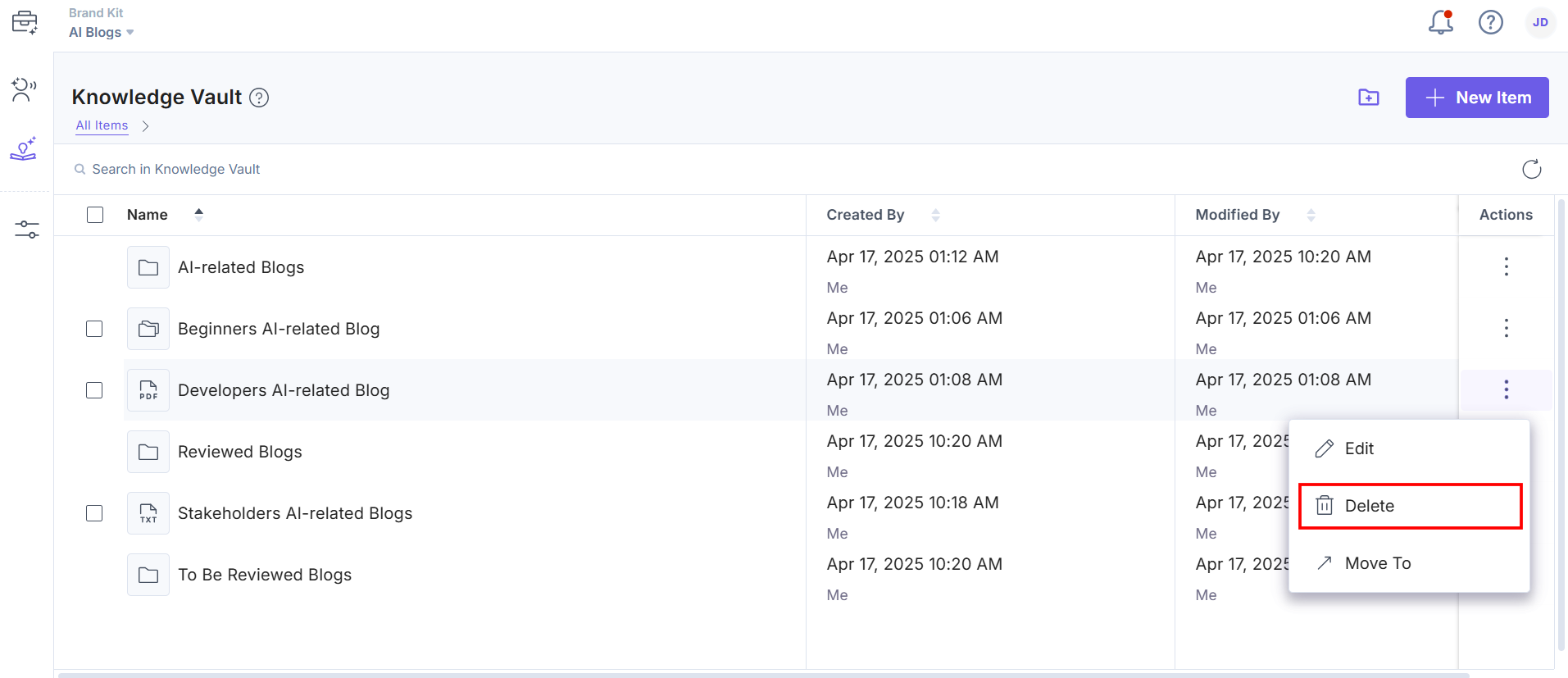
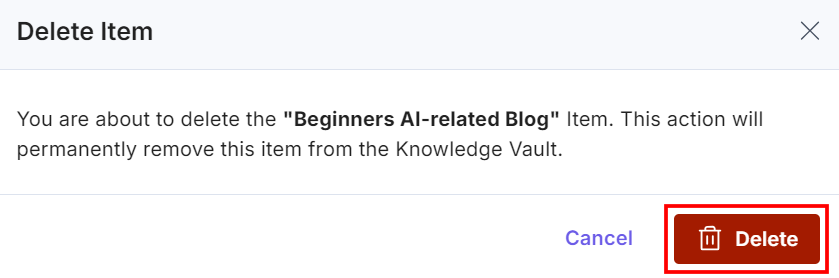
- In the Delete Item modal, click Delete to permanently delete the Knowledge Vault item.
- To delete the subfolder from the Knowledge Vault, click the Delete option. You can also delete selected items from the folder.
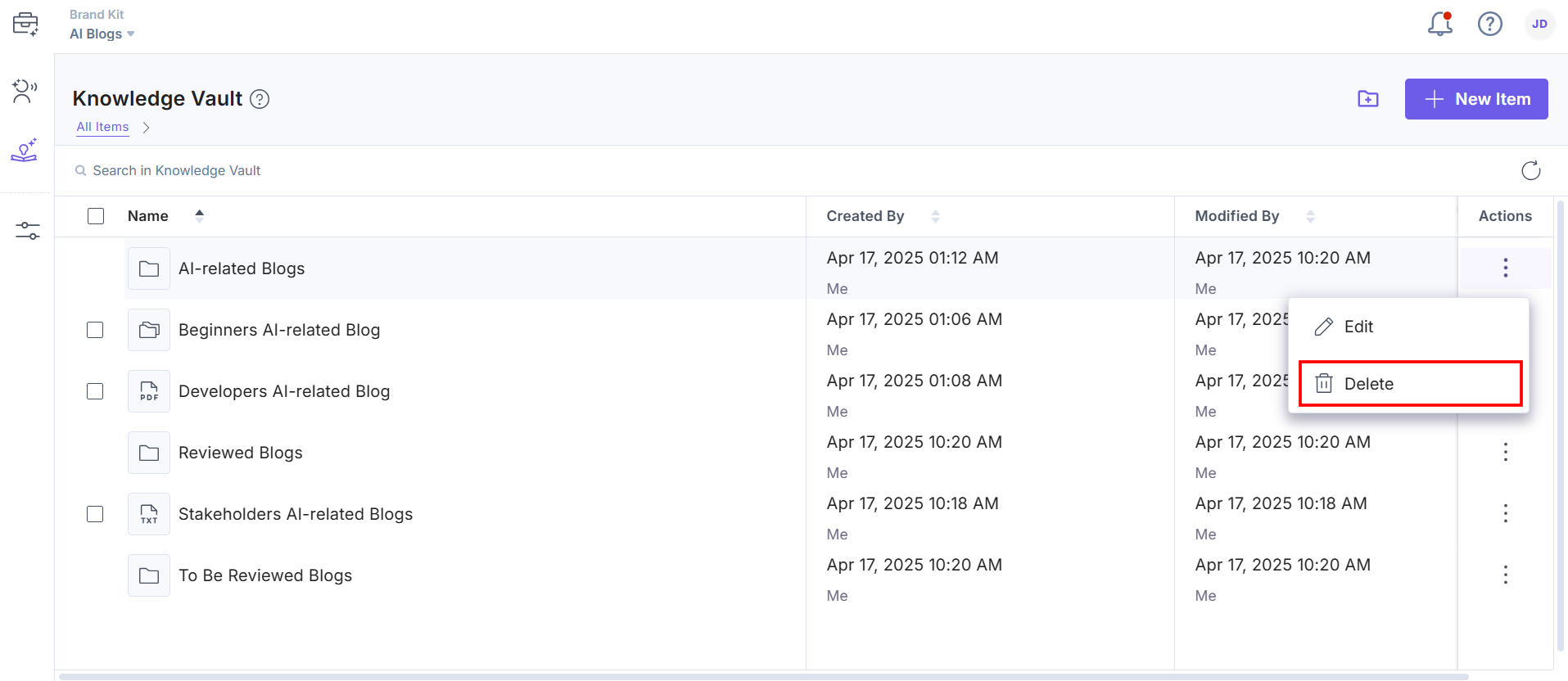
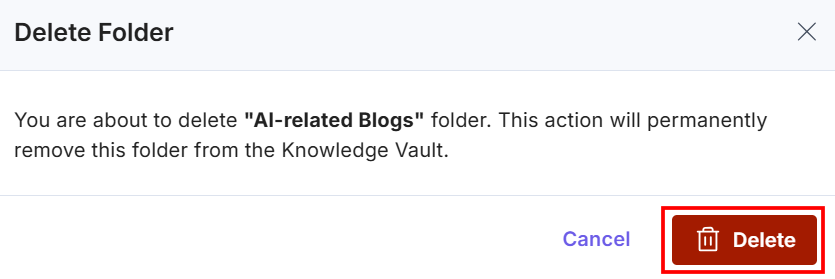
Warning: If you delete a folder, all items within the folder will be deleted.
- In the Delete Folder modal, click the Delete button to permanently delete the Knowledge Vault folder.
You will get a success message once the item or folder is deleted from the Knowledge Vault.
Related Resource
Was this article helpful?
More articles in "Understanding Knowledge Vault"
