.svg) Headless Content Management
Headless Content Management.svg) Real-time Data and Insights
Real-time Data and Insights.svg) Omnichannel Personalization
Omnichannel Personalization.svg) Agents & Automations
Agents & Automations.svg) Front-end Hosting
Front-end Hosting

Figma Best Practices
Note: Studio is currently part of an Early Access Program and may not be available to all users. Contact the Contentstack support team; they will coordinate with the appropriate stakeholders to review eligibility.
Use this guide to structure your Figma files. It helps ensure accurate asset recognition and generates clean, responsive code with the Studio plugin.
Required Setup
Before you start, apply the following setting to keep your designs organized and ready for code generation.
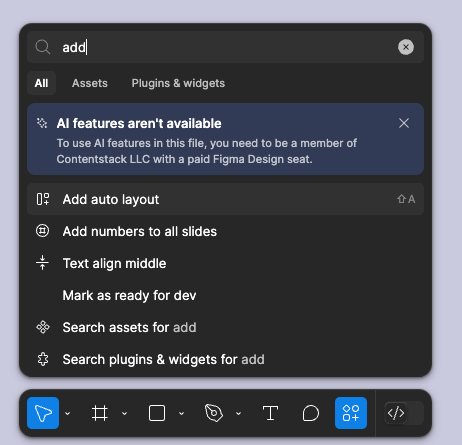
- Apply Auto Layout: Use Figma’s Auto Layout to organize elements. This ensures your designs adapt consistently across screen sizes.
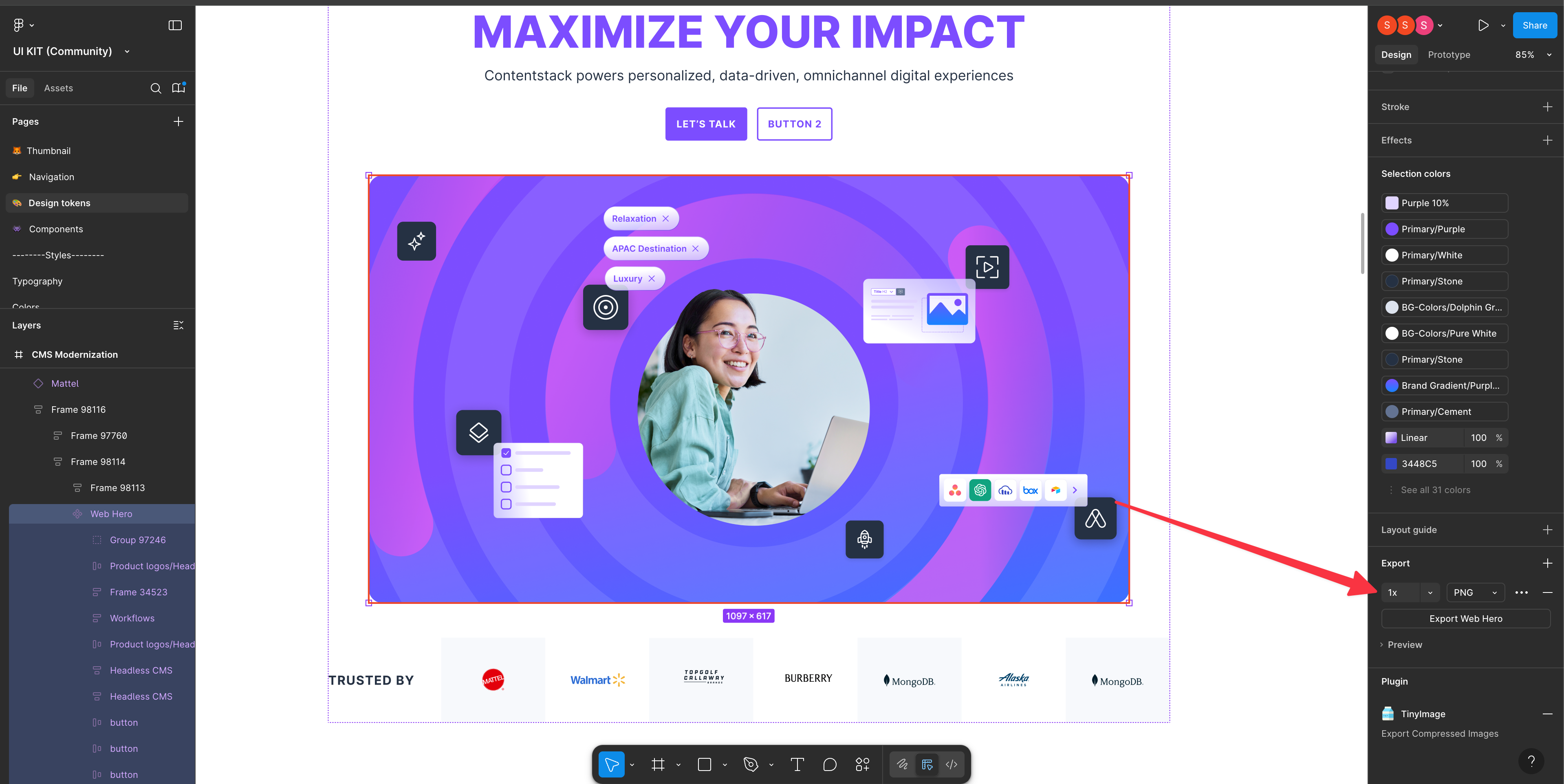
- Add export settings for images: Define images explicitly so they are recognized as single assets.
Advanced Tips
Once the required setup is complete, follow these advanced tips to optimize your files for smoother exports and responsive code generation.
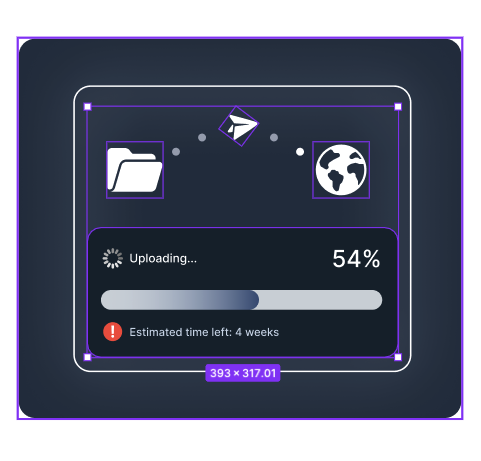
- Group background layers: Combine background elements into one group for cleaner exports.
- Avoid overlapping of elements: Provide enough space between text and design elements to keep layouts and components aligned during code generation.
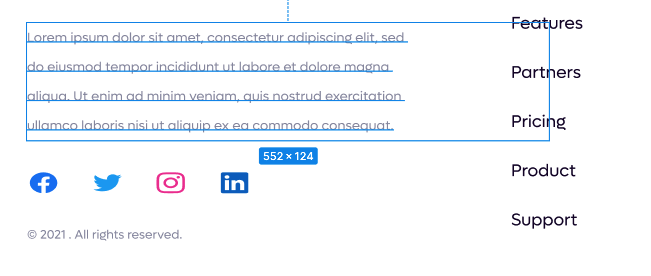
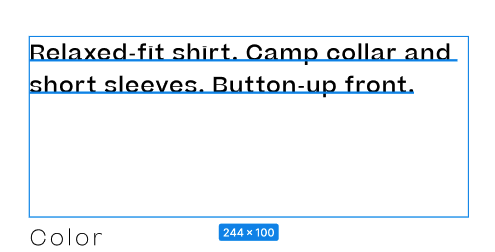
- Size text boxes to fit content: Adjust text bounding boxes to match the height and width of the content, with no extra whitespace. This keeps layouts aligned and exports accurate.
- Set 100% opacity: Ensure all colors are fully opaque for consistency.
- Set realistic frame sizes: Set frame dimensions to match actual device or browser sizes.
- Use structured frames with clear naming conventions: Organize your design using meaningful frame and layer names. Clear naming improves component detection, maintains hierarchy, and leads to cleaner code generation.
- Group similar UI elements into reusable components: Convert frequently used patterns (for example, buttons, cards, list items) into reusable components in Figma. This improves design consistency and makes generated code easier to maintain.
- Avoid nested layers: Keep layer nesting shallow. Deeply nested structures increase complexity and can negatively affect the generated component tree.
- Apply design tokens consistently: Use design tokens for color, spacing, typography, and effects across all components. Consistent token usage ensures more predictable results when tokens are mapped in Studio for responsive layouts.
- Ensure the target design is in edit mode: Make sure your Figma file is editable before you begin exporting. Read-only files block Auto Layout updates, token adjustments, and component mapping.
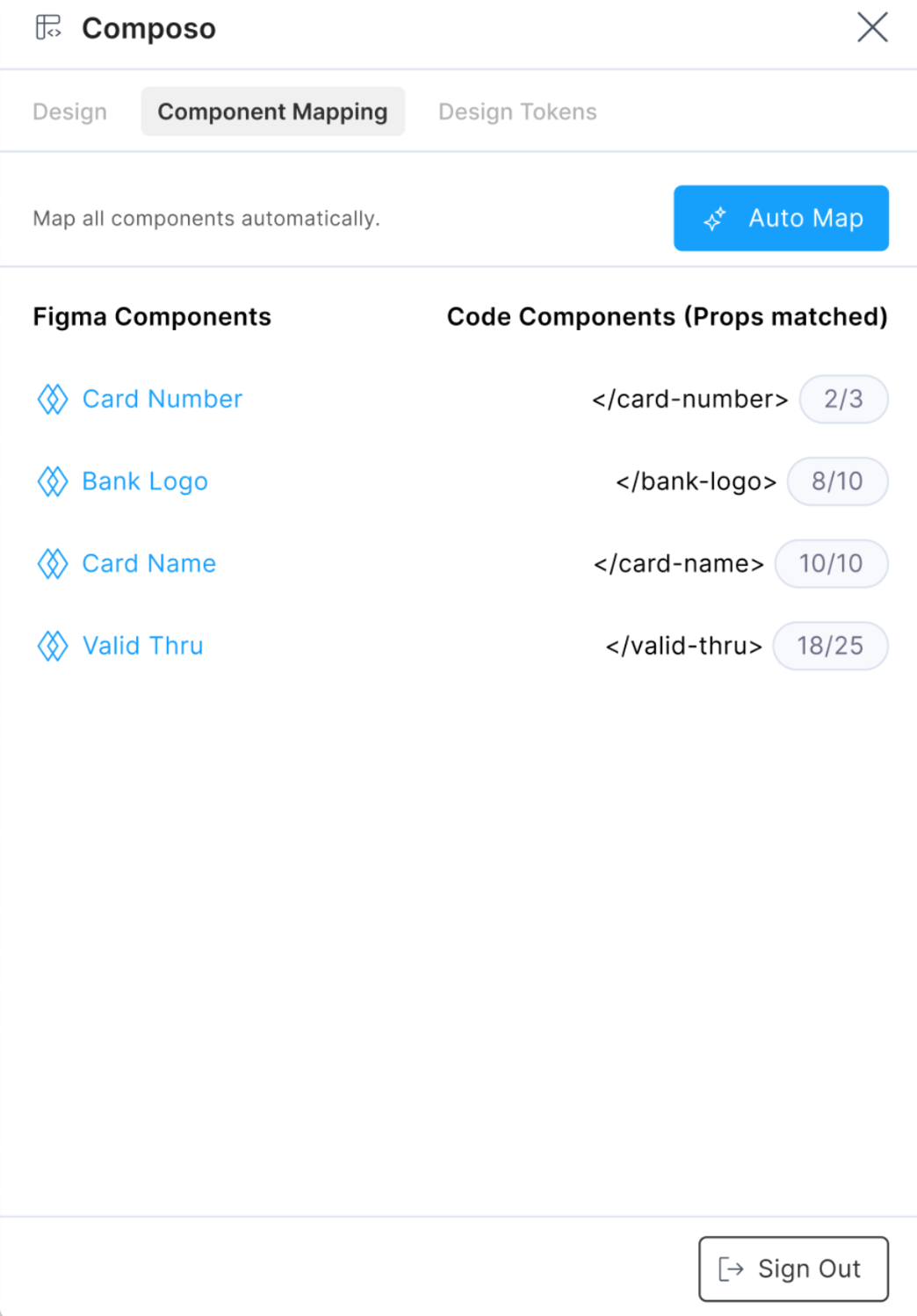
- Map components to code: Link Figma components to their corresponding code components in the plugin. This replaces design layers with reusable, production-ready components during code generation, ensuring consistency and responsiveness across screen sizes.
Following these practices keeps your Figma files clean, organized, and compatible with the Studio plugin. With a consistent structure, your exports remain accurate, and the generated code aligns seamlessly with responsive design needs.
