.svg) Headless Content Management
Headless Content Management.svg) Real-time Data and Insights
Real-time Data and Insights.svg) Omnichannel Personalization
Omnichannel Personalization.svg) Agents & Automations
Agents & Automations.svg) Front-end Hosting
Front-end Hosting

Delete a Personalize Project
This guide explains how to permanently delete a project in Contentstack Personalize.
Deleting a project in Contentstack Personalize removes all personalization configuration associated with that project. After deletion, you cannot use the project to deliver personalized experiences.
Prerequisites
- Contentstack account
- Access to the Contentstack Organization as the Owner/Admin that has Personalize enabled.
Steps for Execution
To delete a Personalize project, log in to your Contentstack account and perform the following steps:
- In the top navigation bar, click the App Switcher icon and then click Personalize.
- On the Personalize Projects landing page, select the project you want to delete.
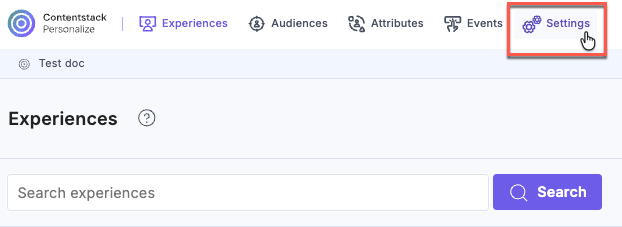
- In the top navigation bar, click Settings.
- Scroll to the Delete Project section.
- Click Delete Project.

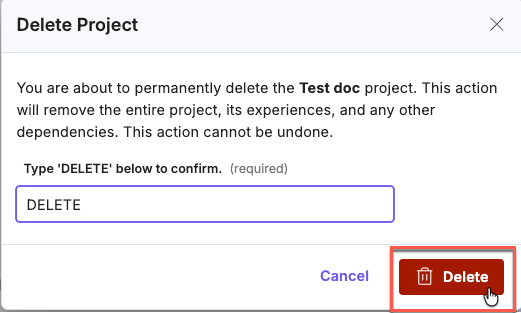
- Review the warning message carefully.
- To exit without deleting the project, click Cancel.
- To confirm deletion, type DELETE in the confirmation field, then click Delete.
You will get a success message after the project is deleted from Personalize.
Warning: Personalize immediately removes the project and permanently deletes all associated experiences and configuration data. You cannot recover or restore the project after deletion.
Was this article helpful?
More articles in "Working with Projects"
