

Delete an Experience
Deleting outdated or irrelevant experiences from your Personalize project ensures that your personalization engine focuses on the most current and relevant data, improving the accuracy and effectiveness of future recommendations.
Before you proceed, please note:
- Data Impact: Deleting an activated/paused experience may result in the loss of associated analytics data.
- Experience Disruption: Removing an experience could affect active personalization campaigns. Exercise caution and update campaigns accordingly.
Prerequisites
- Contentstack account
- Personalize-enabled Organization with permissions
Note: Users with Owner and Member access to a Personalize project can delete existing experiences.
- Access to Personalize project
Note: We assumed that you have already created a Personalize project. If not, follow this guide to create a project in Personalize.
- Experience created in your Personalize project
Steps for Execution
To delete an experience, log in to your Contentstack account and perform the following steps:
- In the top navigation bar, click the App Switcher icon and then click Personalize.
- You will be redirected to the Personalize Projects landing page. Click the project for which you want to delete an experience.
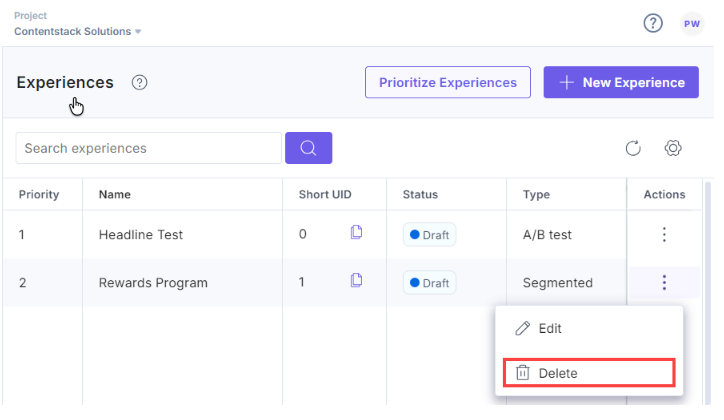
- You can delete an existing experience draft by clicking the corresponding vertical ellipses under the Actions and selecting Delete.
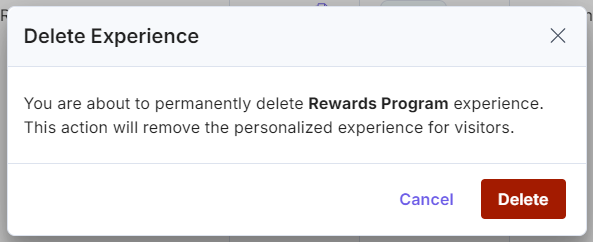
- In the Delete Experience modal, click Delete to permanently delete the experience.
Warning: Deleting an experience may result in the loss of associated analytics data, unlink Variant Group for Entry Variants in the CMS by automatically removing the metadata and could affect active personalization campaigns on your website for visitors.
You will get a success message after the experience is deleted from Personalize.
Related Resource
More articles in "Working with Experiences"
