.svg) Headless Content Management
Headless Content Management.svg) Real-time Data and Insights
Real-time Data and Insights.svg) Omnichannel Personalization
Omnichannel Personalization.svg) Agents & Automations
Agents & Automations.svg) Front-end Hosting
Front-end Hosting

Account Lockout Policy
To strengthen login security, Contentstack enforces an account lockout policy that prevents unauthorized access through repeated failed login attempts. This helps protect user accounts from brute-force attacks or credential guessing.
How Account Lockout Works
When a user enters incorrect login credentials consecutively, the account becomes temporarily locked for increasing durations based on the number of failed attempts. If unsuccessful attempts continue, the account gets locked indefinitely.
During the lockout period, login access is restricted. However, authorized users can still use the Forgot Password? option to reset their password and regain access.
| Failed Login Attempts | Lockout Duration |
| 1 to 4 attempts | 0 mins |
| 5th attempt | 5 mins |
| 6th attempt | 10 mins |
| 7th attempt | 15 mins |
| 8th attempt | 20 mins |
| 9th attempt | 25 mins |
| 10th attempt | Locked indefinitely |
- Starting from the 5th failed login attempt, Contentstack sends an email notification for each additional failed attempt. The email includes the login attempt details, such as the browser, device, and IP address used, to help you identify suspicious activity.
- After the 10th failed attempt, the user account remains locked until manually reviewed. Contact your Contentstack organization admin or owner to get unlocked.
Unlock Users
Organization admins and owners can manually unlock users individually or in bulk.
To unlock users individually or in bulk, log in to your Contentstack account and perform the following steps:
- Navigate to Administration > Users through “App Switcher”.
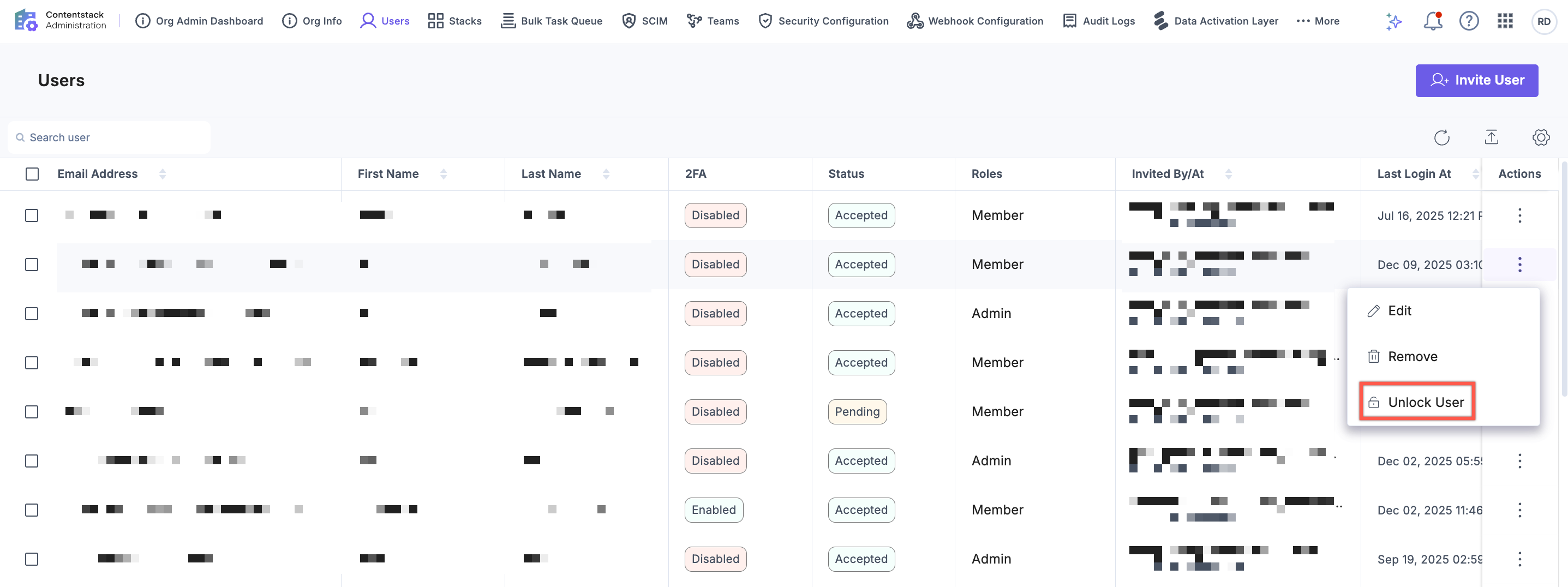
- Click the vertical ellipsis in the Action column next to the locked user.
Or select up to 10 users using the respective checkboxes.
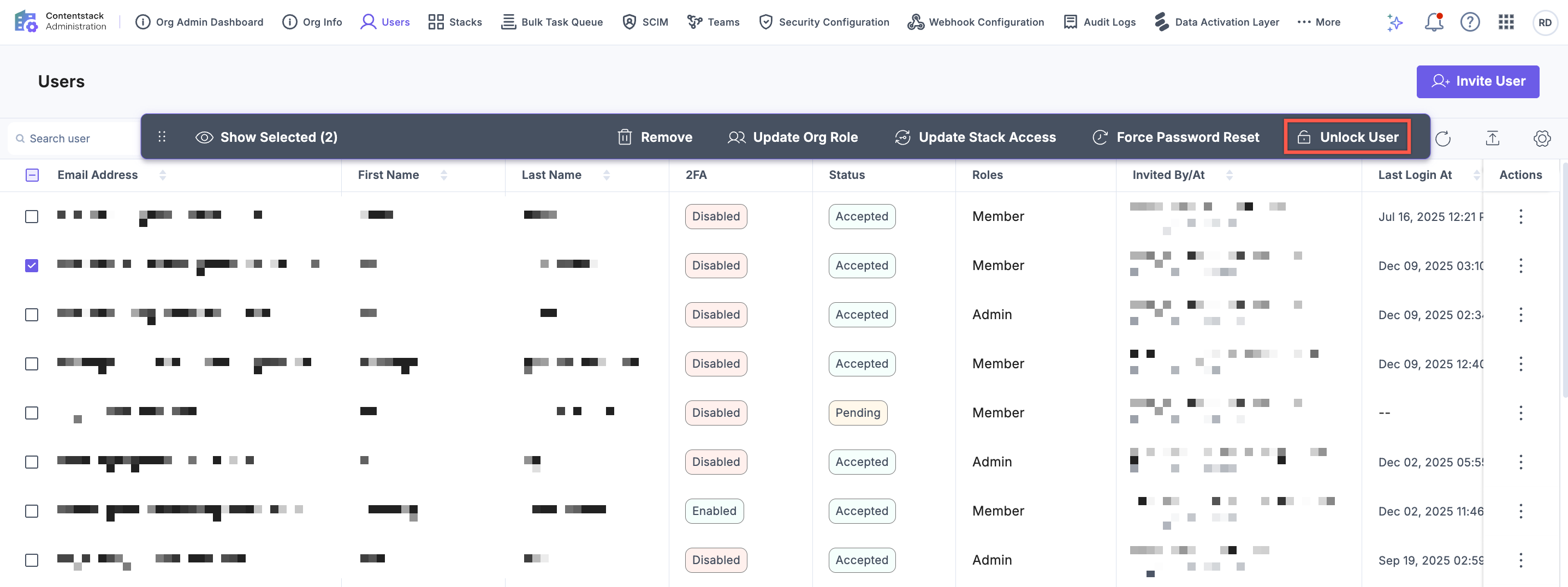
- Click Unlock User.
- Review the selected users in the confirmation modal and click Continue or Proceed to restore access.
- The Unlock User option is not available for:
- Users who are part of multiple Contentstack organizations
- Org owners
In both cases, contact Contentstack support to unlock the user.
- The Unlock User button appears only if all users selected in bulk are unlockable. If one or more selected users are ineligible (e.g., multi-org users or organization owner or already unlocked user), the option will not be shown.
Best Practices
To avoid account lockouts, follow these best practices to ensure secure and uninterrupted access to your Contentstack account:
- Ensure login credentials are entered correctly
- Use a secure and updated password manager
- Reset your password promptly if forgotten
For additional security, enable Multi-Factor Authentication (MFA) to protect your account with an extra layer of verification.
More articles in "Authentication and Security"
