

Reference
The Reference field lets you link entries from the same or different content types. It enables structured relationships between content and allows you to reuse entries across your stack.
You can update the following properties of a Reference field at any time:
- Display Name
- Unique ID
- Placeholder Value
- Instruction Value
- Help Text
- Multiple
- Mandatory
- Referenced Content Type
- Use Field Visibility Rules to hide or show fields based on conditions.
- Refer to Reference vs Select vs Tags fields to understand field differences.
Creating references within the same content type is known as Self Referencing, while referencing other content type(s) is known as Include Referencing.
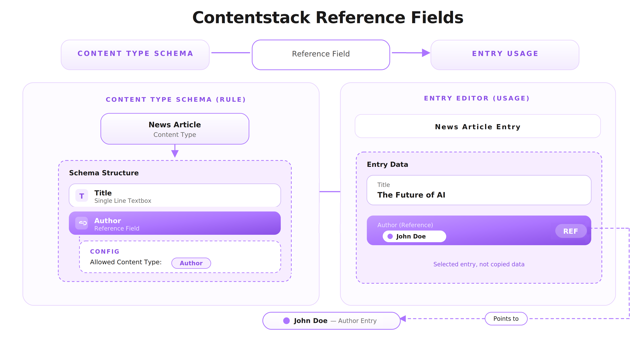
Let’s explore them in detail.
Self Referencing
Self Referencing allows you to reference entries from the same content type.
For example, in an e-commerce application with content types such as Category, Brand, and Product, you may want to recommend related products. You can add a Reference field within the Product content type that references other Product entries.
To configure:
- Add a Reference field to the Product content type.
- Rename it (for example, Recommendations).
- Select Product as the referenced content type.
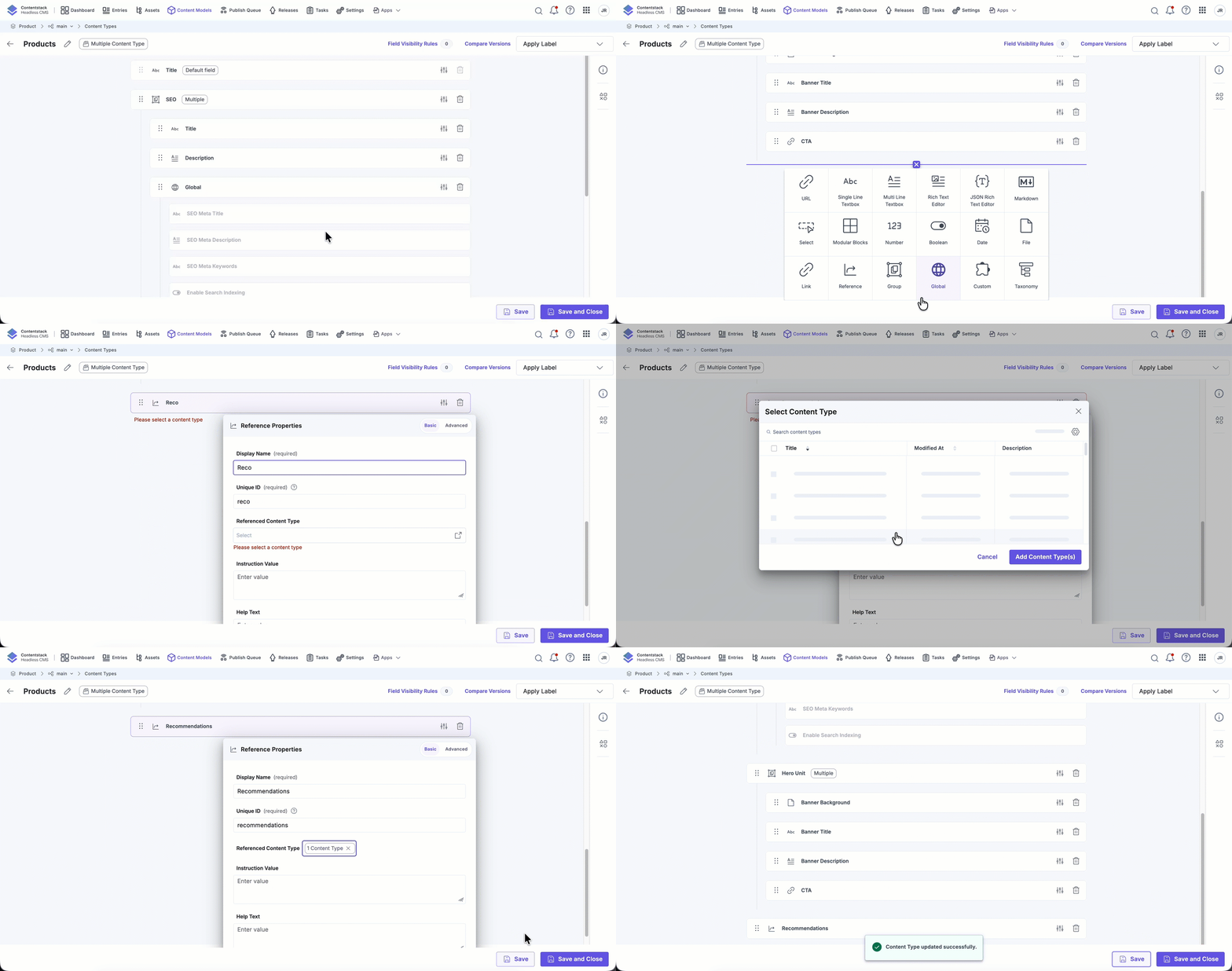
Content managers can then select related products when creating or editing entries.
Include Referencing
Include Referencing allows you to reference entries from one or more different content types.
There are two approaches:
Single Content Type Referencing
Allows referencing entries from one specific content type.
If you have News Article and Author content types, you can add a Reference field in News Article that references Author entries.
To configure:
- Add a Reference field to the News Article content type.
- Rename it (for example, Author Details).
- Select Author as the referenced content type.
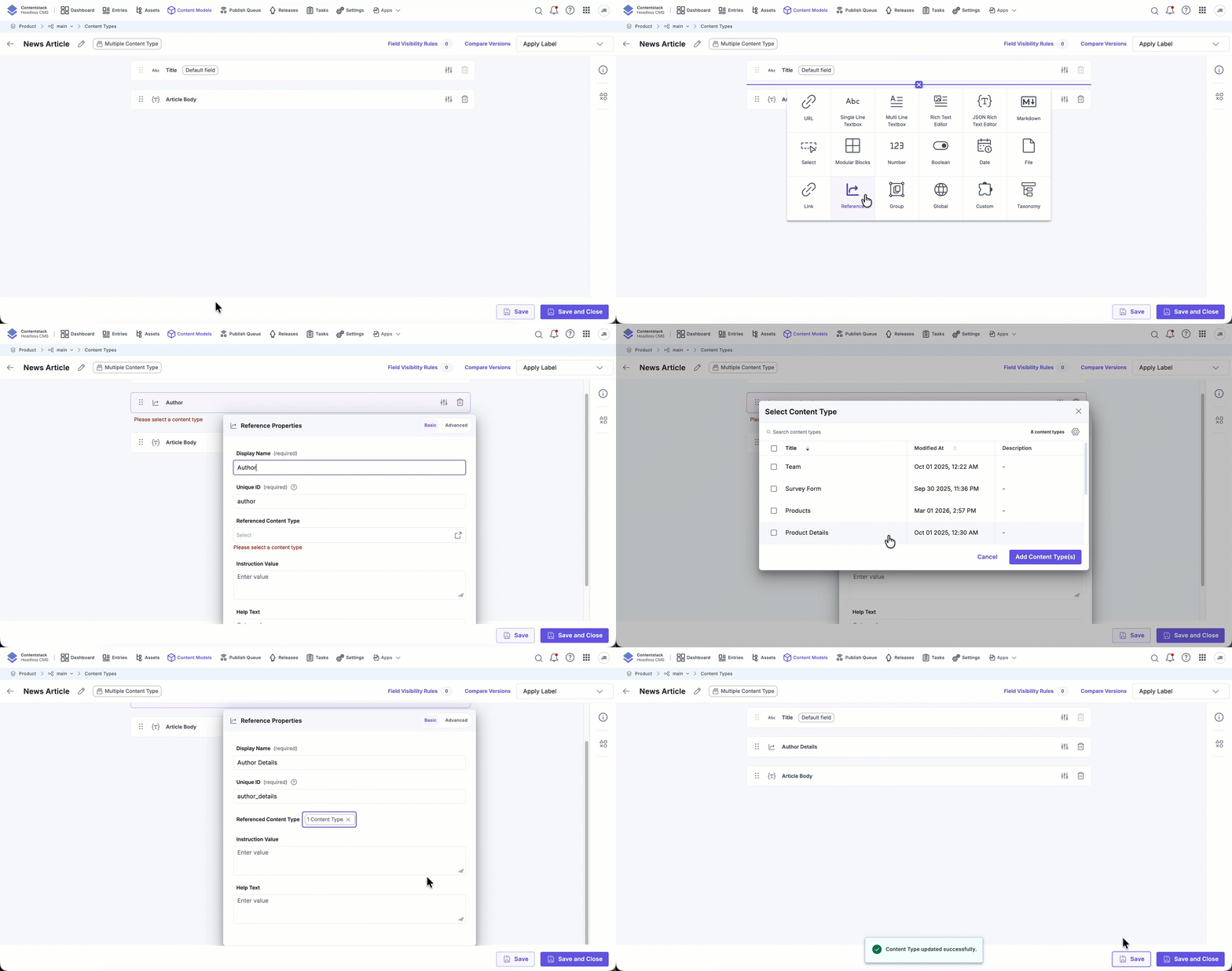
Content managers can then select one or more authors while creating news articles.
Multiple Content Type Referencing
Allows referencing entries from multiple content types.
If you have content types such as Clothes, Shoes, and Bags, and want to associate them with a Brand, you can:
- Add a Reference field to the Brand content type.
- Select multiple content types under Referenced Content Type.
- Enable the Multiple option.
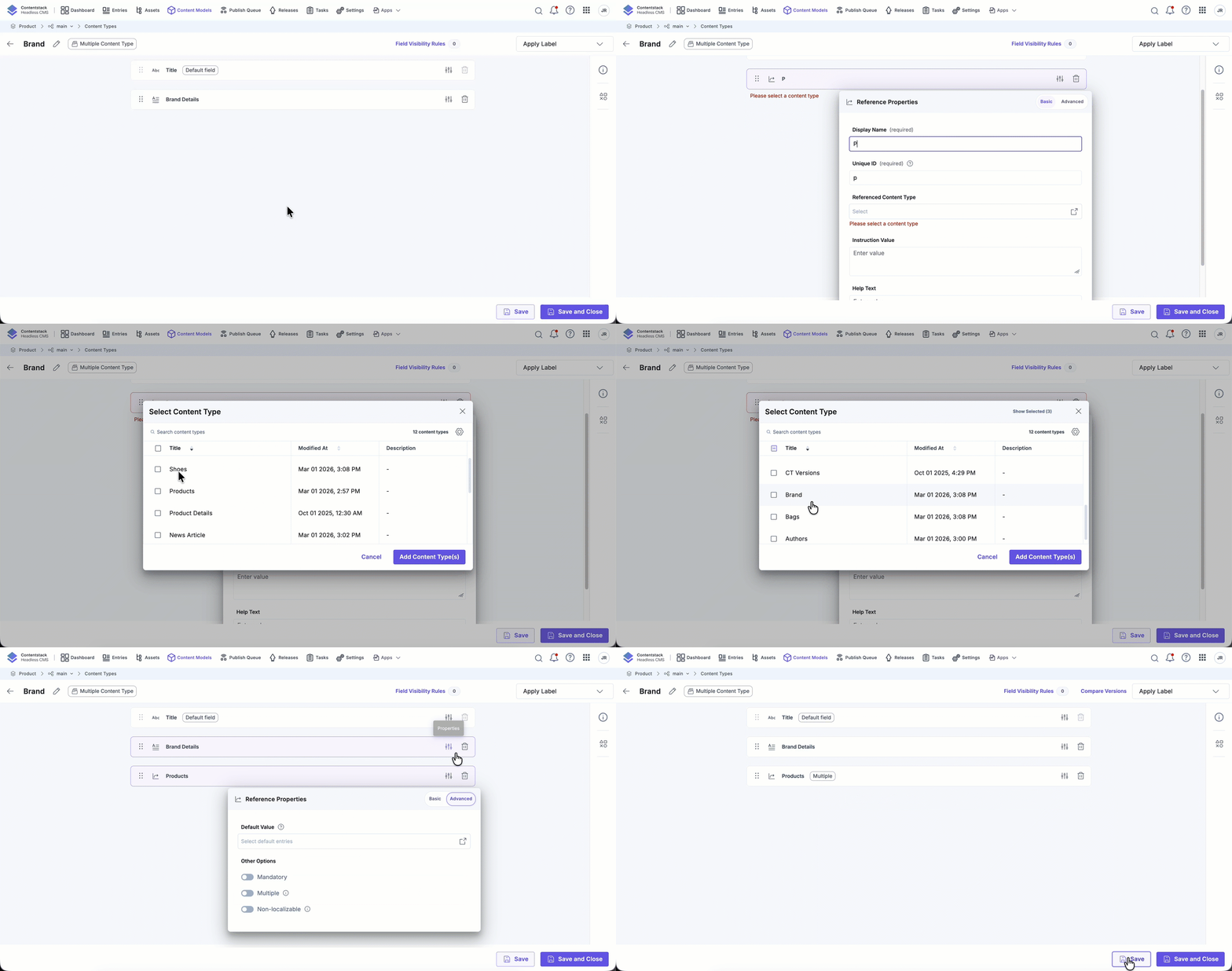
Content managers can then select entries from all configured content types.Note:- You can add up to 50 content types in a single Reference field.
- A Reference field is counted as a single field, regardless of the number of fields in the referenced content types.
Additional Functionalities
The Reference field includes several features to help manage relationships effectively.
Navigate Referenced Entries in an Overlay
Reference fields allow you to navigate between related entries seamlessly without leaving your current editor.
You can open a referenced entry in the following ways:
- Click the entry to open it in a new browser tab.
- Click the Open in overlay icon next to the entry to open it in a sliding panel within the current view. This allows you to explore related content without switching tabs.
Note: The sliding panel is fixed at full width within the editor and cannot be resized.
When you click a reference inside an open panel, the selected entry opens in a new overlay panel while preserving your navigation context.
Use breadcrumbs within the overlay to move between previously opened entries.
Example Workflow
You are editing a Blog Post entry and open the Author reference using the overlay icon. From the Author panel, you open the referenced Related Articles entry. Both entries remain accessible through breadcrumbs, allowing you to switch back to the Author entry at any time.
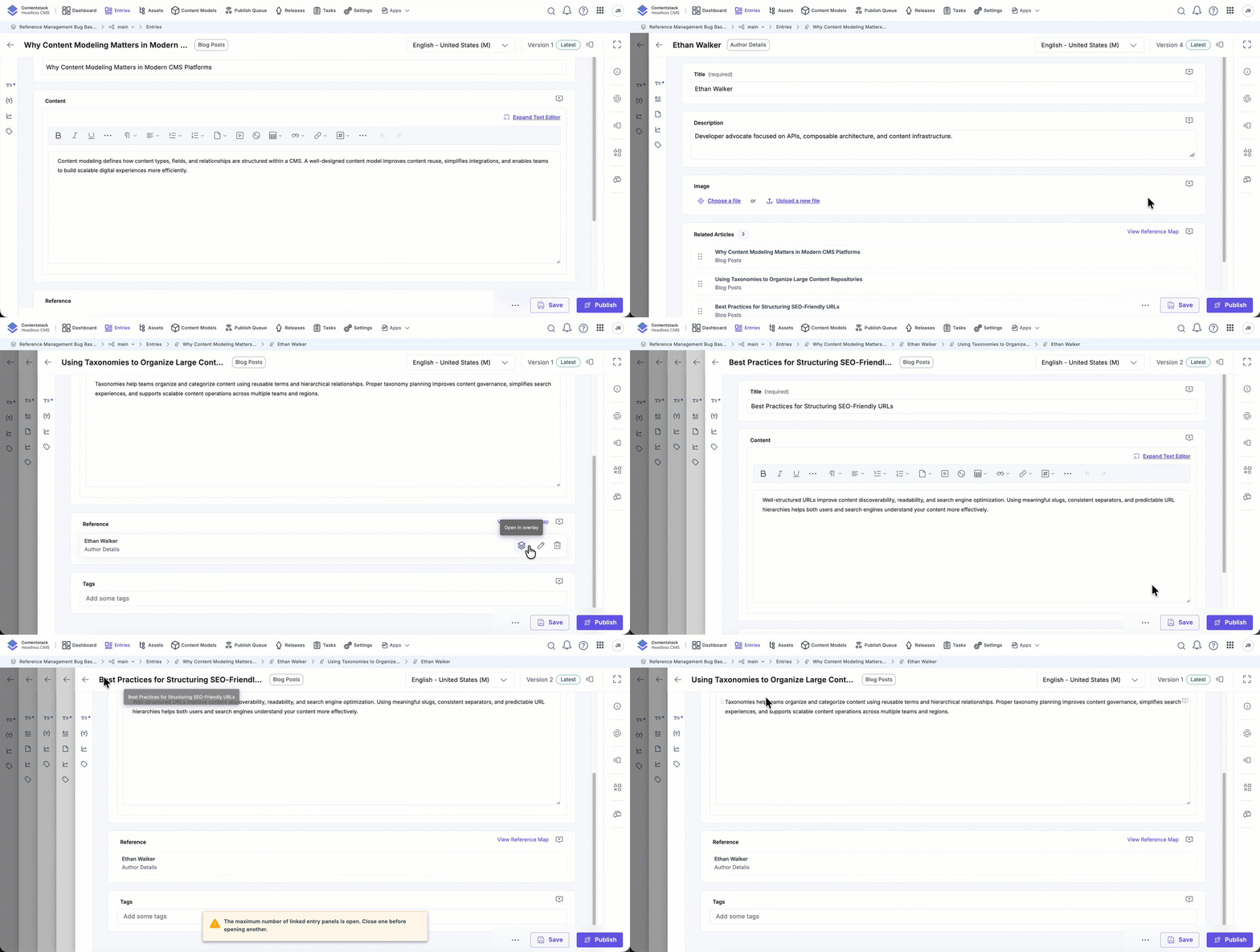
Note: You can open up to five entries simultaneously within the overlay navigation flow.
View Reference Map
The View Reference Map feature visualizes relationships between entries.
When an entry references other entries, or is referenced by them, the View Reference Map option appears in the entry editor’s Information panel.
Selecting this option opens a modal displaying a visual map of relationships.
How It Works
- The left side shows parent entries (entries that reference the current entry).
- The right side shows child entries (entries referenced by the current entry).
- The map initially loads direct parents and children.
- You can expand nodes to explore deeper relationships.
- Clicking an entry opens it in a new browser tab.
- The interface supports zooming, panning, and dragging.
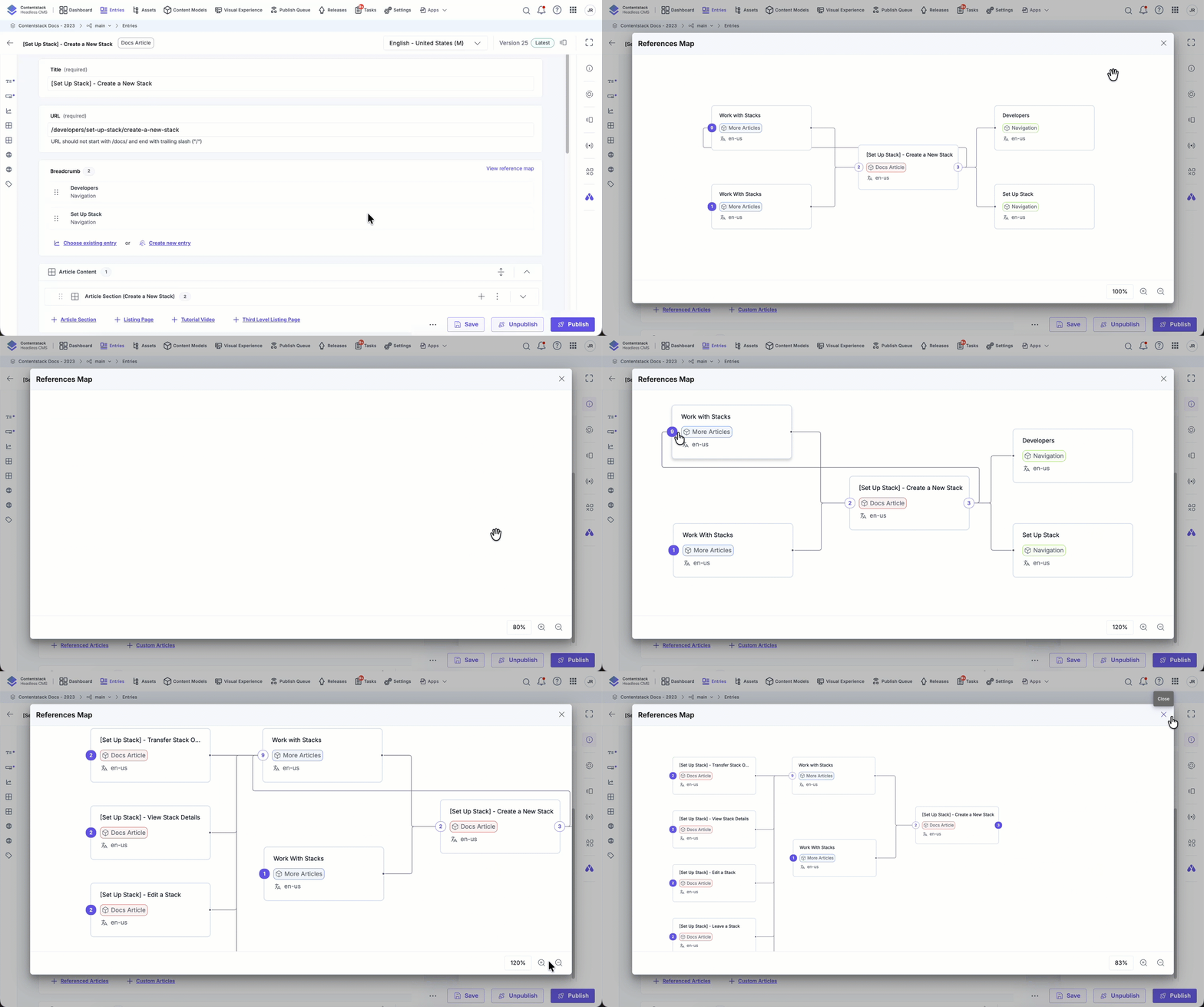
This feature helps you understand complex content structures at a glance.
Creating New Entries from Reference Fields
You can create new entries directly from a Reference field without leaving the entry editor.
Note: The Create new entry option is available only if the Save In Progress Entry feature is enabled in your plan.
Navigate Using Breadcrumbs
Use breadcrumbs within nested references to move between related entries easily. This is especially useful when managing complex content structures.
Edit Referenced Entries
After selecting a reference:
- Click the Edit icon next to the referenced entry.
- The entry opens for editing.
Warning: Save the parent entry before navigating away to avoid losing unsaved changes.
Add Multiple References
If the field is configured as Multiple, you can:
- Select existing entries
- Create new entries
When selecting entries:
- Use the Select content type dropdown (if multiple types are configured).
- Click Add selected entries.
Note: If a referenced child entry is deleted, only its UID and content type UID remain visible.
Permissions on Referenced Content Types
Permissions determine how users interact with referenced content types.
Scenario 1: No Read Access
If a user does not have Read access to the referenced content type:
- They cannot view entries in the Reference field.
- Saving the entry results in no reference data.
- Editing and saving removes previously set references.
Scenario 2: Read Access but No Publish Access
If a user has Read access but not Publish access:
- They can select referenced entries.
- They cannot publish the parent entry.
The Reference field enables structured content relationships across your stack, allowing you to build reusable, connected content models. By linking entries within or across content types, you can create scalable architectures that support dynamic content delivery and efficient content management.
