

Publish an Entry
Publishing an entry in Contentstack makes content available in the selected environments, locales, or variants. You can also include localized versions and referenced items in this process, helping you deliver complete and accurate content across selected publishing targets.
To publish an entry, log in to your Contentstack account and perform the following steps:
- Navigate to your stack and click the “Entries” icon. You can also use the shortcut key “E” (both Windows and Mac) to access entries.
- Search for the entry you want to publish.
- Open the entry and click Publish at the bottom-right corner of the page.Tip: You can also publish entries directly from the Entries list page using one of the following methods:
- Click the vertical ellipsis next to the entry, then select Publish from the dropdown menu.
- Select the checkbox next to the entry and click Publish in the floating action widget.
- In the Publish Entry modal, select the target environments and locales to which you want to publish the entry.
- If the entry has variants, select the variants to publish from the Variants dropdown.
- Under the Publish section, select one of the two available options:
- Now: Publish the entry immediately.
- Later: Schedule the entry to be published at a specific date and time.
- Click Send to continue. Depending on your organization’s features, Contentstack opens one of the following modals:
- Publish Review: Review, select, and validate nested references for publishing.
- Publish Reference(s): Review and select nested references for publishing.
Note: If a content type or global field is updated after an entry was created (for example, a new required field is added), Contentstack validates the entry against the latest configuration when you publish. If any required field is empty, the entry cannot be published until you complete it.
Tip: You can publish entries in bulk for efficiency.
Publish Entry References
When an entry contains referenced items, the Publish Review or Publish Reference(s) modal displays all referenced entries and assets, including nested references. Review these items before completing the publishing action.
Publishing referenced items ensures that all required content is available in the selected environments and locales.
Publish References Without Validation (Quick Publish)
- In the Publish Reference(s) modal, review all referenced entries and assets.
- Hover over any warning icons to view the issues in the references. If required, click the “Edit entry/asset in new tab” icon to update the reference.
Additional Resource: To learn more about fixing validation errors, refer to the Validations document.
- Choose one of the following options:
- Send With References: Publishes the parent entry along with the selected references.
- Send Without References: Publishes only the parent entry. Referenced items remain unpublished.
Tip: When publishing without validation, you can track the task’s progress and status in the Bulk Task Queue under Settings.
Validate References and Publish
This workflow allows you to review, filter, and validate referenced entries and assets before publishing. Validation helps prevent publish failures by identifying issues in referenced items before they are sent to the Publish Queue.
Note:
- The Publish Review and Validation workflow is an early access, plan-based feature. To enable it for your organization, contact Contentstack Support.
- You cannot validate the entries when bulk publishing them.
- Validation results from the Bulk Task Queue are accessible only to:
- In the Publish Review modal, click the “Filter” icon, then click the “Reference Selection” dropdown and choose one of the following options:
- Select specific references: Select custom references to publish along with the parent entry.
- Selects only first-level references: Include only direct references linked to the parent entry.
- Select all references: Include all the references of the entry.
- Select only the parent entry: Publish only the entry without any references.
- To select specific references, use the “Arrow” icon to expand or collapse the reference levels and choose the references.
Tip: Asset rows will be displayed as system assets.
- After selecting the references, choose one of the following actions:
- Validate and Publish: Opens the Validate Items modal to review the items selected for publishing.
Tip: If your entry contains many references, you can minimize the Validate Items modal using the “Minimize” icon in the top-right corner.
- Send All References: Publishes the entry and all referenced items immediately, without validation.
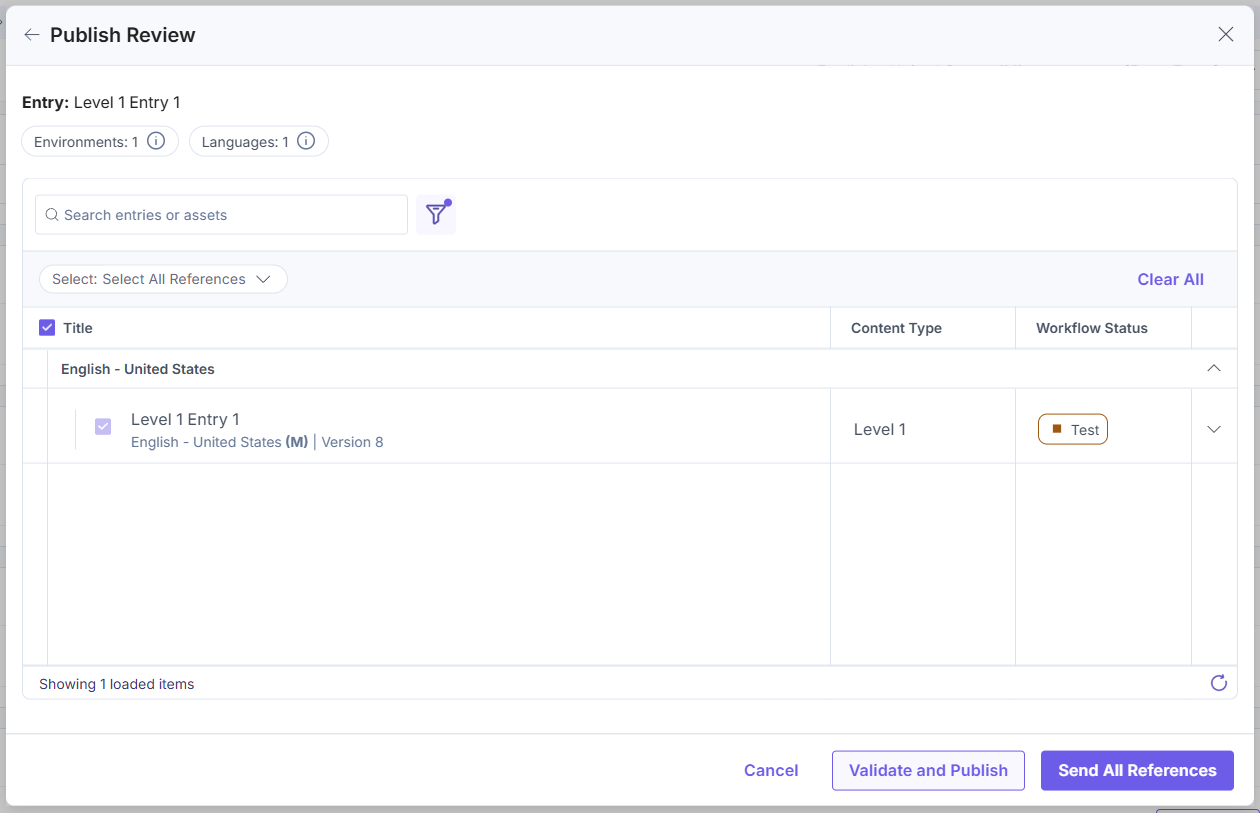
- Validate and Publish: Opens the Validate Items modal to review the items selected for publishing.
- Click a reference to open it in a new tab and address any issues before proceeding.
Note: When you fix validation errors or update a referenced item, the Validate Entries modal continues to show the previous results. Run a new validation to reflect the latest changes before publishing.
- When you are ready, click Publish Now.
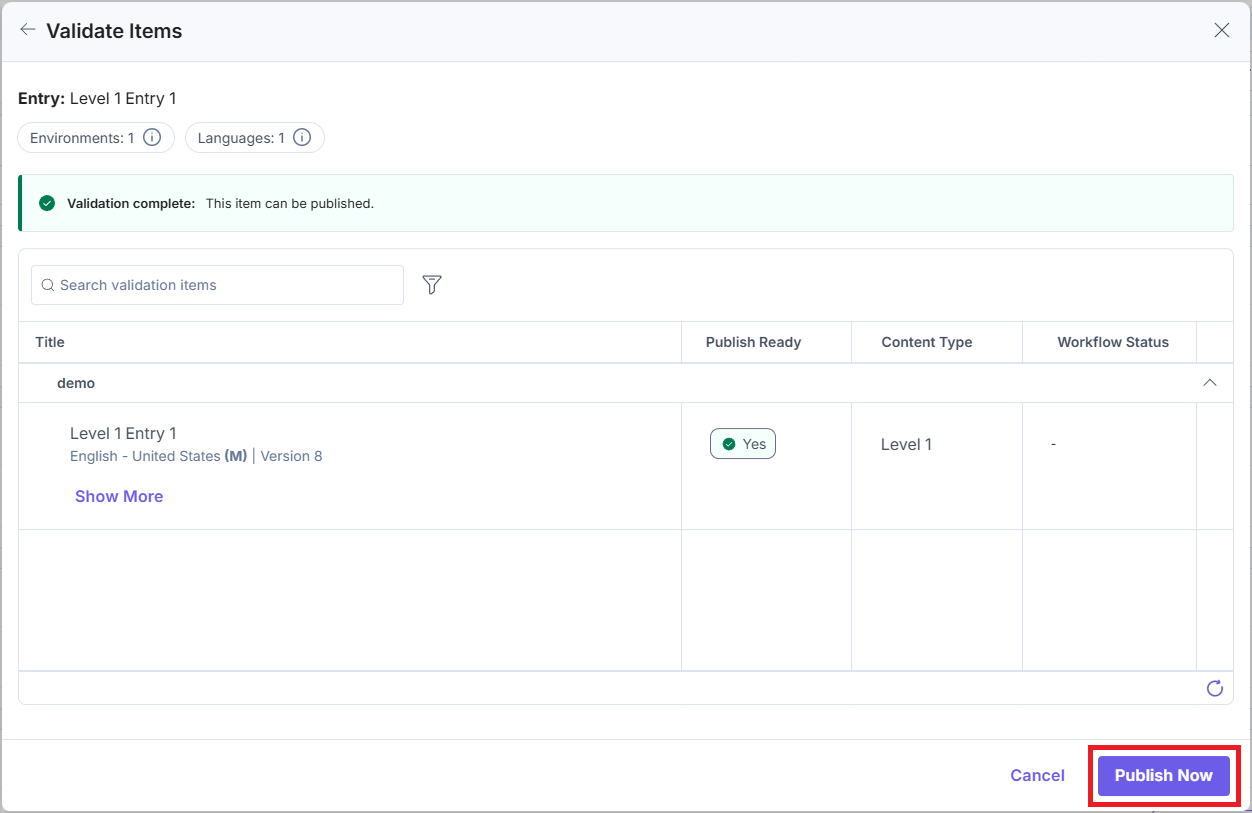
The entry and selected references are added to the Publish Queue for processing.
Tip: You can run multiple entry validations and check their progress in the task window.
Publishing an entry in Contentstack makes it available across the selected environments, locales, and variants. Using Validate and Publish helps ensure all related entries and assets are publish-ready, reducing errors and improving reliability.
Roll Back a Published Entry
If you publish an entry to the wrong environment or a version goes live before it is ready, you can roll the entry back to its previously published version in that environment.
To roll back a published entry, perform the steps below:
- Go to the entry you want to roll back.
- Click the horizontal ellipsis icon, then select Rollback Entry.
- Select the environment or environments where you want to roll back the entry.
- Click Rollback Entry to confirm. Contentstack reverts the entry to its previously published version in each selected environment.
Note: If the entry had no previously published version in a selected environment, the rollback unpublishes the entry from that environment.
Limitations
- When publishing a single entry, you can select up to 10 environments and 10 locales. When publishing multiple entries, you can select up to 50 environments and 50 locales. These limits vary for localized entries. For guidance, contact Contentstack Support.
- Scheduled publishing dates must be set within 12 months of the current date.
- Referenced items are visible only up to the Nested Reference Publishing depth limit included in your plan.
- You can run a maximum of two validation or publish review processes at the same time.
More articles in "Create and Manage Content"
