

Edit an Entry
Editing an entry in Contentstack allows you to quickly update your content to reflect the latest information or changes.
When Drafts and Auto Save is enabled, Contentstack automatically captures draft updates while you edit an entry. Changes are saved continuously in the background and synced with other active users viewing the same entry. Because changes are automatically saved as draft updates, you do not need to manually save after every modification.
This feature also supports collaborative editing. When one user edits a field, that field is temporarily locked to prevent other users from modifying it at the same time.
To edit an entry, log in to your Contentstack account, and perform the following steps:
- Go to your stack and select Entries.
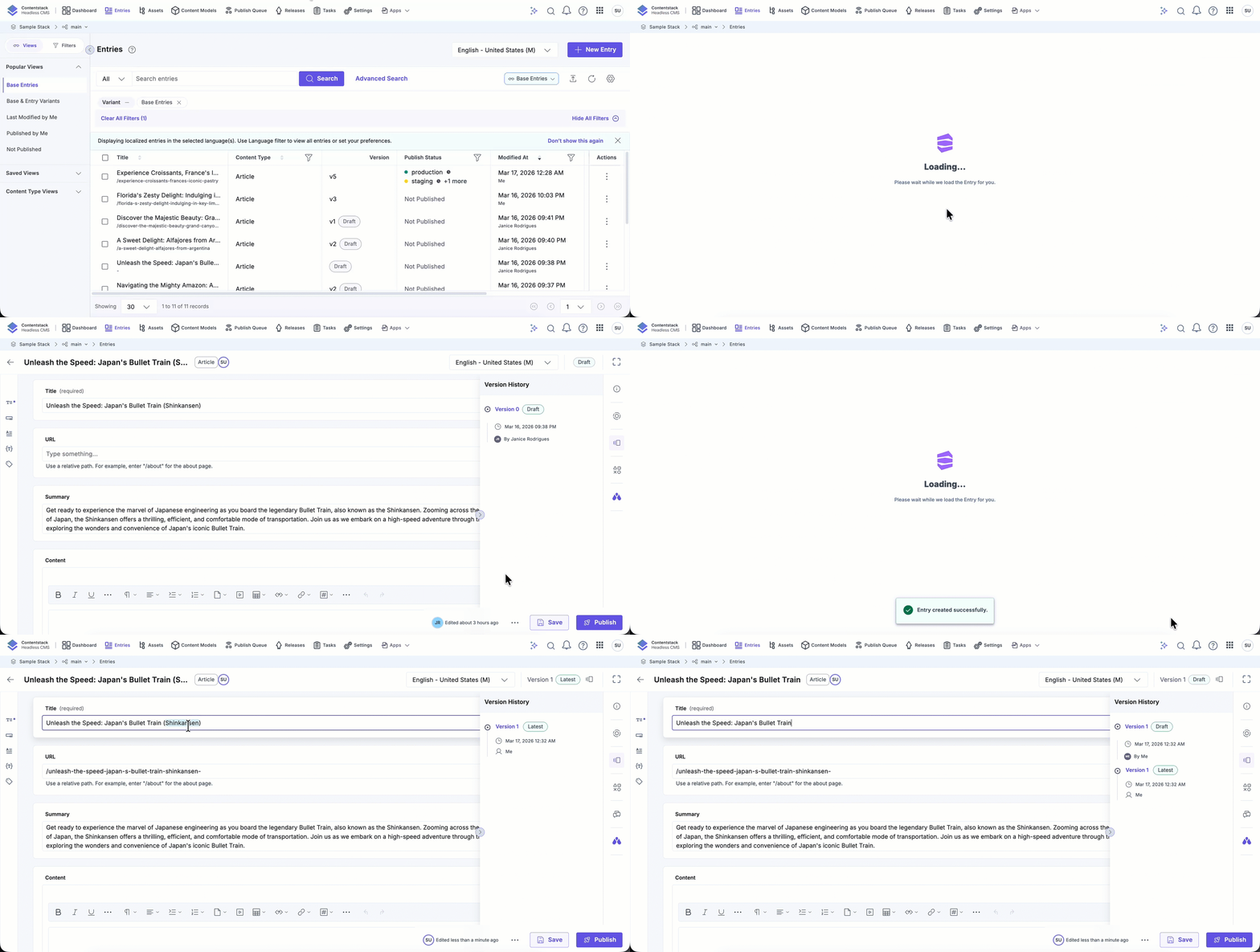
- Locate the entry you want to modify and update the necessary fields in the entry.
- Click Save to create a new version of the entry, or click Publish to make the latest version live.
- Alternatively, to edit an entry from the Entries list page, click the vertical ellipsis in the Actions column, select Edit, make the changes, and click Save or Publish.
- Use the locale dropdown to edit entries in different languages and save or publish changes as needed. To create new language versions, refer to the Localize an Entry guide.
For newly created entries that have not yet been saved (version 0), the locale cannot be changed until the entry is saved for the first time. - To edit entry variants for delivering personalized content to specific user groups, refer to our Edit an Entry Variant document.
- Use the version dropdown at the top-right to switch between entry versions, compare changes, restore previous states, and save modifications as the latest version.
- When you open an entry, the browser tab displays the entry title. This makes it easier to identify and switch between multiple open entries. If the entry has no title, the tab displays Untitled Entry. If the entry cannot be found, it displays Entry Not Found.
Preview Entry Changes
Contentstack provides multiple features designed to simplify entry editing and ensure efficient content management. These tools include:
- Live Preview: See real-time updates to your content before saving or publishing.
- Visual Builder: Edit page layouts in real-time directly on the preview of your website without developer assistance.
- Timeline: Visualize and manage the publishing history and future updates. Preview scheduled updates and track publishing history.
Additional Resource: Within an entry that contains reference fields (or is referenced by other entries), you can click View Reference Map to visualize relationships.
API Reference
To edit entries via API, refer to the Update an entry API request.
