.svg) Headless Content Management
Headless Content Management.svg) Real-time Data and Insights
Real-time Data and Insights.svg) Omnichannel Personalization
Omnichannel Personalization.svg) Agents & Automations
Agents & Automations.svg) Front-end Hosting
Front-end Hosting

Understanding Entry Versions
Contentstack enables you to create and manage multiple versions of an entry. This feature helps you efficiently track changes, compare versions, and restore previous states when necessary.
By default, entry versions are automatically assigned sequential numbers each time an entry is saved (e.g., Version 1, Version 2, and so on).
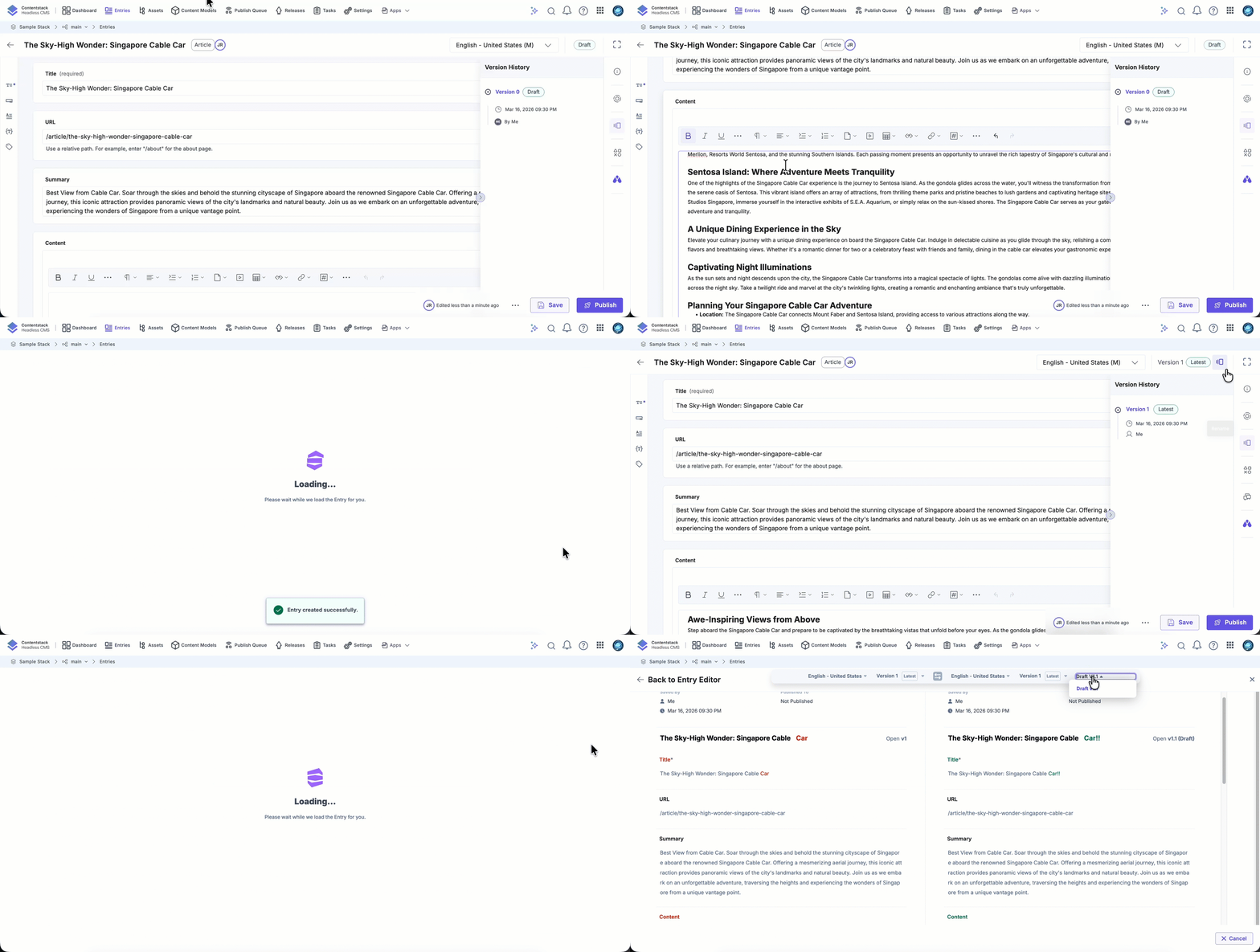
When Drafts and Auto Save is enabled, Contentstack may also capture draft updates while you edit an entry. These draft changes represent in-progress work and do not create new versions until the entry is explicitly saved or published.
Draft Updates vs Entry Versions
When Drafts and Auto Save is enabled, Contentstack automatically captures draft updates while you edit an entry.
These draft updates represent in-progress changes and do not create new entry versions. A new version is created only when you explicitly click Save or Publish.
Draft updates allow you to review changes and compare them with the most recent saved version before confirming them as a new version.
Draft updates are retained only for the five most recent major versions of an entry. Draft updates associated with older major versions are automatically removed when new major versions are created.
Accessing the Version History Panel
In addition to the version dropdown, Contentstack offers a dedicated Version History panel accessible from the right sidebar of the entry editor. This panel provides a centralized view of all saved and draft versions, making it easier to track changes, compare versions, and take quick actions.
It presents each version with its corresponding number (or custom name, if assigned), author, timestamp, and status indicators such as Latest, Published, or Scheduled for Publish.
Hovering over any version in the panel reveals quick action icons that allow you to edit the version or compare it side-by-side with the currently selected version.
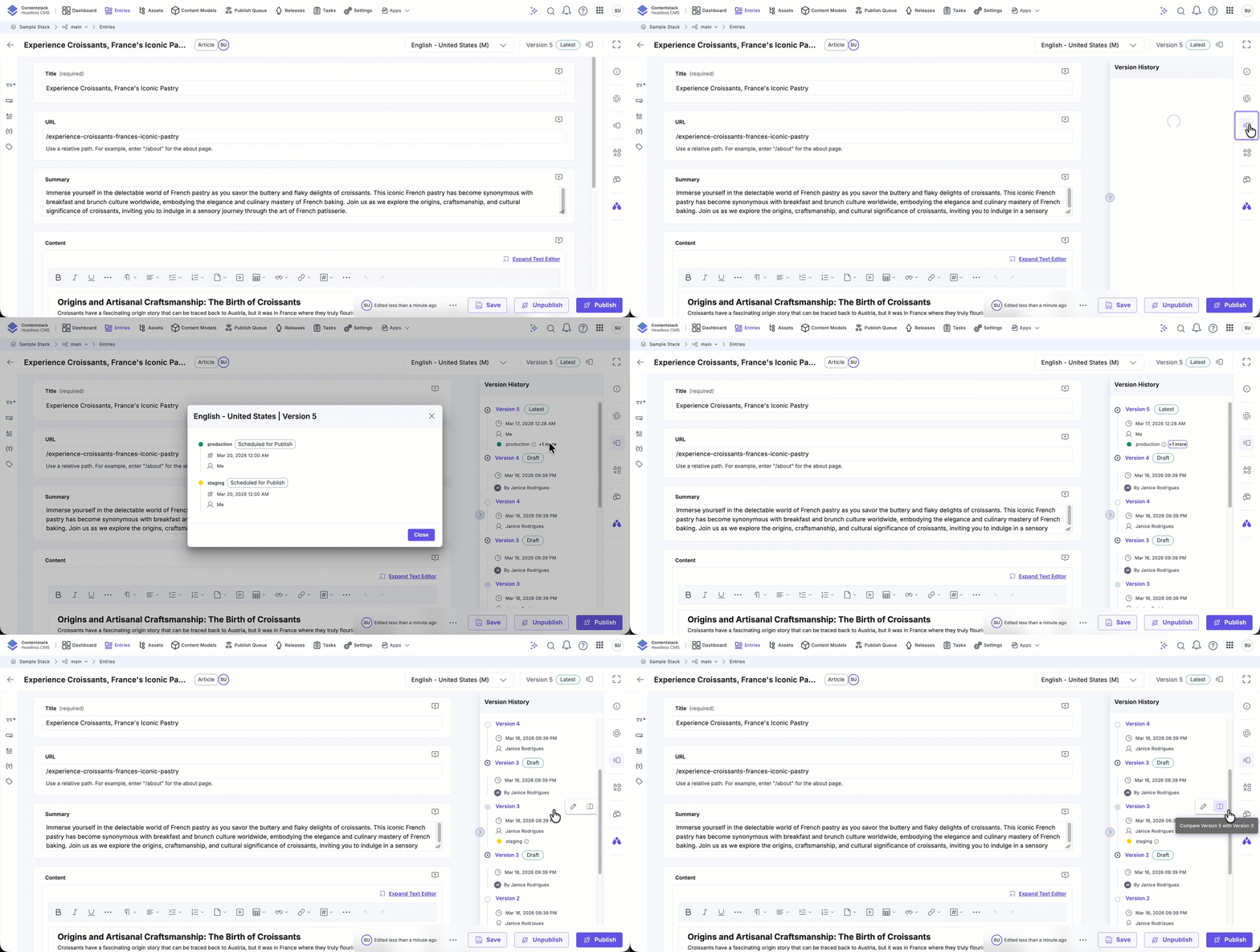
Note: When Drafts and Auto Save is enabled, draft updates may appear in the Version History panel with a Draft indicator. You can compare draft changes with the most recent saved version.
Assigning Names to Entry Versions
To make version identification easier, you can assign meaningful names to specific entry versions, such as Production or Development. There is no limit to the number of versions you can create. However, maintaining a manageable number of relevant versions is recommended for better organization.
Note: Custom version names have a maximum limit of 32 characters.
Learn how to assign names to entry versions.
Renaming Entry Versions
If needed, you can rename an entry version. Renaming an entry version allows you to update or refine its description to better reflect its purpose or status.
Learn how to rename entry versions.
Removing Entry Version Names
You can remove a name assigned to an entry version. Once removed, the version will display its default numeric identifier.
Learn how to remove entry version names.
Comparing Entry Versions
Contentstack provides a side-by-side comparison view for any two entry versions. This view highlights the differences with color-coded indicators, making it easy to identify changes.
Learn how to compare entry versions.
Restoring Old Entry Versions
If necessary, you can roll back or restore an entry to any previously saved version, ensuring you always have access to earlier content states.
Learn how to restore old entry versions.
Contentstack’s entry versioning lets you efficiently manage content changes. By naming, renaming, removing names, comparing, restoring, and browsing via the version history panel, you maintain control and consistency across your projects.
Tutorial Video
More articles in "Manage Entry Versions"
