.svg) Headless Content Management
Headless Content Management.svg) Real-time Data and Insights
Real-time Data and Insights.svg) Omnichannel Personalization
Omnichannel Personalization.svg) Agents & Automations
Agents & Automations.svg) Front-end Hosting
Front-end Hosting

Save In-progress Entry
Note: This feature is available only for V3 stacks and may require activation. If the feature is not enabled in your account, contact Contentstack support.
When working with large or complex content types, completing an entry in a single session may not always be practical. Contentstack allows you to save your work while editing, even if some mandatory fields are not yet completed. These entries are referred to as in-progress entries.
Saving in-progress entries helps preserve unfinished work so you can return later to complete and publish the entry.
In-Progress Entries with Drafts and Auto Save
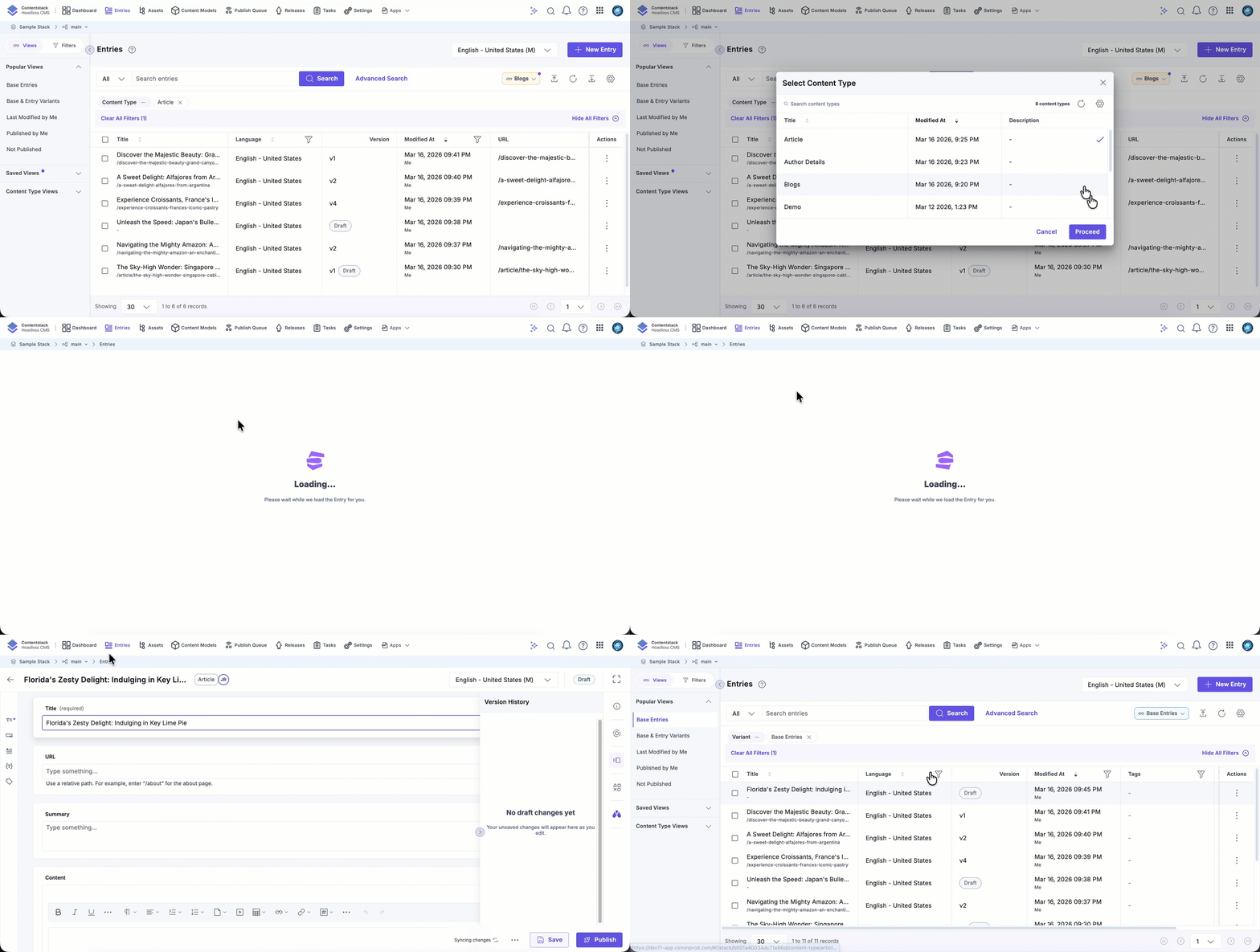
If Drafts and Auto Save is enabled in your stack, a draft entry is automatically created when you click New Entry. As you edit the entry, your changes are saved automatically as draft updates.
This allows you to begin working on an entry immediately without manually saving it first. The entry remains in draft state until you explicitly click Save or Publish, which creates a version of the entry.
This behavior is useful when you need to temporarily leave the entry editor, for example, to create referenced entries, and then return later to complete the original entry.
Entry Versions and In-Progress Entries
New entries remain in Draft state (version 0) until they are saved for the first time. Some actions are not available while the entry is in this state.
Clicking Save confirms the changes and creates a new major version of the entry.
Note: Entries with incomplete mandatory fields cannot be published, scheduled for publishing, included in bulk publishing, added to releases, or referenced for publishing until the required fields are completed.
Saving in-progress entries allows you to work on content without needing to complete all mandatory fields in a single session. By preserving unfinished work and automatically capturing draft updates, this feature helps prevent data loss and supports flexible content creation workflows.
Once all required fields are completed, you can save the entry to create a version and proceed with publishing or other content management actions.
More articles in "Create and Manage Content"
