

Managing Triggers
Rename a Trigger
To rename a trigger in the automation, perform the steps given below:
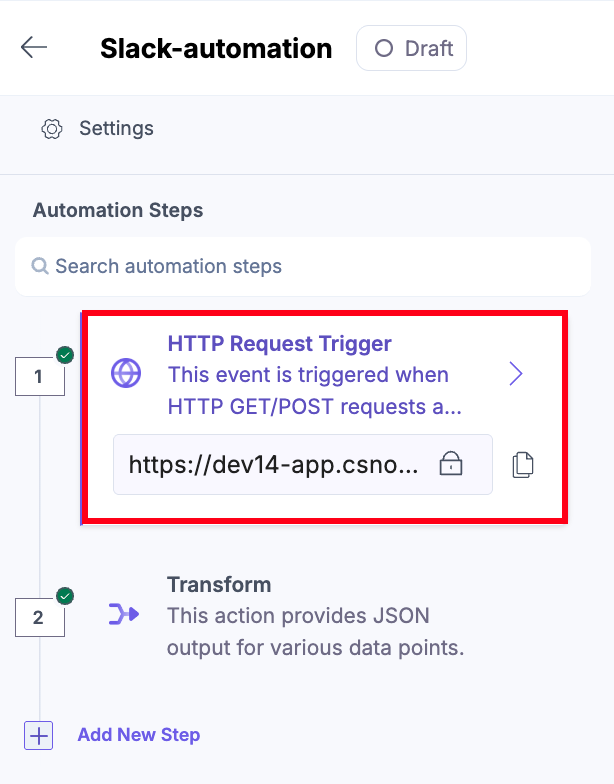
- Click the trigger tab (in our case, HTTP Request Trigger).
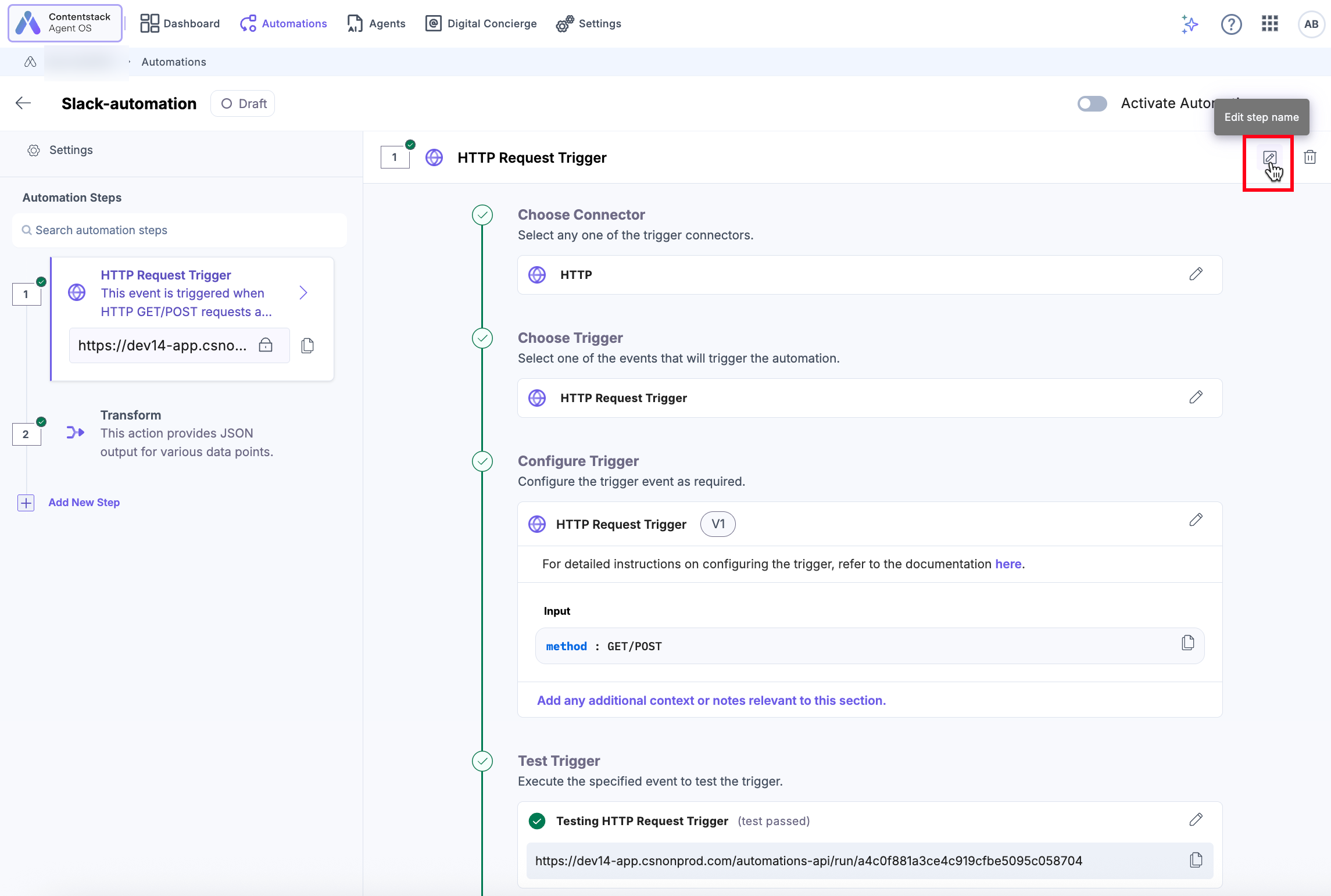
- Click the edit icon visible on the trigger header to rename trigger.
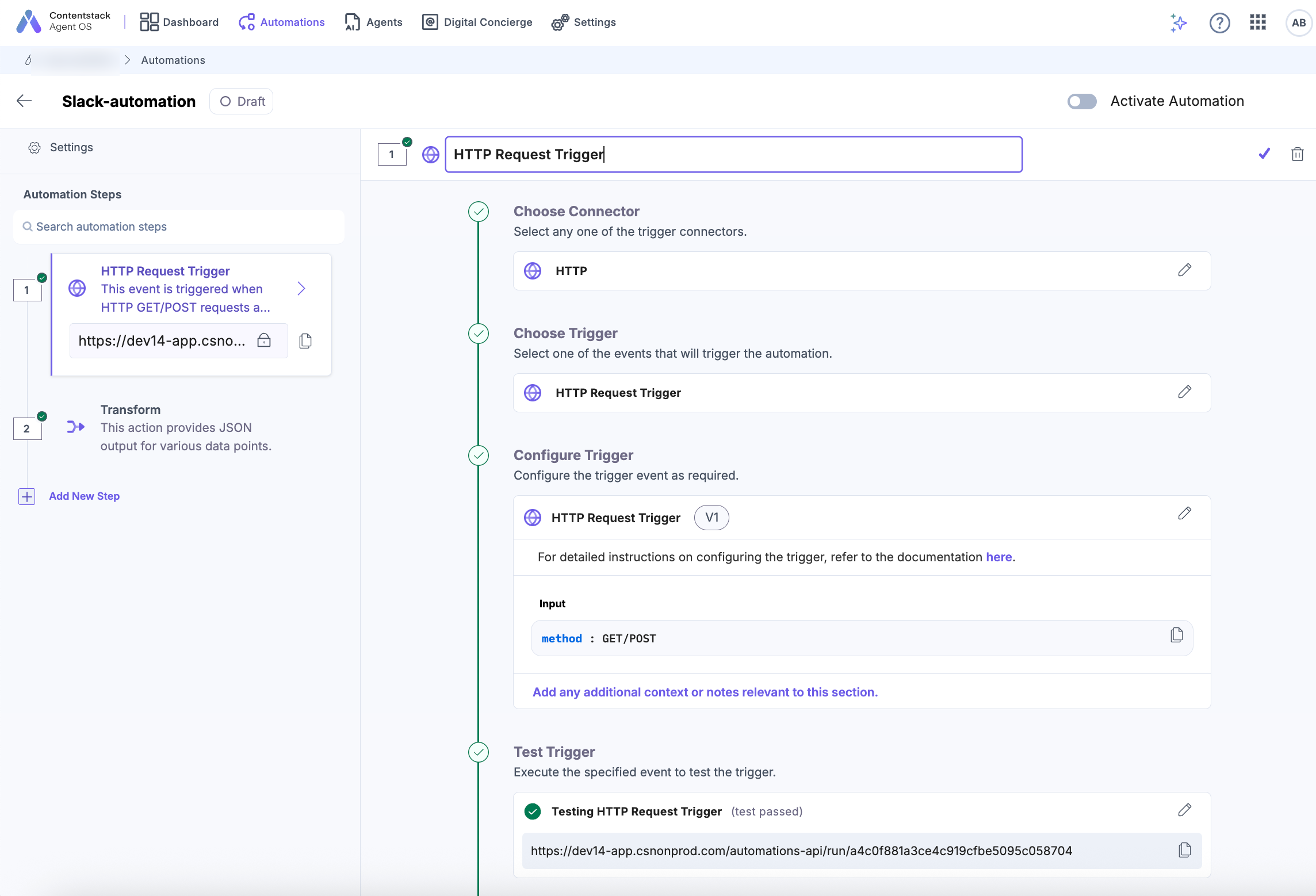
- The HTTP Request Trigger field becomes editable. Update the name as required and click the “✔” check mark.
Delete a Trigger
To delete a trigger in the automation, perform the steps given below:
- Click the trigger tab (in our case, HTTP Request Trigger).
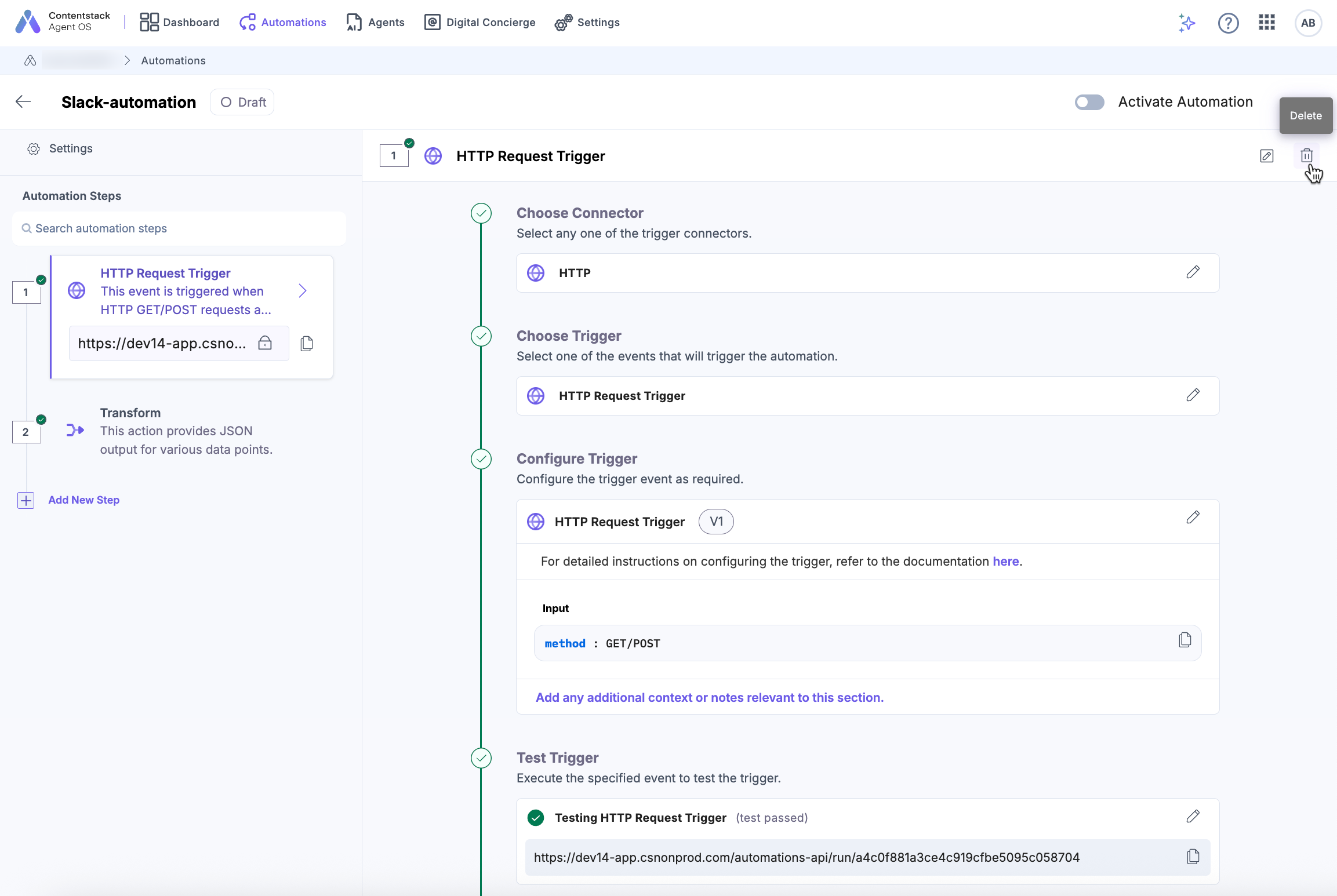
- Click the delete icon visible on the trigger header to delete the trigger.
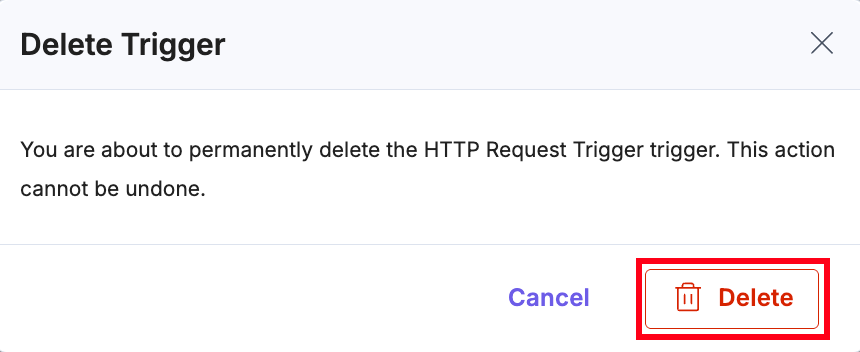
- Confirm your action by clicking Delete again.
- You can also delete the trigger from the configured trigger as shown below:
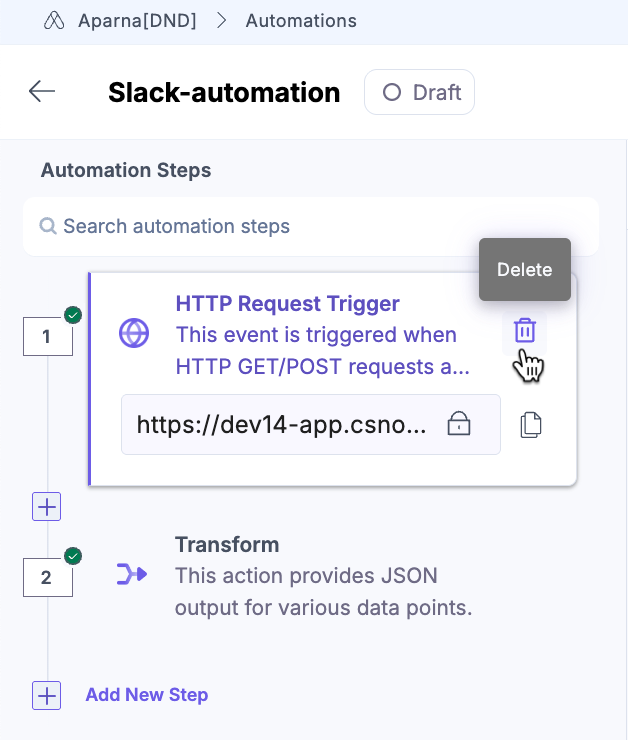
This will remove the trigger from the automations configuration page.
Was this article helpful?
