

Organization Users
The Users section displays all users in your organization. It lets you invite, manage, and take action on organization users.
Navigate to Administration through “App Switcher”, then click the Users tab to view organization users.
Additional Resource: Another way to manage users is through individual stacks. Refer to Invite Users and Assign Roles for more information.
You can perform the following actions on organization users:
- Invite new user(s) to your organization
- Change organization role of existing user
- Remove user(s) from your organization
- Force password reset
- Reset Multi-Factor Authentication (MFA)
- Unlock Users
- Export the user list to CSV
- View and sort by last login date
Prerequisites
- Contentstack account
- Organization Owner or Admin permissions
What You Will Learn
How to invite, edit, and remove organization users.
How to force password resets, unlock users, and reset Multi-Factor Authentication (MFA).
How to export the user list to CSV and view last login details.
Let’s walk through each action.
Invite New User(s)
To invite user(s) to your organization, perform the following steps:
- Click Invite User.
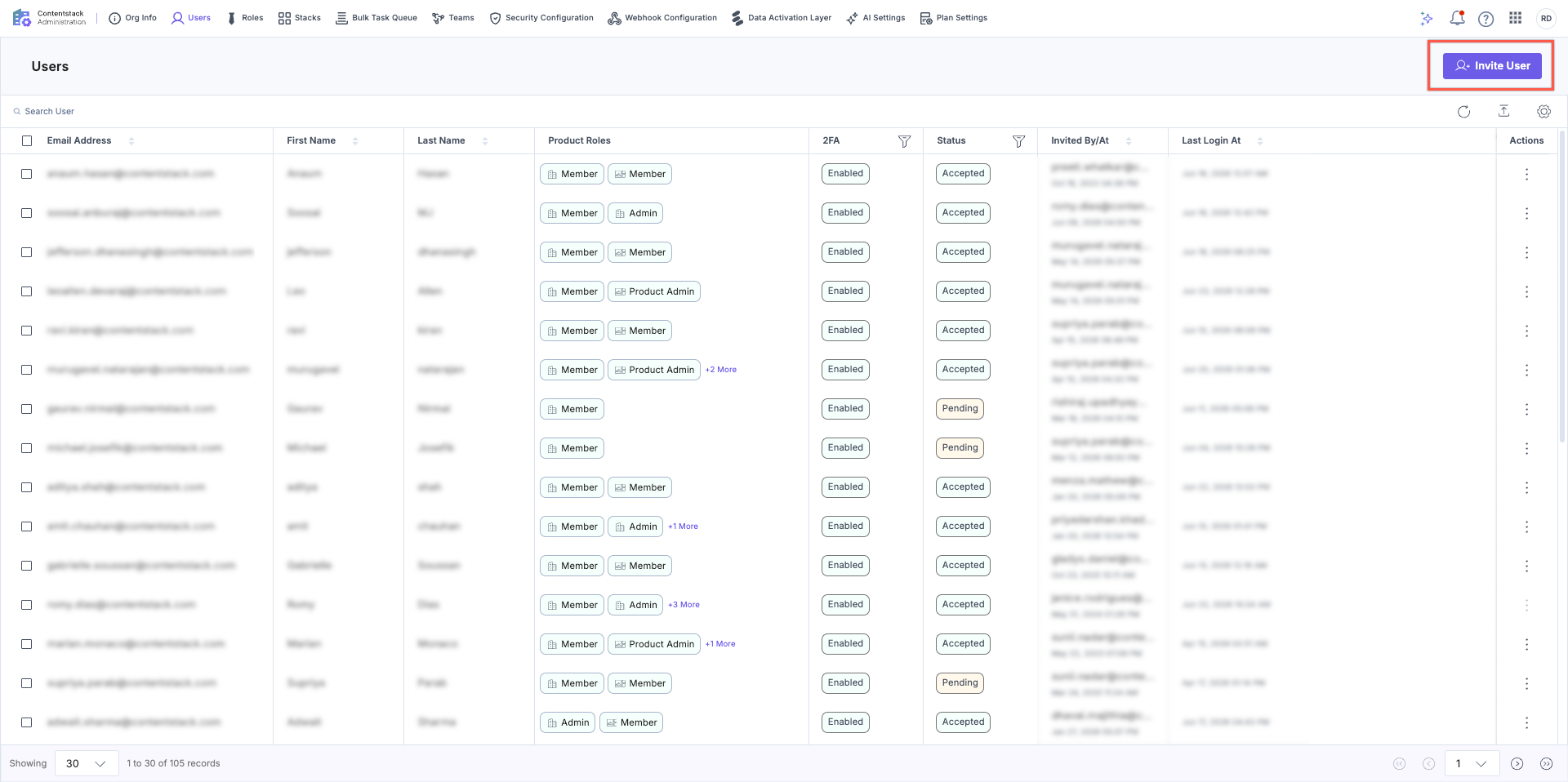
- Enter the email address of the user. To add multiple users, enter email addresses separated by a comma.
- In Assign Product Access, assign the roles each user needs:
- One or more organization-level Administration roles. At least one Administration role is required, and the Member role is selected by default.
- Product roles for each product, such as the CMS, Assets, and AgentOS.
- Optionally, project-level roles for individual stacks, spaces, or AgentOS projects.
- Click Invite.
A user can hold more than one role at the same time. For example, a user can be both a Member and a Product Analytics Viewer.
Note: Only the organization Owner and Admin role can invite new users.
Additional Resource: Refer to the Invite Users to Organization documentation for more details, including steps for Single Sign-On (SSO) enabled organizations.
Edit a User
To update permissions for a user, perform the following steps:
- Click the user you want to edit or click the vertical ellipses in the Actions column and click Edit. This opens the Edit User page.
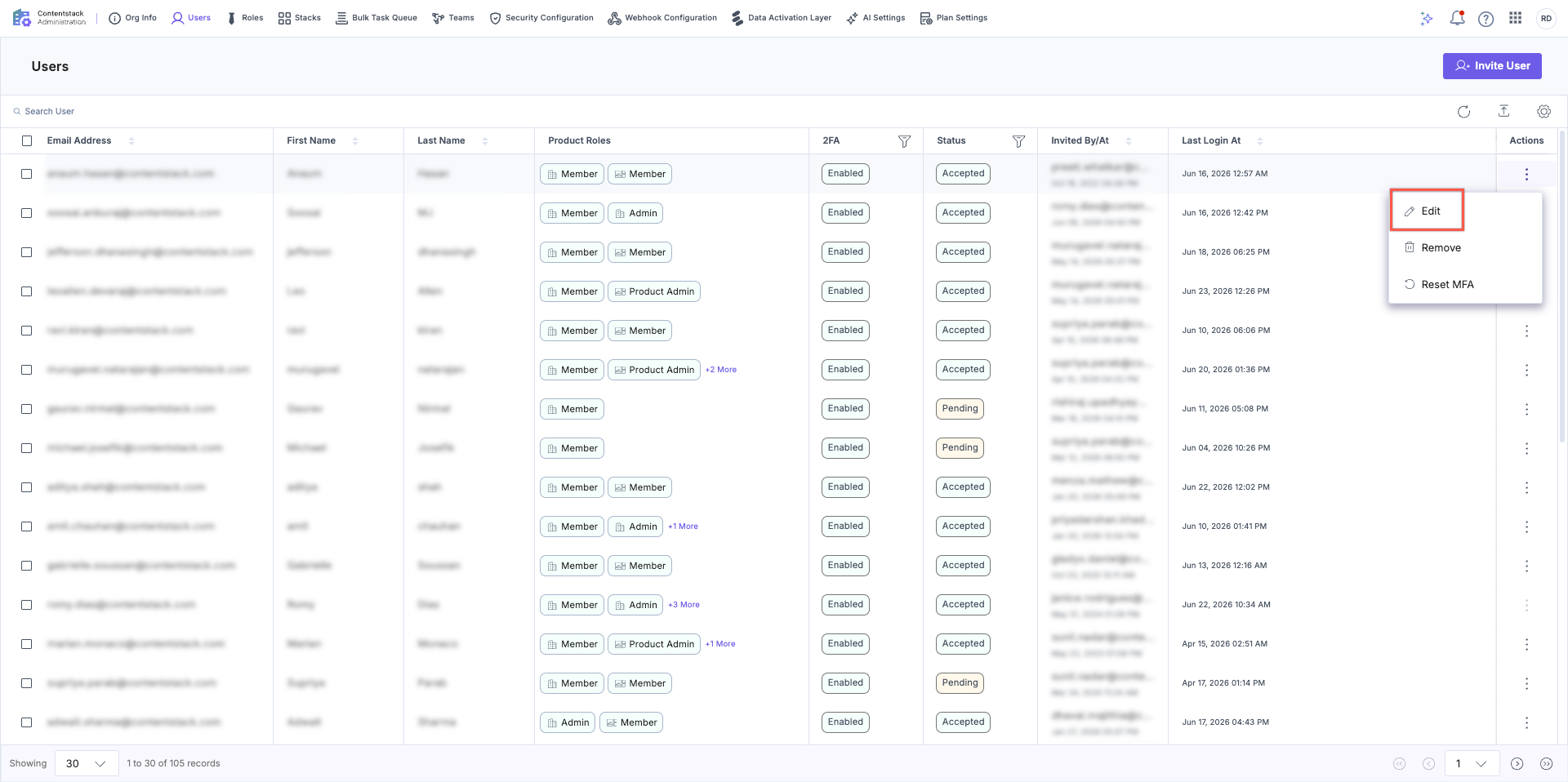
- On the Edit User page, update the following as required, then click Update:
- The organization-level Administration roles.
- The product roles for each product, such as the CMS, Assets, and AgentOS.
- The assigned stacks, spaces, or AgentOS projects, and the project-level roles for each.
Remove a User
To remove a user from the organization, perform the following steps:
- Navigate to the user you want to remove, click the vertical ellipses in the Actions column, and click Remove.
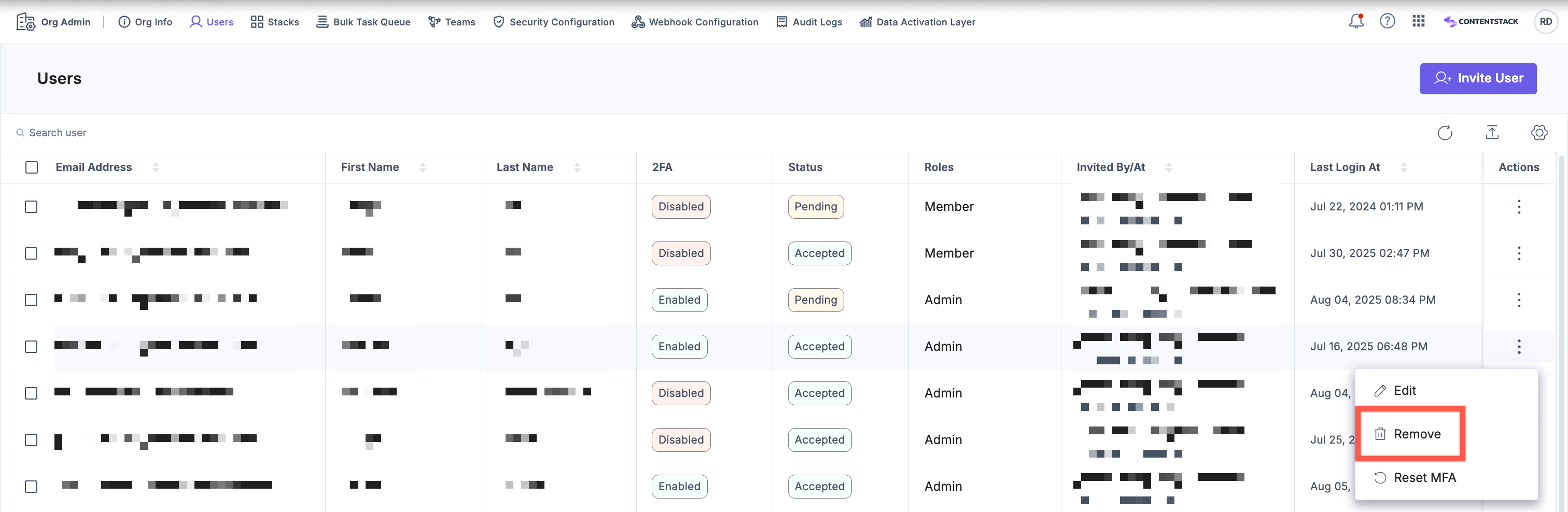
- In the Remove User modal, click Remove to confirm the action.
Note: Alternatively, you can also remove a user from the Edit user page.
Warning: Removing a user revokes their access to all stacks in the organization.
Force Password Reset
To send a password reset email to a user:
- Select the checkboxes next to the users you want to send a password reset email to, and select Force Password Reset.
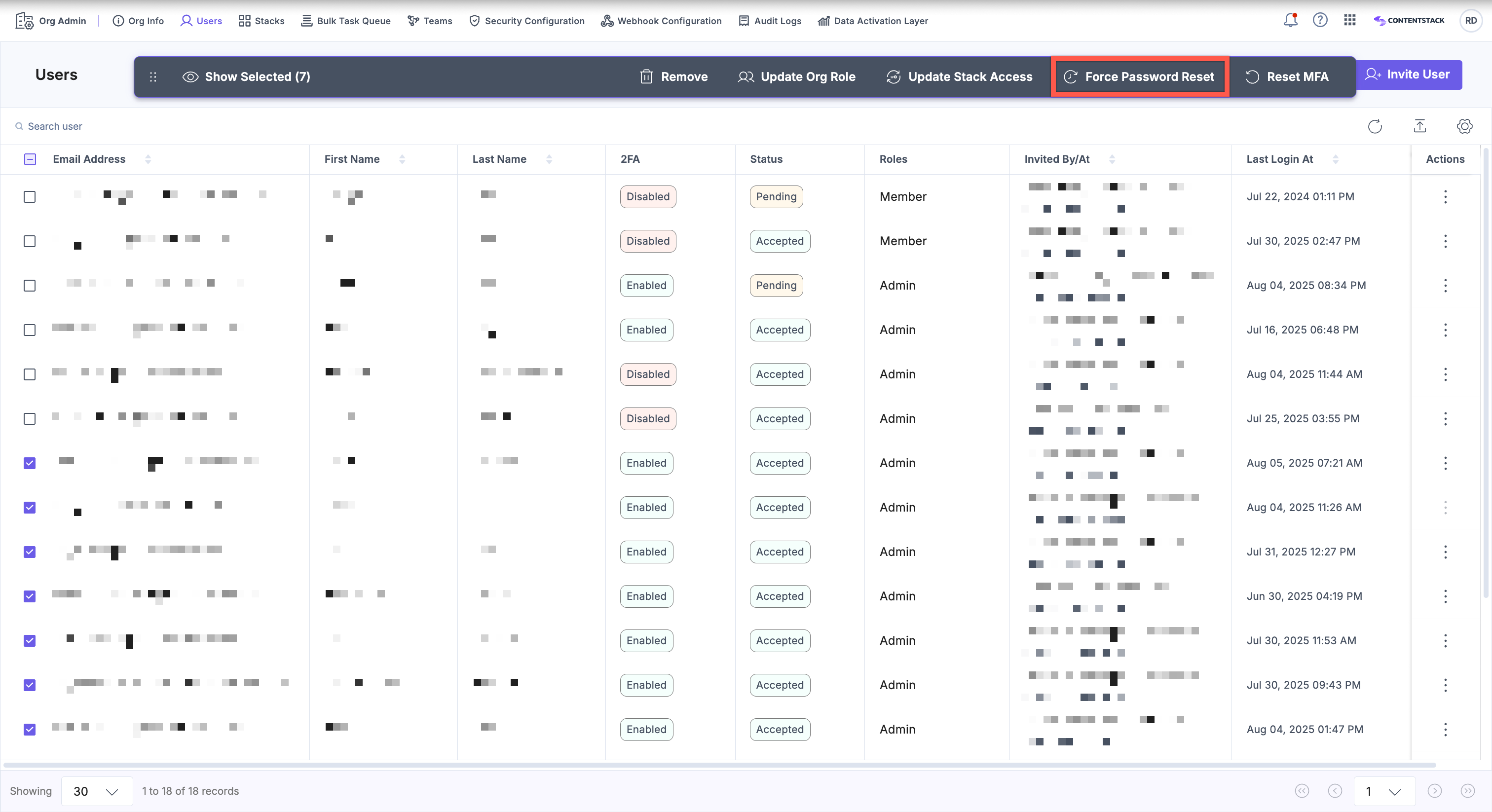
- In the Force Password Reset modal, click Continue to confirm the action.
The user is forced to reset their password on their next login.
Unlock Users
Manually unlock users who have been locked out due to failed login attempts.
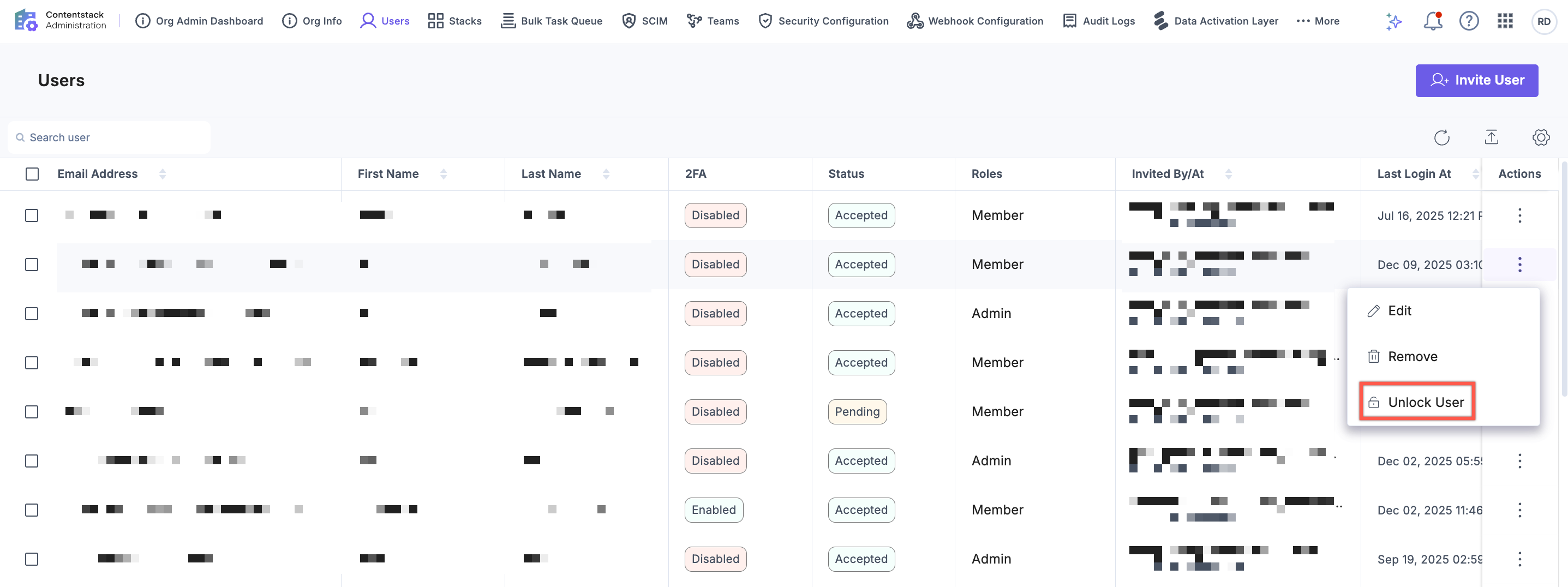
To unlock users individually or in bulk:
- Click the vertical ellipsis in the Action column next to the locked user.
Or select up to 10 users using the respective checkboxes.
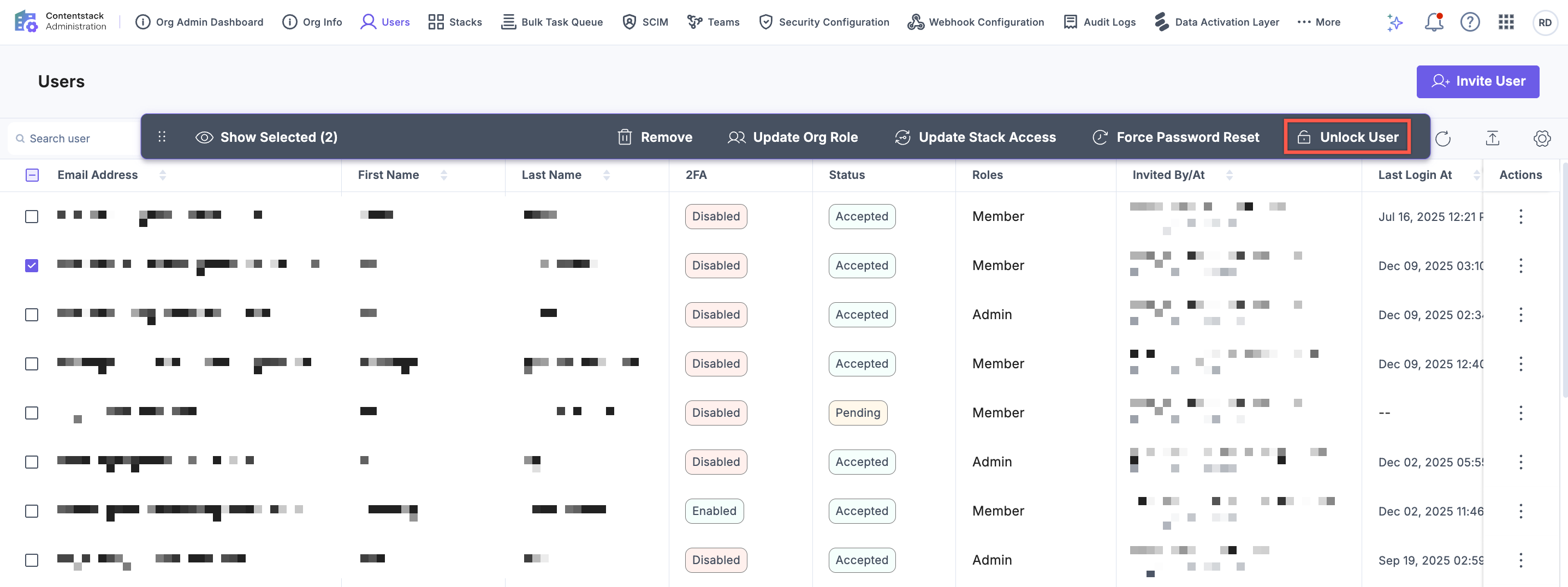
- Click Unlock User.
- Review the selected users in the confirmation modal and click Continue or Proceed to restore access.
Note:
- The Unlock User option is not available for:
- Users who are part of multiple Contentstack organizations
- Org owners
In both cases, contact Contentstack support to unlock the user.
- The Unlock User button appears only if all user selected in bulk are unlockable. If one or more selected users are ineligible (e.g., multi-org users or organization owner or already unlocked user), the option will not be shown.
Reset MFA
Reset MFA when a user cannot access their account. Common scenarios include lost or stolen devices, switching to a new device, account security concerns, or issues with the authenticator app.
To reset MFA for a user:
- Click the vertical ellipses in the Actions column of a user and select Reset MFA.
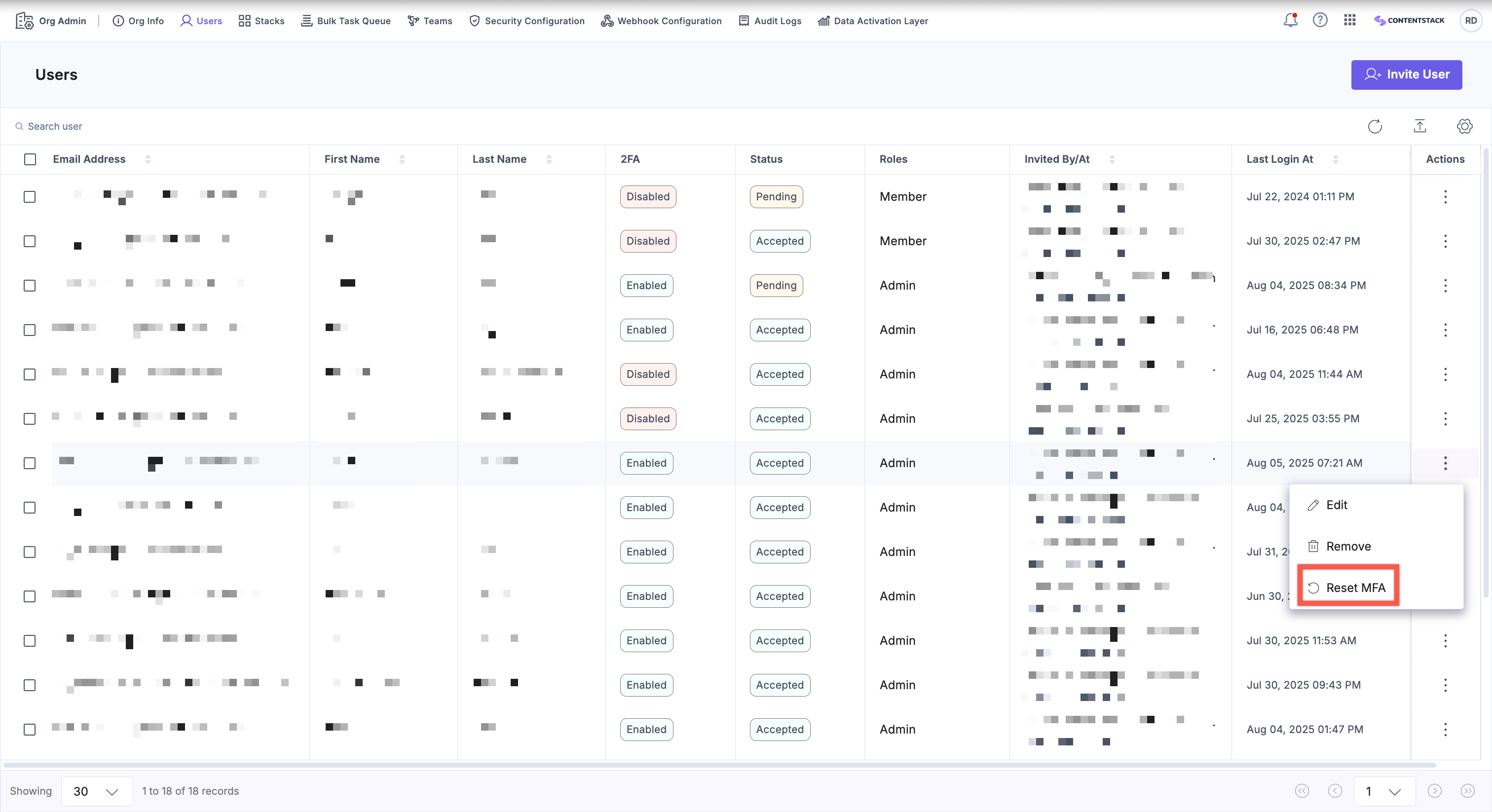
- In the Reset Multi-Factor Authentication modal, click Proceed to confirm the action.
The user receives an email with a link to reset their MFA configuration.
Export Users List
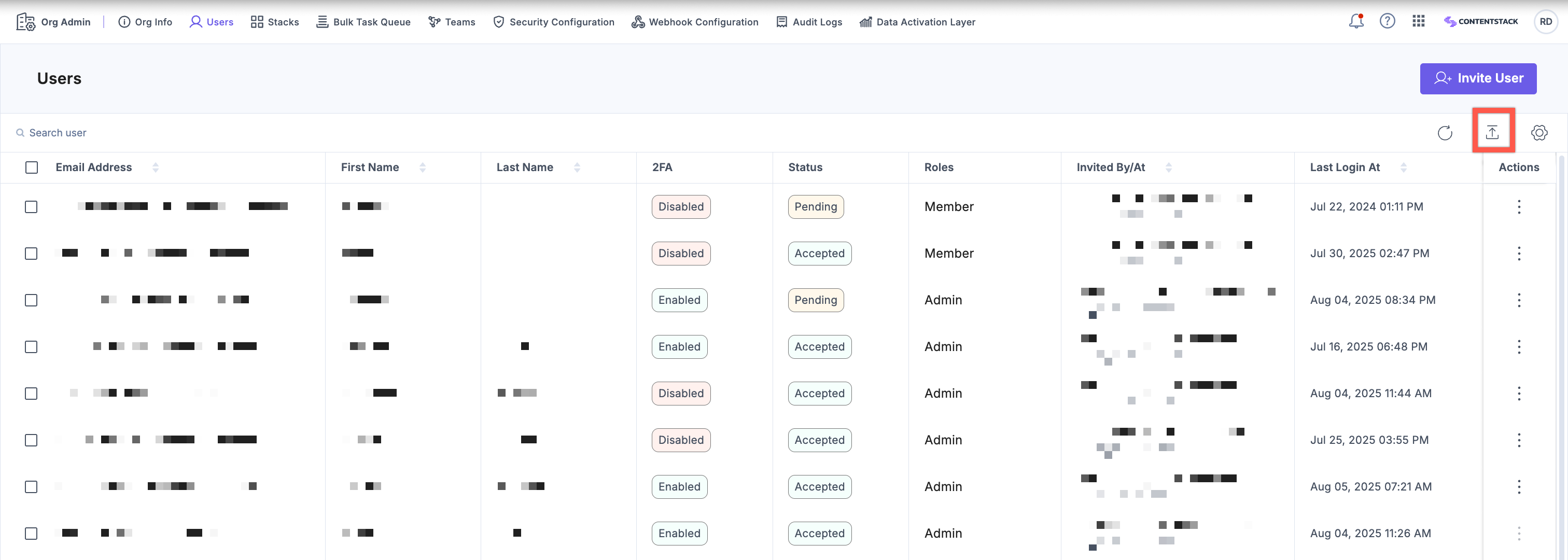
Export details of all organization users in a Comma-Separated Values (CSV) file. The users are sorted alphabetically by their email address in CSV. You can open this CSV file using any spreadsheet application.
Click the “Export” icon to download the CSV file with all organization users.
View Last Logged-in Details of Users
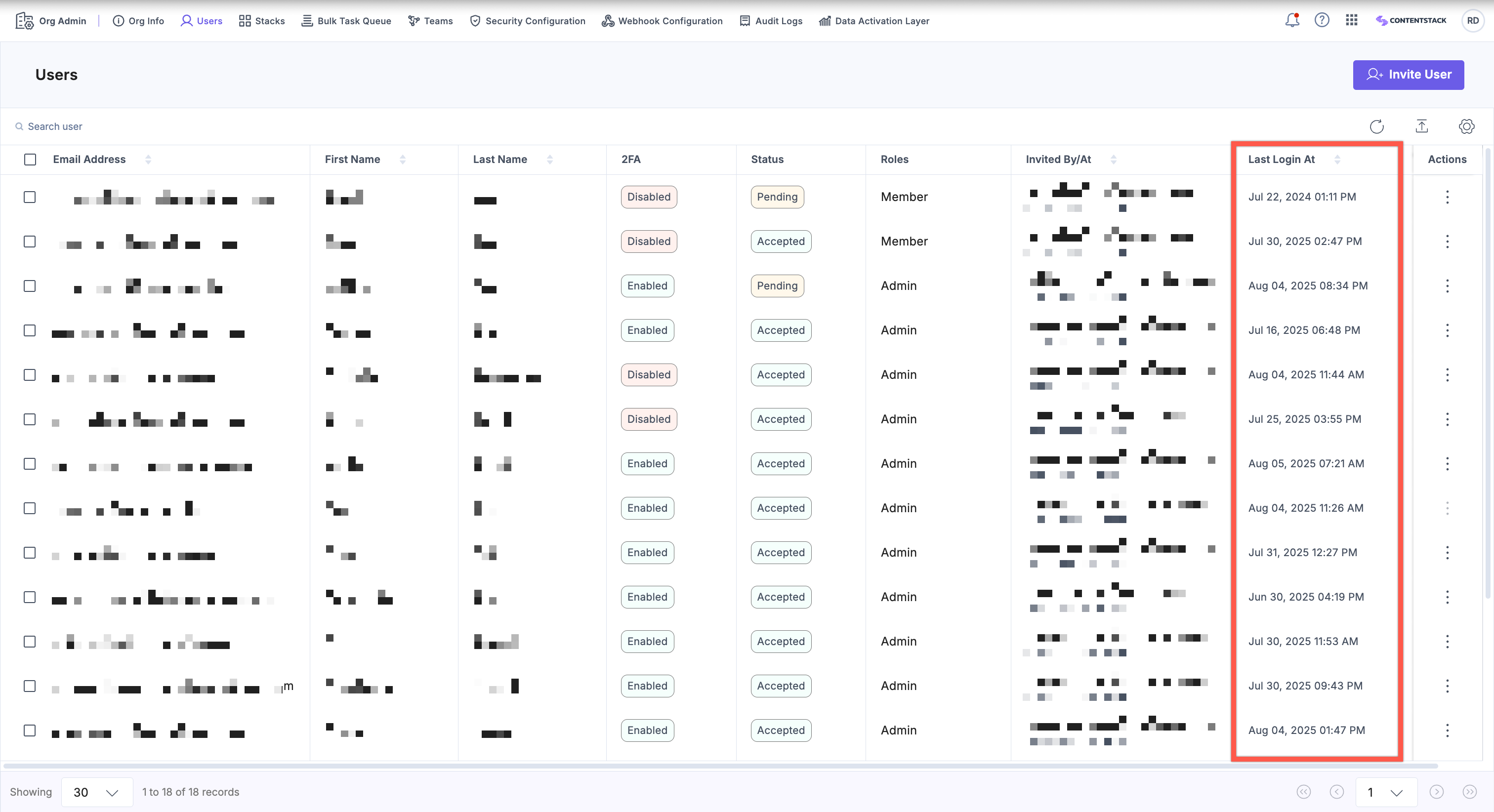
The Users list also displays the most recent login timestamp for each user in the Last Login At column. You can sort the list by this column to easily identify recently or infrequently active users.
Additional Resource: To perform bulk actions on organization users, refer to our Bulk Operations on Organization Users document for more details.
Related Resources
