

Organization Stacks
The Stacks tab of the Organization Settings page lists every stack created under the organization. From this page, you can view stack details and delete a stack.
Prerequisites
- Contentstack account
- Organization Owner or Stack Owner permissions
What You Will Learn
How to view the list of stacks in an organization.
How to delete a stack as an Organization Owner.
How to delete a stack as a Stack creator/owner.
View Stacks in Organization
To access the Stacks settings page, Log in to your Contentstack account and perform the following steps:
- Select the Organization from the dropdown on the header, and click on the “Org Admin” icon on the left navigation panel.
- Click on the Stacks tab.
- Name: Name of the stack
- Owner: Displays the name of the stack owner
- Email Address: Email ID of the stack owner
- Users: Number of users added in the stack
- Created At: Date and time of stack creation
- Actions: Allows you to delete a stack
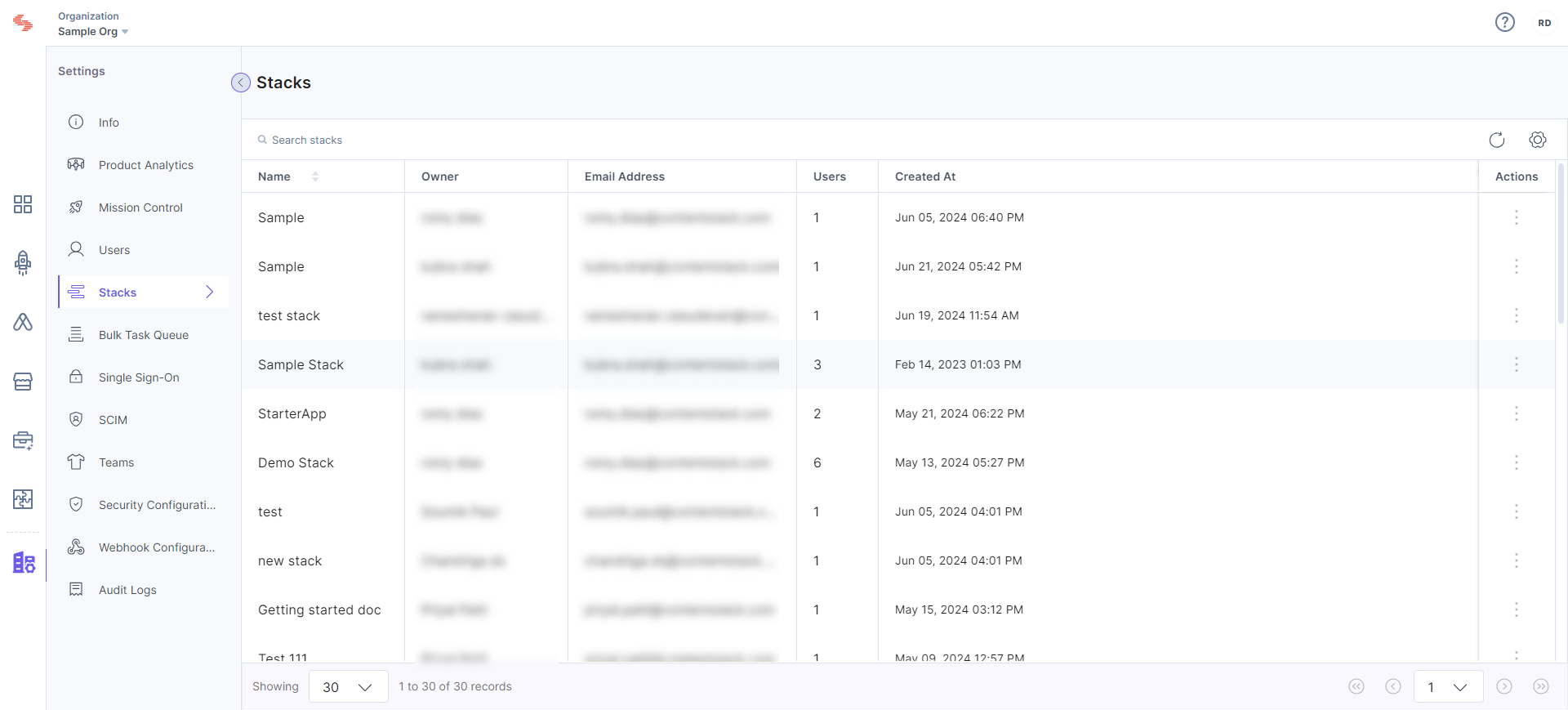
From this page, you can only Delete a stack.
Delete a Stack
Note: Only the Organization Owner or Stack owner has the right to delete a stack.
Let us look in detail the steps that need to be performed by the respective roles.
Organization Owner
To delete a stack through the Settings page, perform the following steps:
- Log in to your Contentstack account.
- Select the Organization from the dropdown on the header, and click on the “Org Admin” icon on the left navigation panel.
- Select the Stacks settings option, and click on the ellipses under the Actions column.
Note: Only Organization Owner can delete a stack from the Org Admin settings.
.png)
- Confirm the Delete action.
Your stack will now be permanently deleted.
Stack Owner
There's an alternative method of deleting stacks through the Stack Settings page. This method can be performed by the Stack Creator/Owner. To delete a stack, perform the following steps:
- Log in to your Contentstack account and go to the stack that you want to delete.
- Click the “Settings” icon on the left navigation panel and select Stack.
- On the Stack Settings page, click on Delete Stack button.
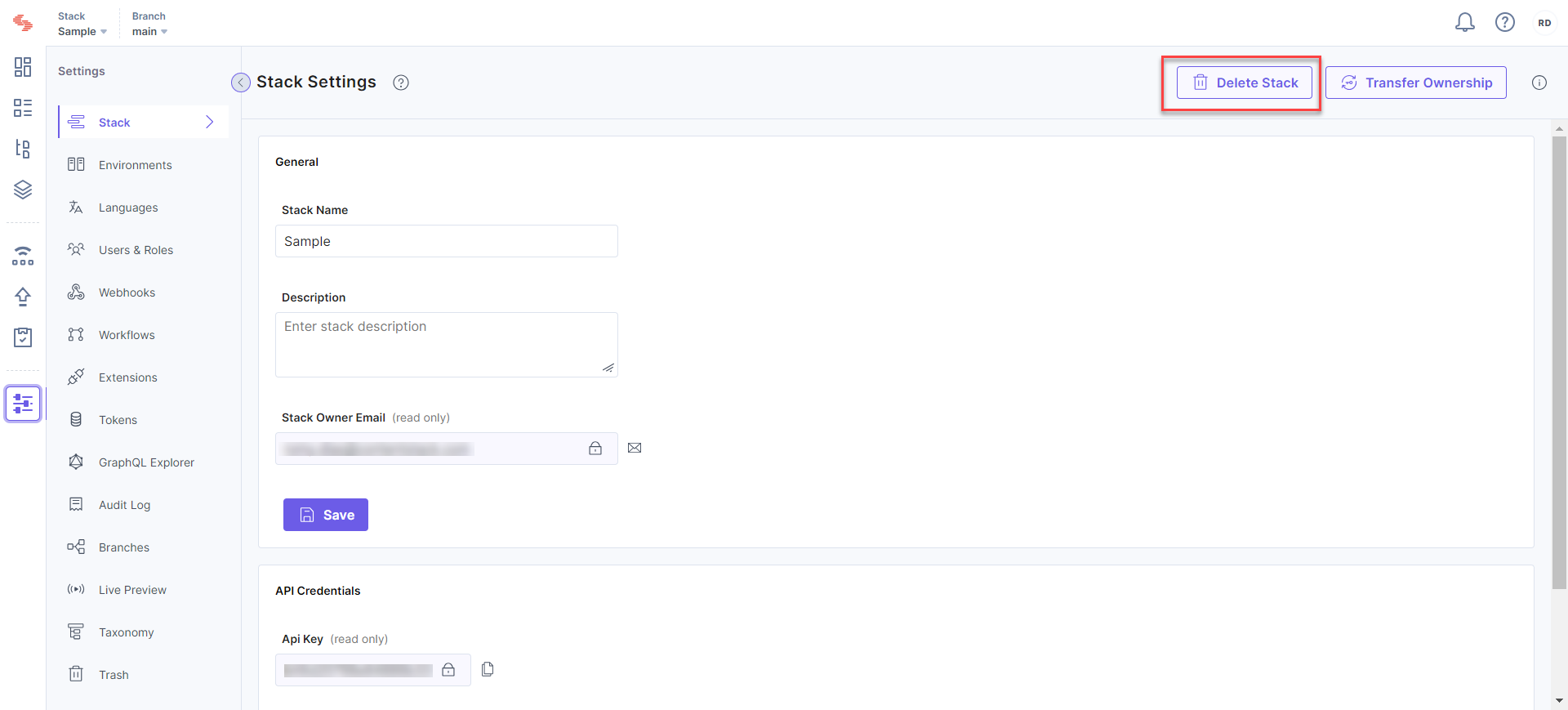
- Confirm the Delete action to delete your stack permanently.
Warning: Deleting a stack permanently deletes all content stored within that stack.
Related Resources
