

Create Custom Roles
Custom roles define organization-level (product-level) permissions for a Contentstack product when the default roles do not match a team's responsibilities. You create custom roles through Administration, select the permission categories that apply to the product, and choose the actions each role can perform.
Use custom roles to align access with internal responsibilities and compliance requirements, such as granting view-only access to one product area while restricting another.
Prerequisites
- Contentstack account
- Organization Owner or Admin permissions
What You Will Learn
-
How to create an organization-level custom role for a product.
-
Where custom roles become available after creation.
Create a Custom Role
To create a custom organization-level role, log in to your Contentstack account and perform the steps given below:
- Navigate to Administration through the "App Switcher", then click the Roles tab to view roles.
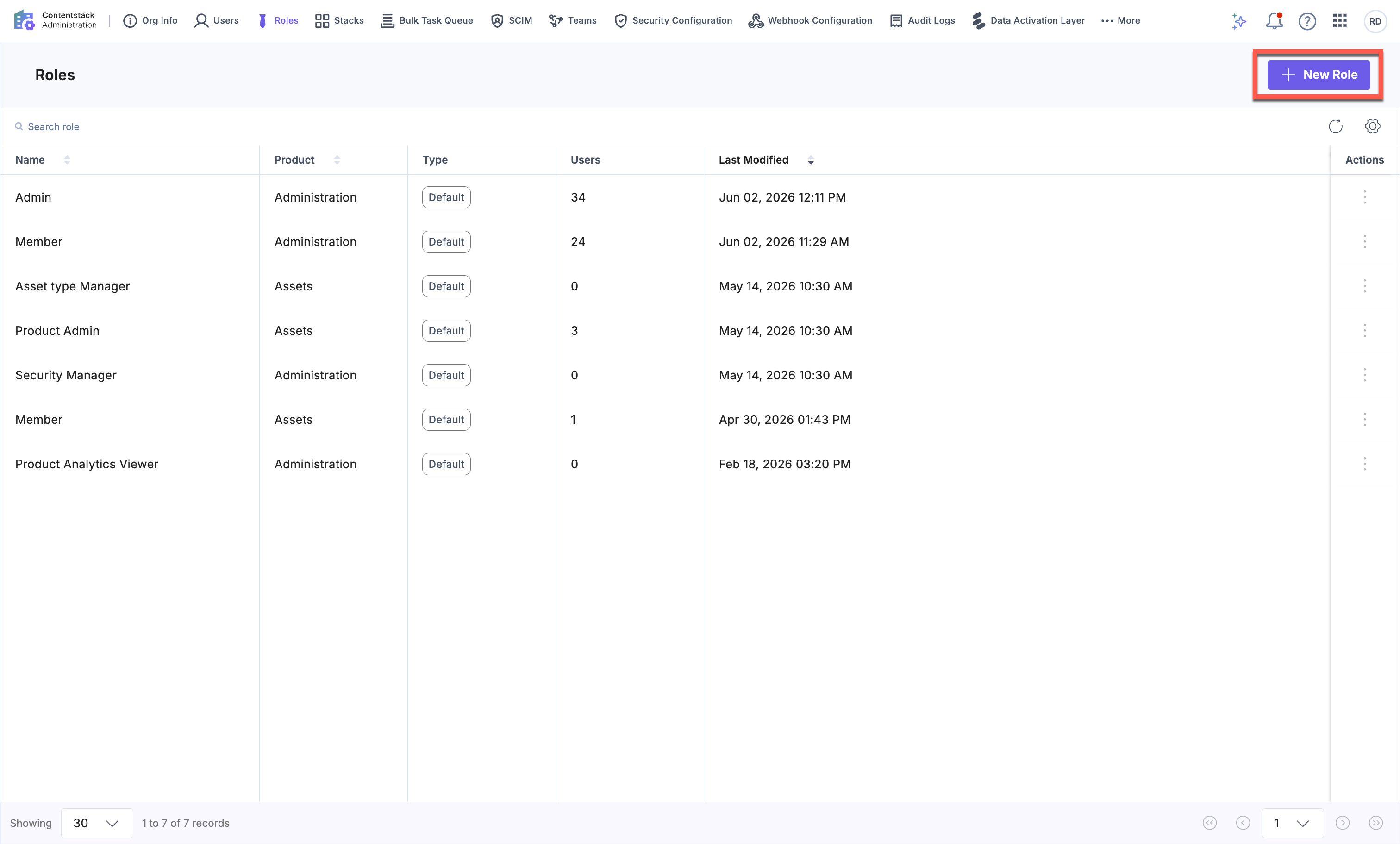
- Click + New Role.
- Enter a Name and a Description.
- Under Choose a Product, select the product the role applies to, such as CMS, Assets, or Administration.
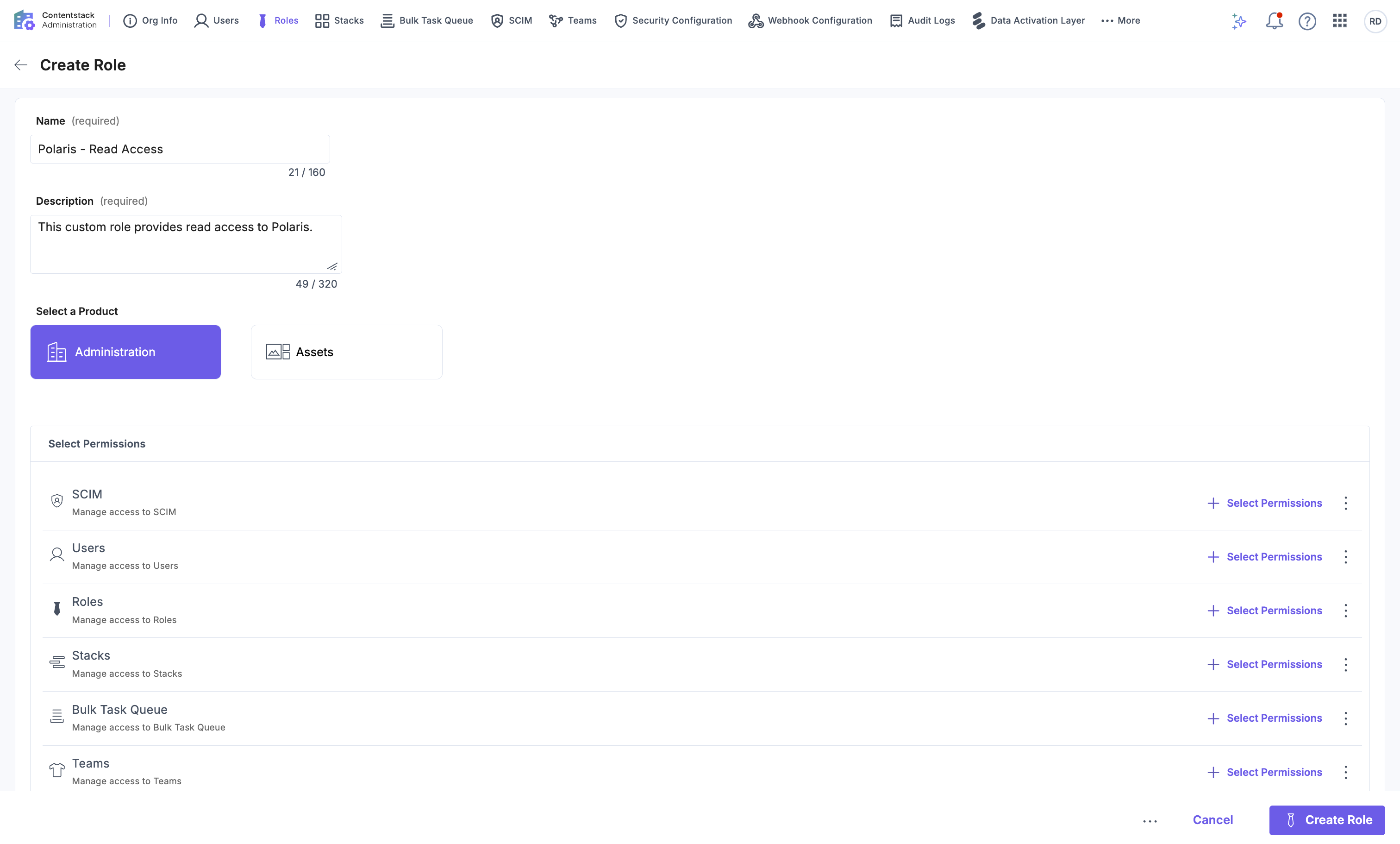
- Review the permission categories available for the selected product. The categories vary by product. For example, Assets includes Spaces, Fields, Asset Types, Users, Roles, and Languages.
- For each category, click + Select Permissions, or click the vertical ellipsis and select Manage Permissions.
- In the permissions side panel, select the required actions for the category, such as View, Create, Edit, or Delete.
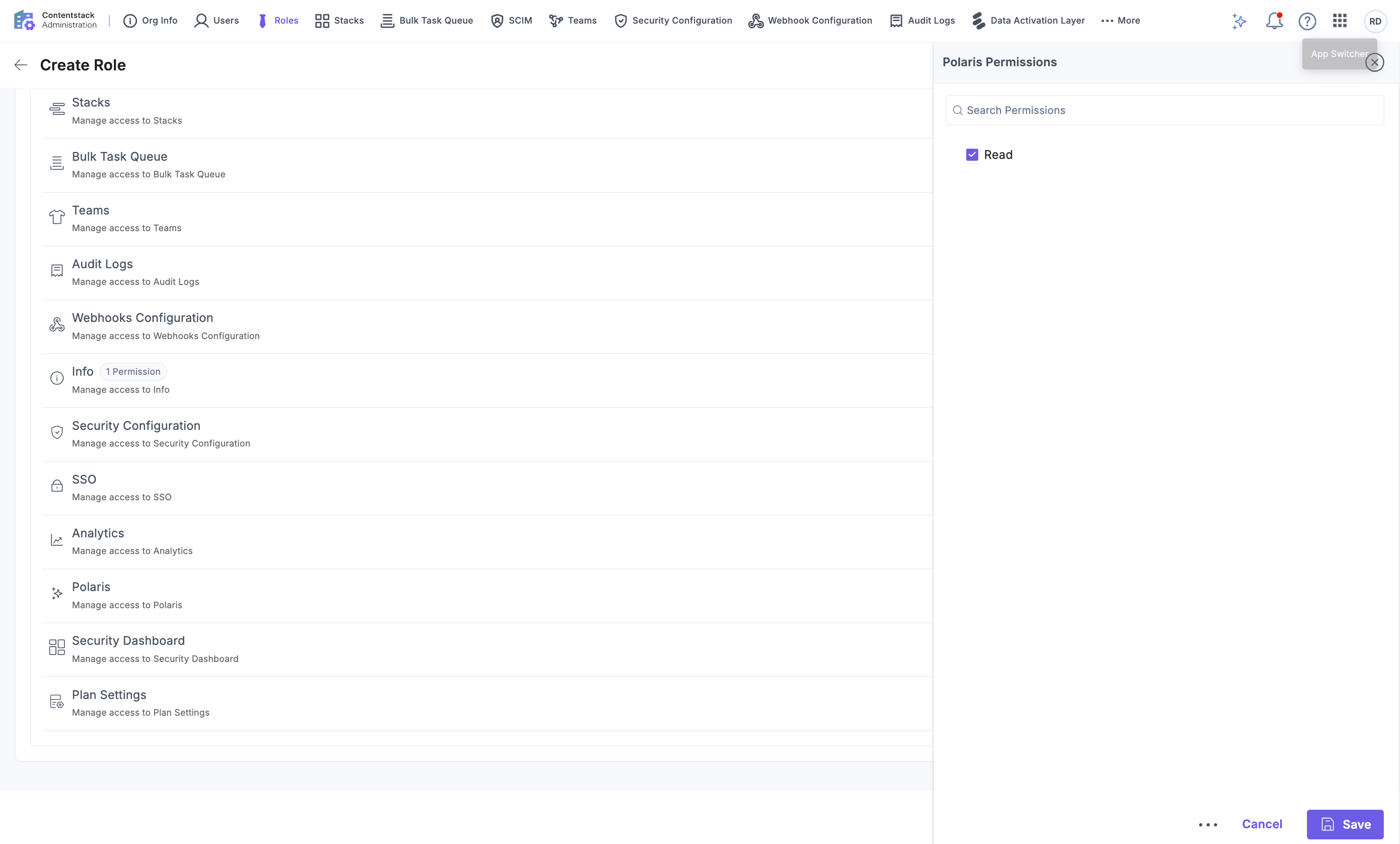
- Click Save.
Tip: Configure permissions only for the areas this role should access. Leave other categories unselected to restrict access.
- Click Create Role.
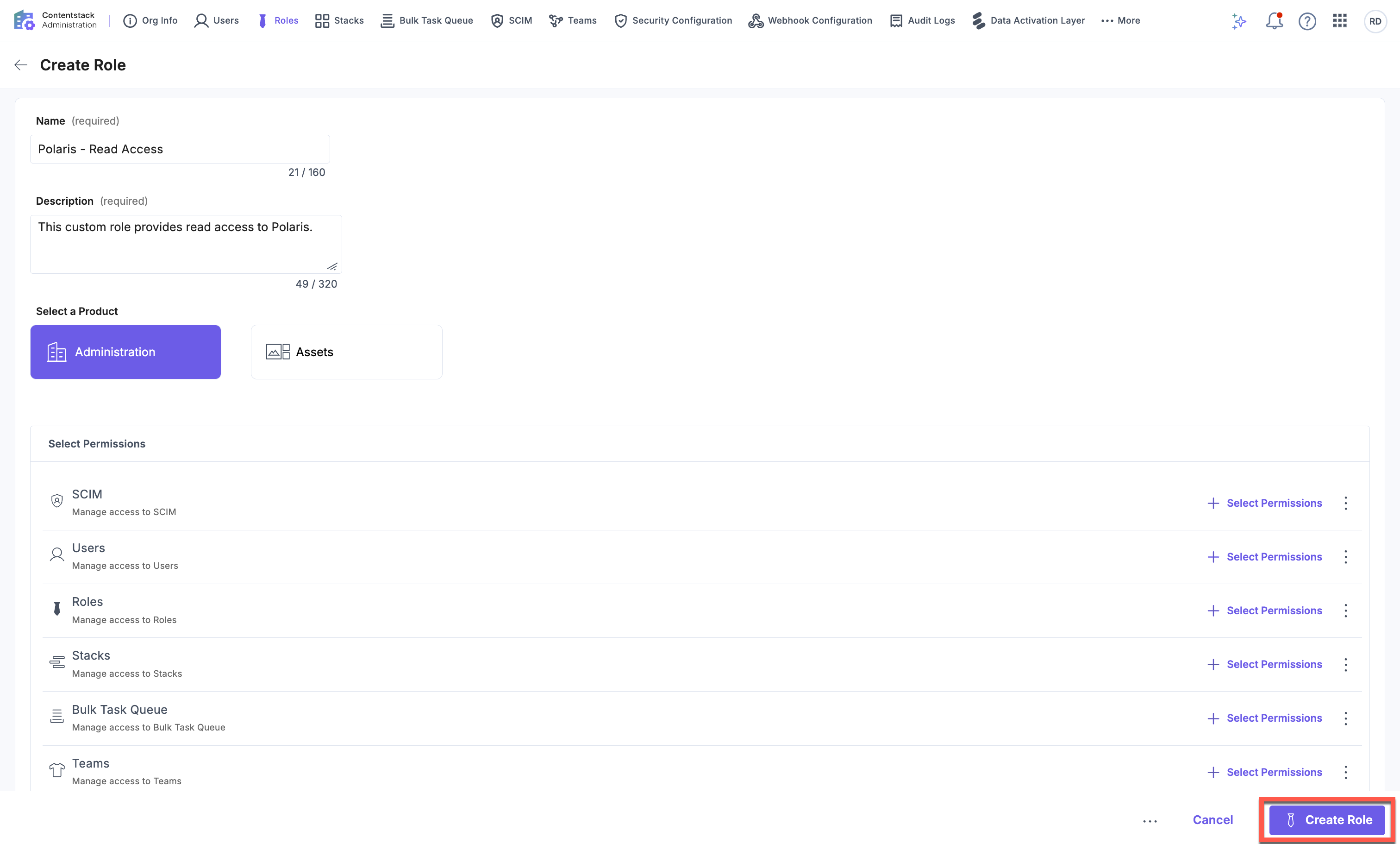
The custom role is created and appears on the Roles listing page with a Custom tag.
Where Custom Roles Are Available
After you create an organization-level custom role, it becomes available for selection when you:
- Invite new users.
- Edit an existing user's organization-level roles for that product.
Note: Only organization-level (product-level) custom roles can be created through Administration. Project-level custom roles, such as custom stack, space, or AgentOS project roles, must be created from the respective project or its per-product settings page. Project-level custom roles appear in the invitation flow once created, but you cannot create them from Administration.
Additional Resource: To assign roles when onboarding users, refer to the Invite Users to Organization documentation.
