

AI Credits
AI Credits are used to measure and manage AI-powered services within Contentstack. They provide visibility into your organization’s AI usage through a centralized dashboard, offering real-time data to help you track consumption, monitor trends, and prevent service interruptions.
The AI Credits dashboard provides a monthly view of usage and allows you to configure limits to control how credits are consumed.
Prerequisites
- Contentstack account
- Organization Owner or Admin permissions
- AI-enabled Contentstack products
Note: At least one product must be enabled in the Global AI Settings to view the AI Credits usage data. If no products are enabled, the dashboard will show zero usage.
What You Will Learn
How to open the AI Credits dashboard.
How to read monthly credit allocation and usage.
How to configure a Block or Allow Excess Usage for credit consumption.
View Your AI Credits
To access your credits usage, log in to your Contentstack account and follow the steps:
- Navigate to the "App Switcher" icon in the top-right corner and click Administration.
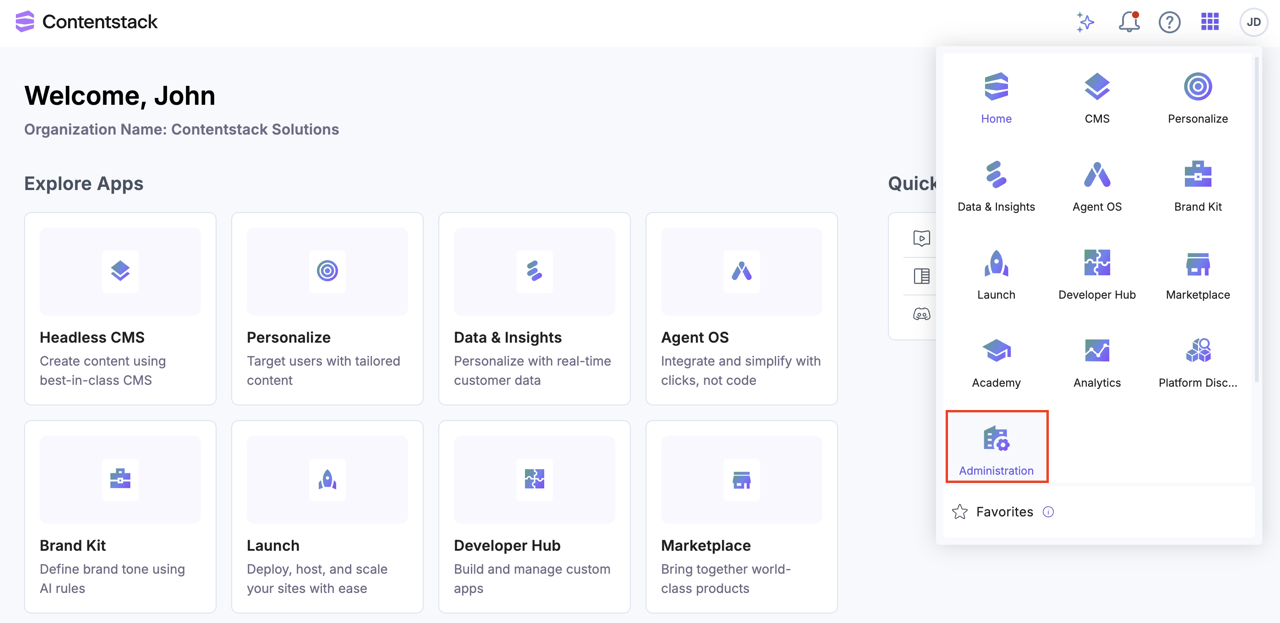
- From the top header, select AI Settings.

- Click the AI Credits option in the left navigation.

Credits Dashboard
- The Dashboard provides an overview of credit allocation and consumption for the current month.
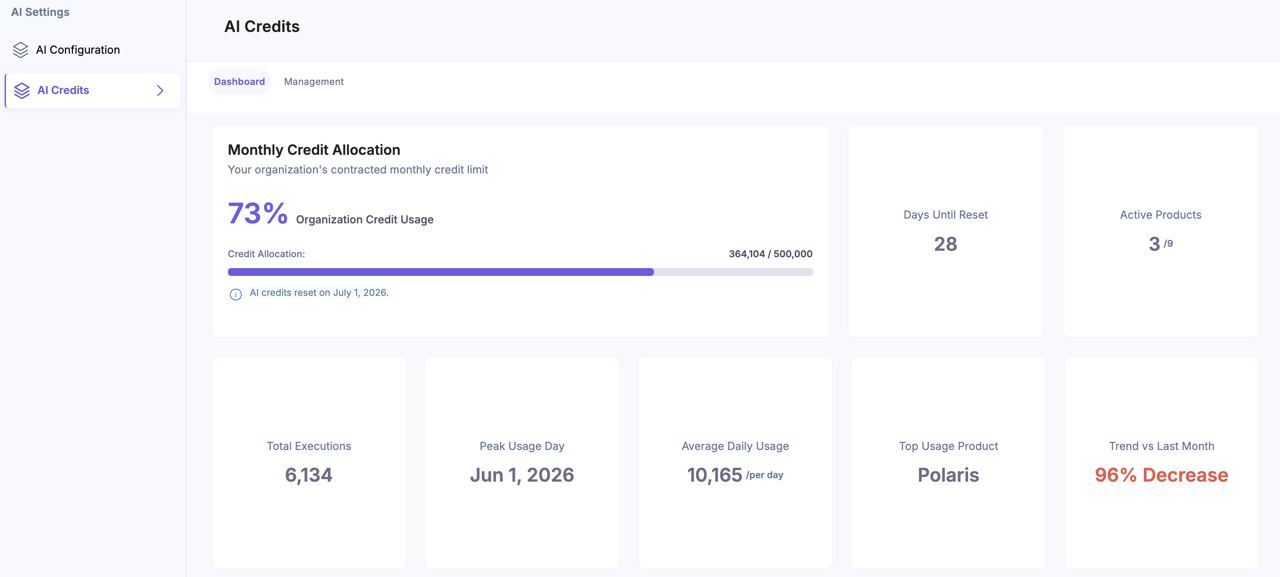
- Monthly Credit Allocation: The top section of the dashboard provides a high-level overview of your organization's AI resources.
- Organization Credit Usage Percentage: Displays the percentage of base credits consumed in the month.
- Credit Allocation: Shows the total number of credits used and allocated per month.
- Days Until Reset: Indicates the number of days remaining until credits reset.
Tip: AI credits reset on the 1st of every month.
- Monthly Credit Usage: The lower section of the dashboard provides a granular, visual breakdown of consumption patterns across the organization:
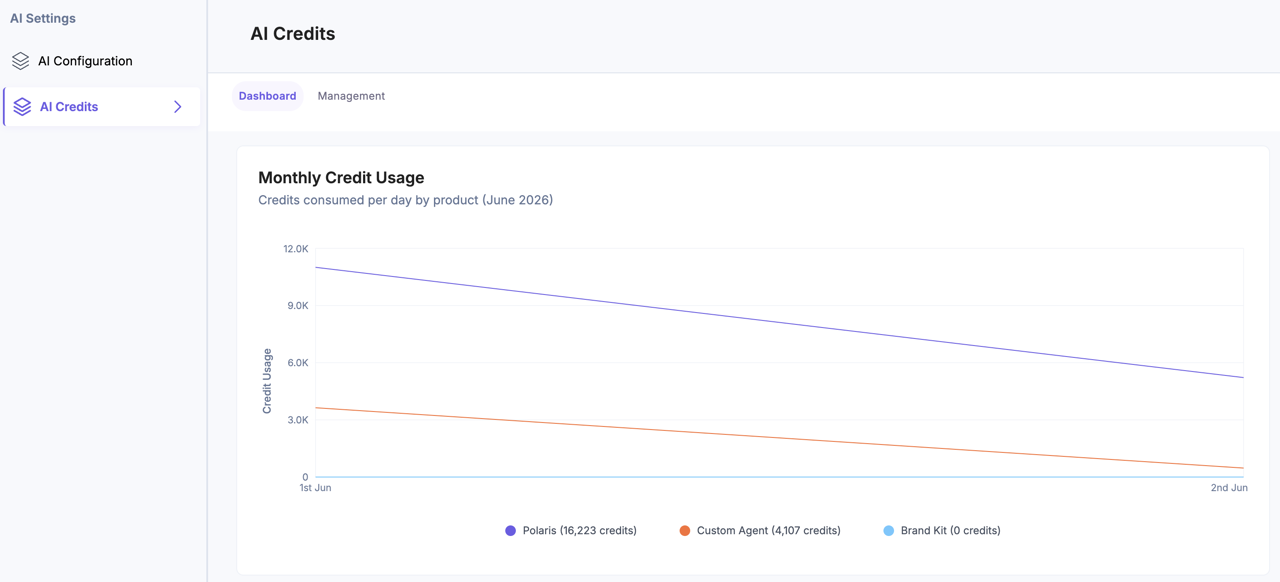
- Day-over-Day Monthly Usage Graph: Displays daily credit utilization to identify spikes in activity and analyze peak usage periods.
- Credits Consumed per Product: The graph is color-coded to differentiate between various AI-enabled products.
- Interactive Hover Details: Hover over the data points on the graph to view exact credit usage for a selected day and product.
Credits Management
- Monthly Credit Allocation: The top section of the dashboard provides a high-level overview of your organization's AI resources.
- The Management tab allows you to define how the system behaves after the credit allocation is exhausted.

- Block Excess Usage: (Default): Blocks all AI operations when 100% of your allocation is consumed.
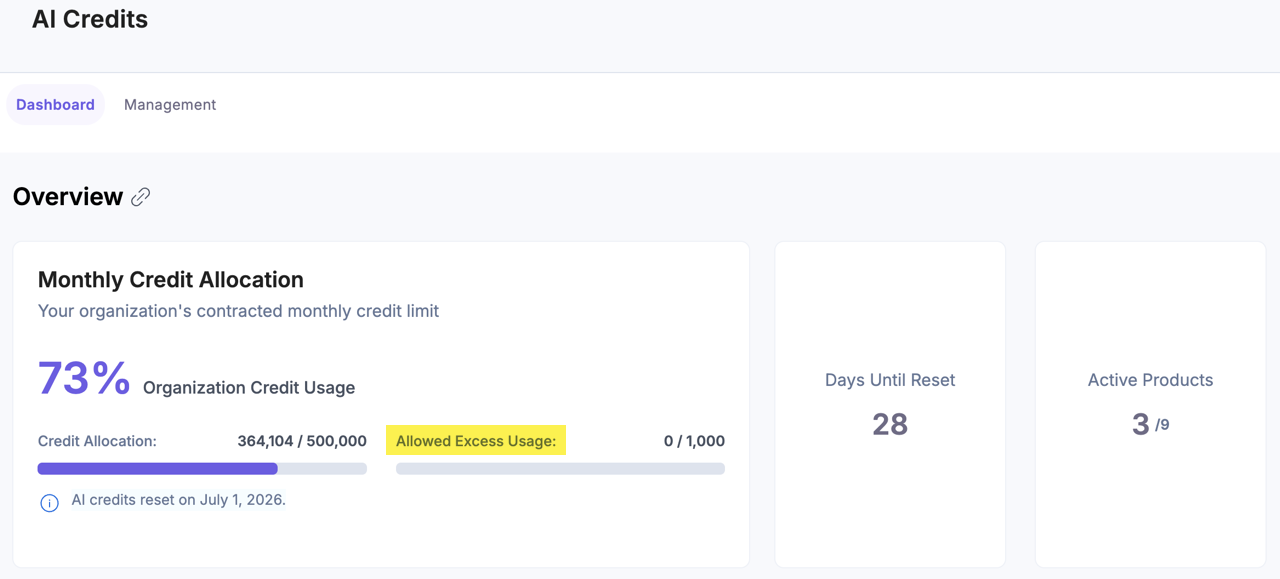
- Allow Excess Usage: Allows usage beyond the credit limit to a specified amount of credits.
Select this option and enter a specific numerical limit to define your additional credit allowance. Once you save the changes, you can resume your AI operations until you reach the defined limit.
Note: Usage beyond the basic credit allocation is billed at a higher rate.
Navigate to the AI Credits Dashboard to view the Allowed Excess Usage to track the total number of extra credits utilized.
Additional Resource: To learn more, refer to the Analytics for AI Credits documentation.
